









 New features
Quotes, bank matching and the year's accounts for halls
HallPro now takes a booking from quote to accounts: send a quote the hirer accepts online, match the bank statement to your invoices, and have the year's receipts and payments account ready for the AGM. Hirers can ask to move a booking and record how they found the hall.
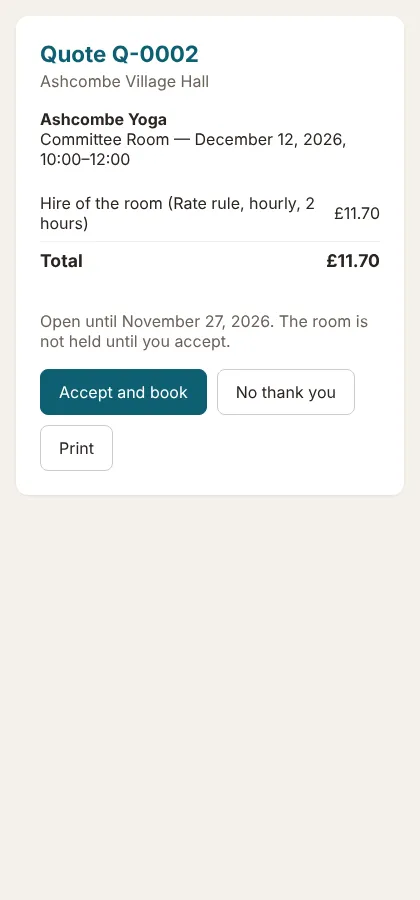
Quotes hirers accept online
Choose the room, dates, extras and deposit and send the quote. When the hirer presses Accept and book, the booking and the deposit invoice are made for you. Standard plan.
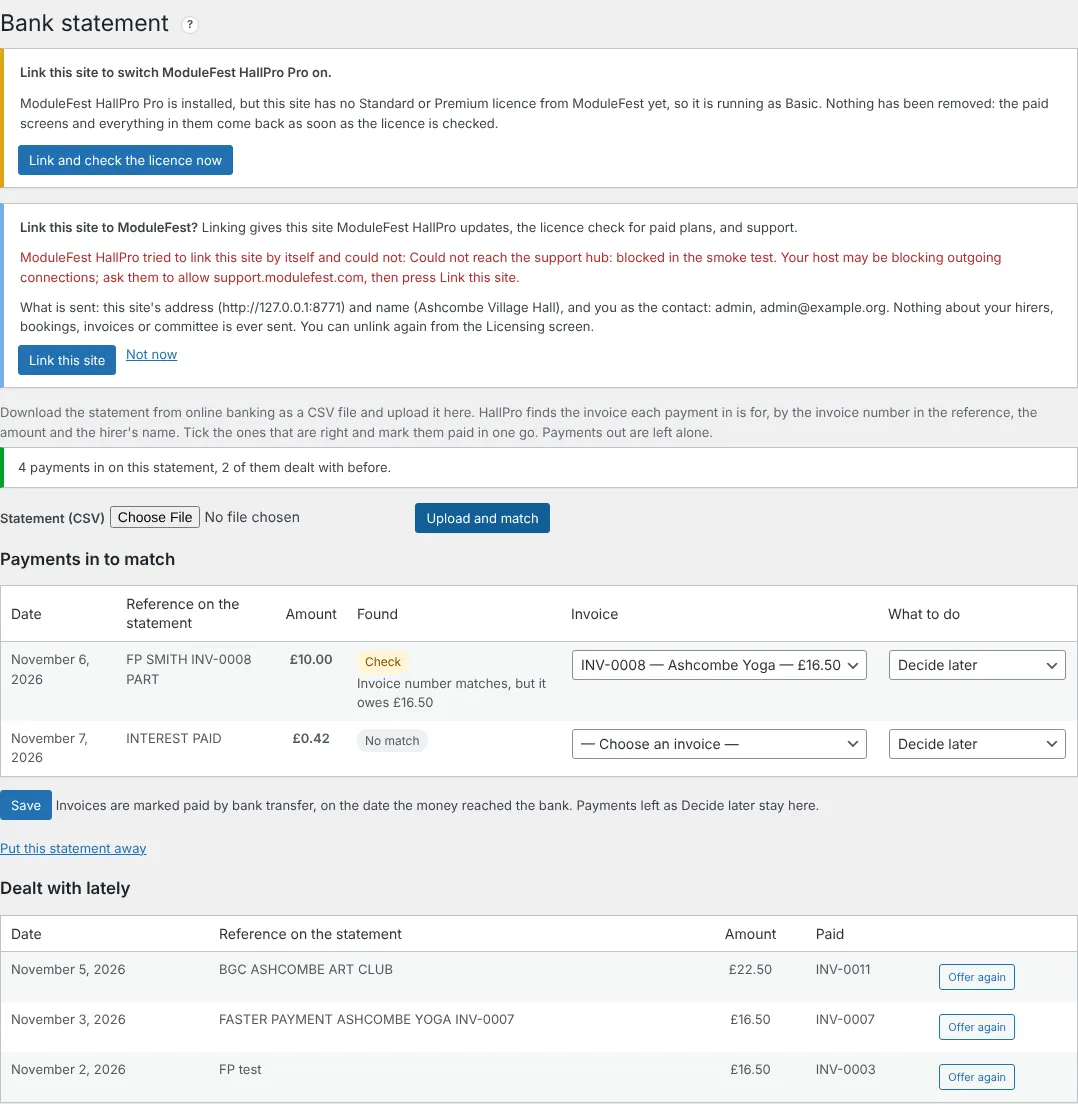
Bank statement matching
Upload the statement from online banking as a CSV, check the suggested matches and save. The paid invoices are marked for you. Standard plan.
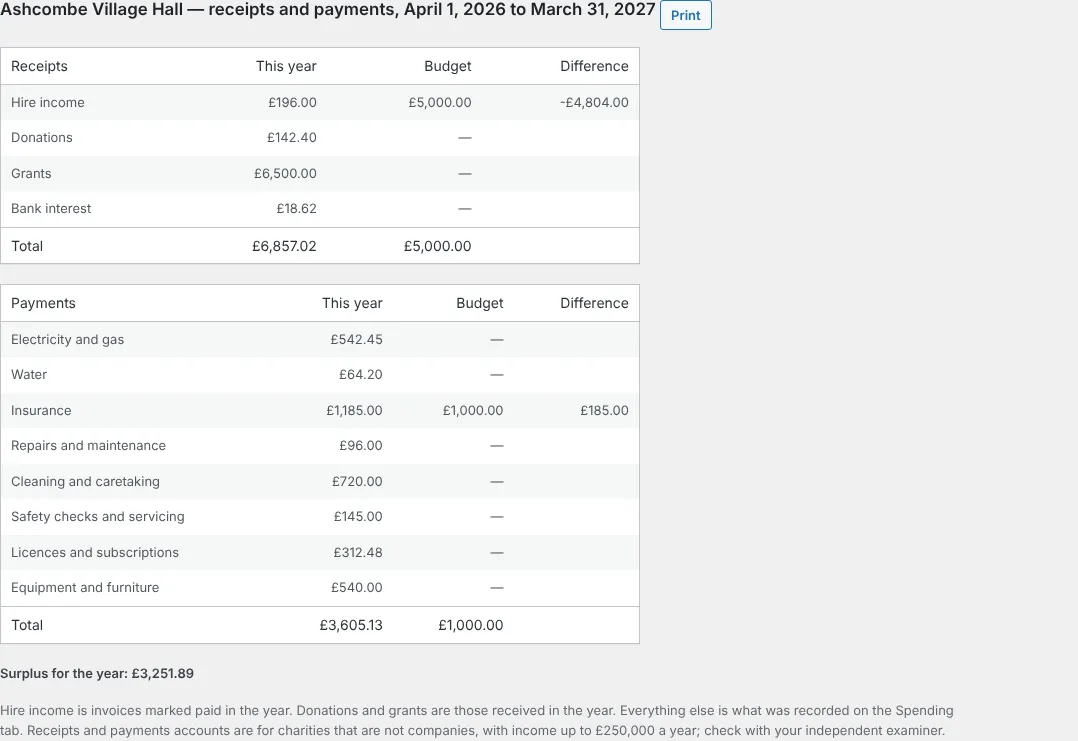
Spending and the year's accounts
Record payments with a receipt photo, set a budget, and open the receipts and payments account for the AGM. Standard plan.
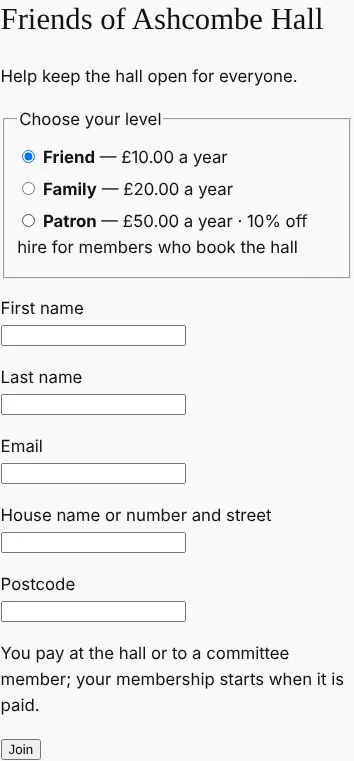
Friends of the hall
Levels with a discount on hire, and joining and renewing on your website. Standard plan.
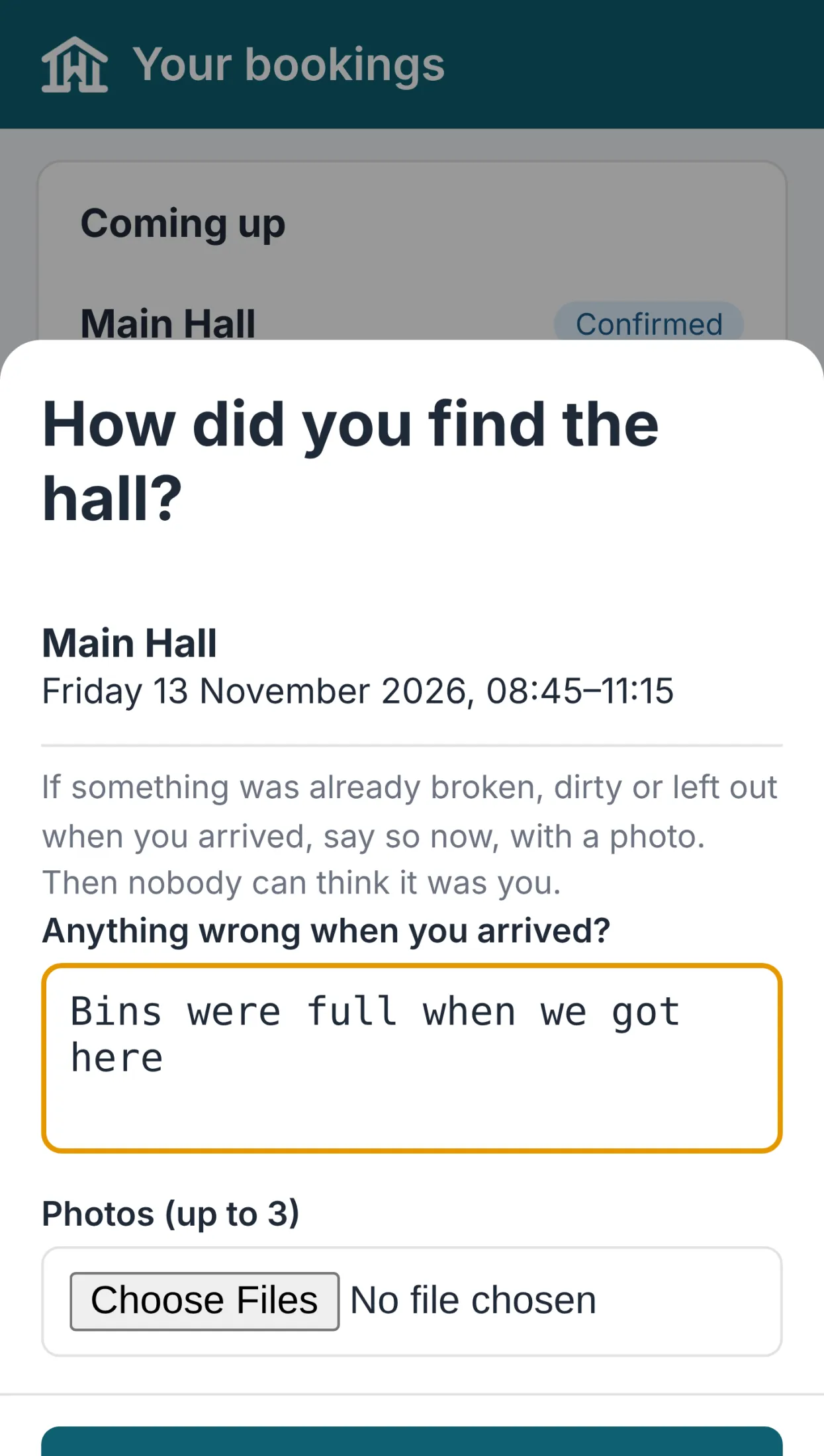
Helpers' hours
The cleaner logs hours in the committee app, and you approve and mark them paid. Standard plan.
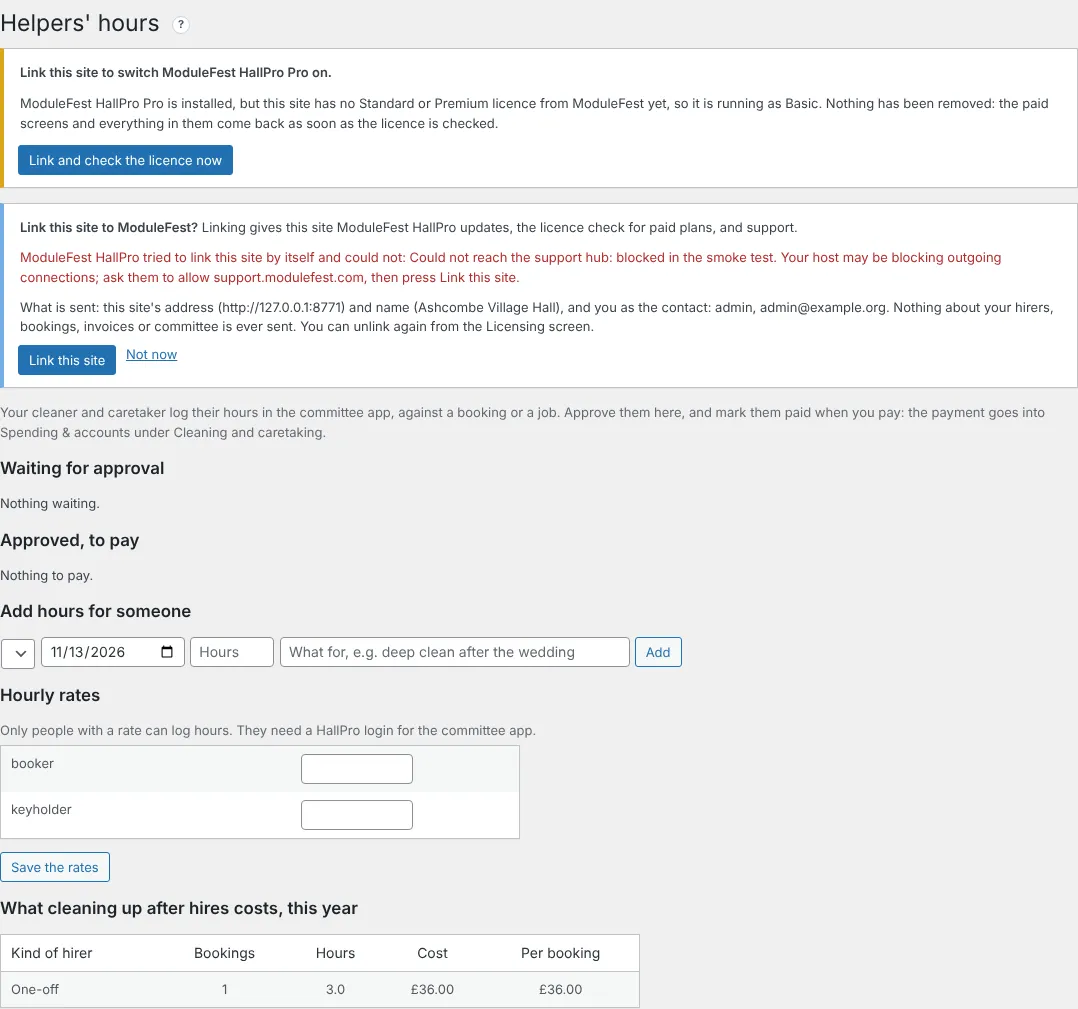
Hirers ask to move a booking
The hirer asks in their app, HallPro checks the hall is free, and you agree in one click. On every plan.
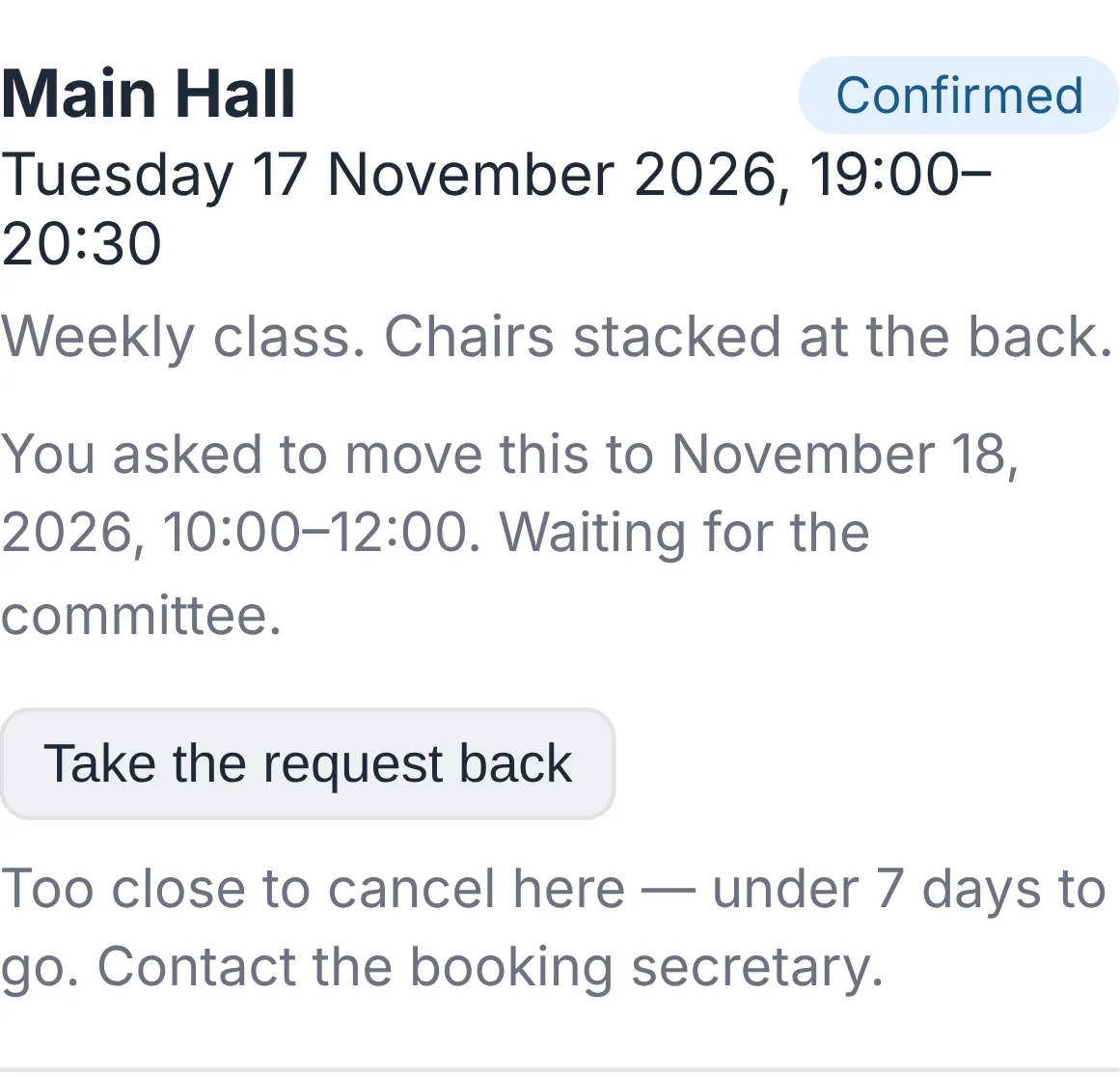
Arrival check and invoice cards
Hirers record how they found the hall, with photos, and see every invoice as a card with a View & Pay button. A wedding weekend can now be one booking, and a hirer can have more than one contact. On every plan.
Versjonsnotater
0.113.40November 13, 2026
One booking can now cover a whole weekend or week.
Find it at Bookings.
- Give the start, for example Friday 17:00.
- Give the finish on a later day, for example Sunday 12:00.
- Save.
- It is checked for clashes over the whole time.
- It shows on the job sheet and foyer screen on every day it covers.
- Each day is priced within your opening hours and added up.
- Free on every plan.
Send leietakere et pristilbud de kan godta på nett, så booker det seg selv.
Du finner det under Bookings › Quotes.
- Trykk på New quote og velg leietaker, rom, datoer, tillegg og depositum.
- Trykk på Save and send to the hirer.
- Leietakeren åpner lenken og trykker på Accept and book.
- Godkjenning sjekker at rommet fortsatt er ledig og oppretter en bekreftet booking, inkludert tillegg.
- Leietakeren blir minnet på det tre dager før tilbudet utløper.
- Krever Standard-abonnementet.
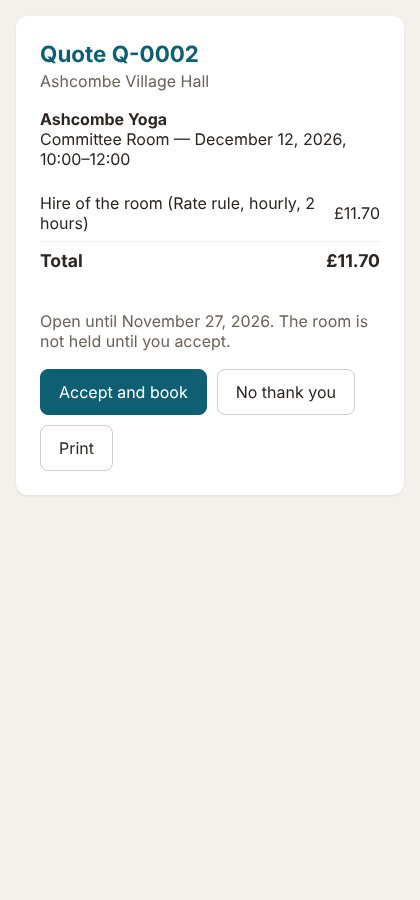
Pristilbudssiden 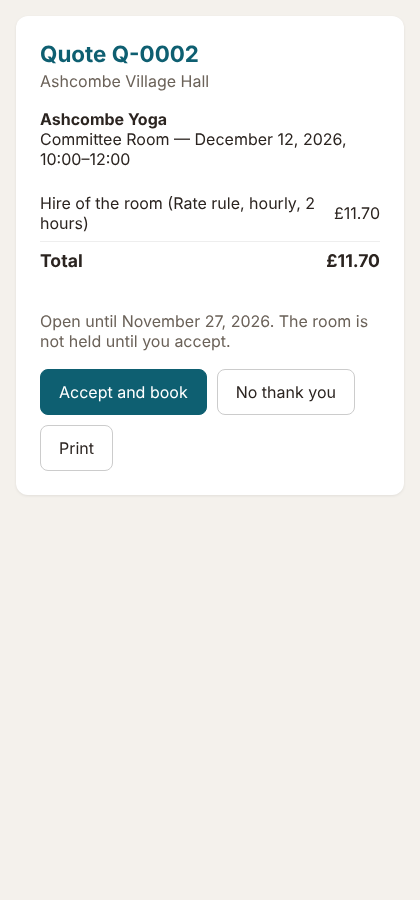
Renholderen logger timene sine på telefonen, og du godkjenner og betaler med to klikk.
Du finner det under Committee › Helpers' hours.
- Angi timeprisen for hjelperen.
- De trykker på Log my hours på Today i komitéappen.
- Du trykker på Approve, og deretter på Mark paid når du betaler.
- Betalingen føres automatisk inn i Spending & accounts.
- Se hva renhold etter de ulike leietakertypene koster.
- Tilgjengelig på Standard-abonnementet.
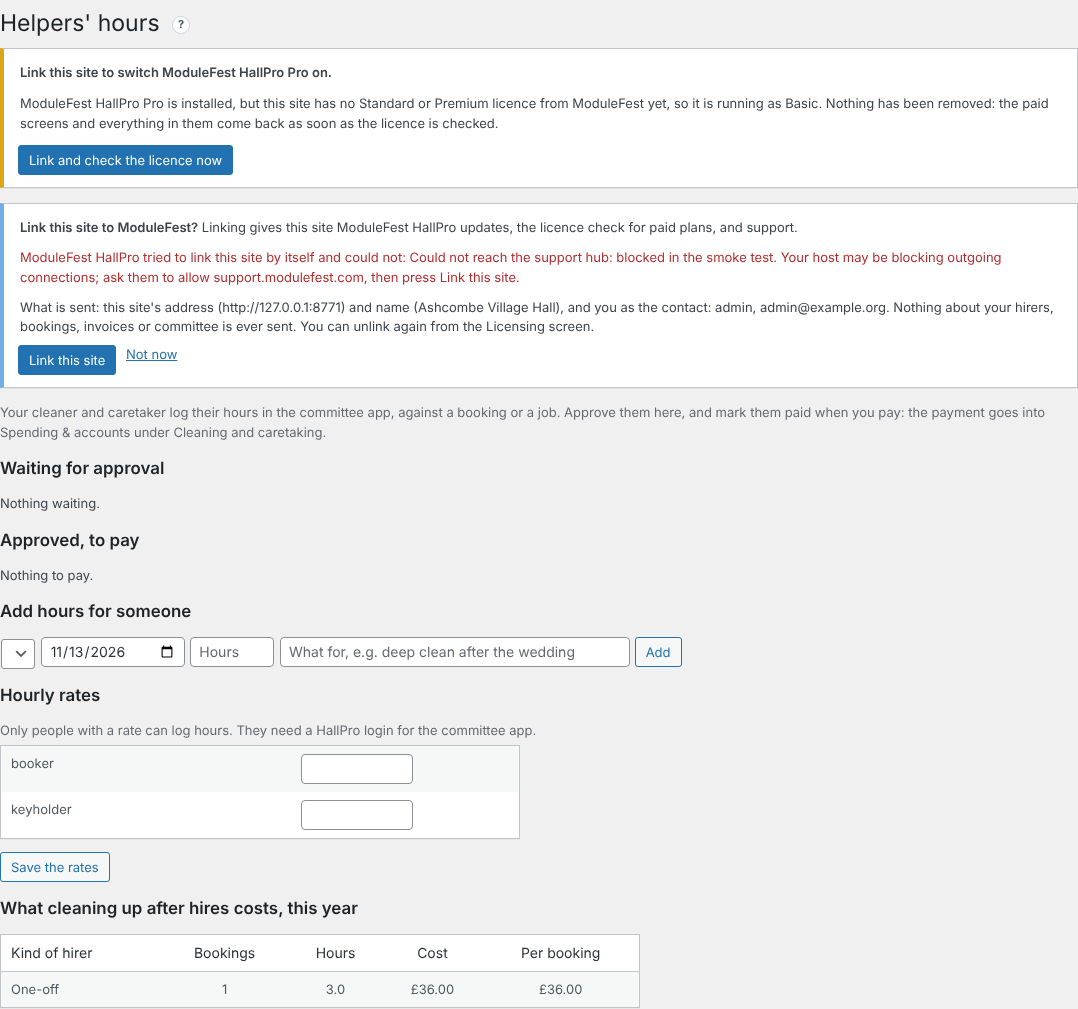
Helpers' hours 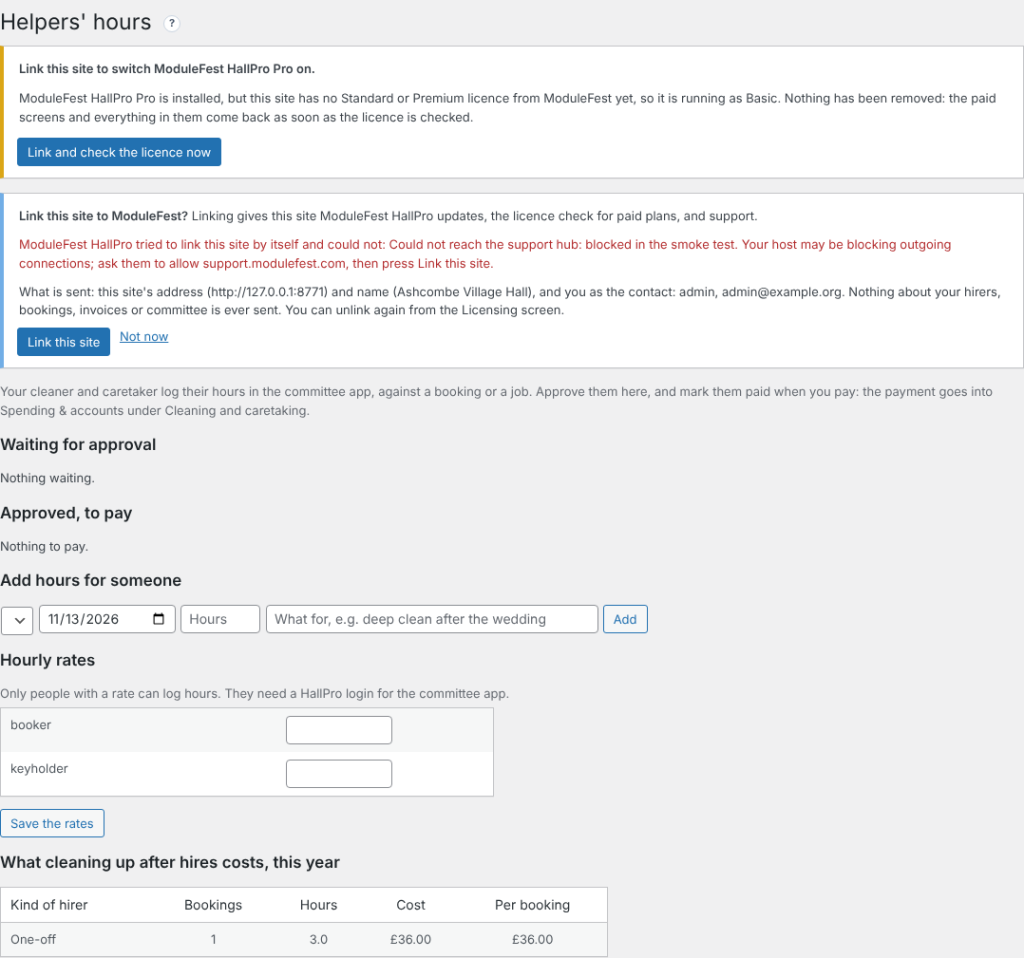
Legg til kassereren, nøkkelansvarlig og andre til en leietaker, slik at hver enkelt får det de trenger.
Du finner det under Hirers, på leietakerens oppføring.
- Under Other contacts legger du til navn og e-post.
- Kryss av for hva de skal motta: fakturaer, bestillingsbekreftelser, dørkode eller sin egen pålogging til appen.
- Trykk på Add contact.
- Kopier sendes kun med e-poster som er ment for leietakeren.
- Gratis på alle abonnementer.

Other contacts 
Kjør venneforeningen din for huset i HallPro: påmelding på nett, fornyelser og leierabatt.
Du finner det under Community › Friends of the hall.
- Angi medlemsnivåer og eventuell rabatt på leie.
- Kryss av for Let people join and renew on the website og opprett påmeldingssiden.
- Medlemmer melder seg inn og betaler med kort, eller betaler på huset.
- E-poster om fornyelse sendes ut en måned før; ubetalte medlemskap utløper en måned etter.
- Tilordnede leietakere får rabatten sin automatisk.
- Tilgjengelig på Standard-abonnementet.
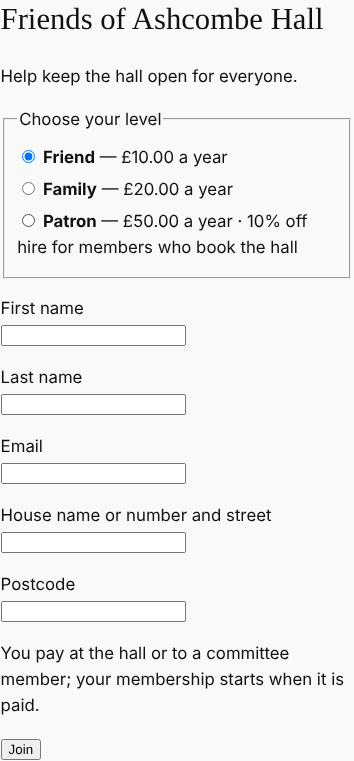
Påmeldingssiden 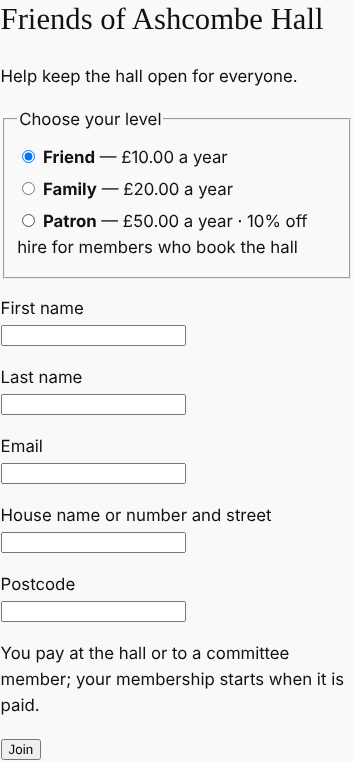
0.113.38November 13, 2026
Upload your bank statement and HallPro marks the paid invoices for you.
Find it at Money › Bank statement.
- Download the statement from online banking as a CSV file.
- Upload it and press Upload and match.
- Check the suggestions and press Save.
- Match: the invoice number and amount are right.
- Likely: the amount and the hirer's name are right.
- Check: look before you mark it paid.
- Invoices are marked paid on the date the money reached the bank, and the same payment is never offered twice.
- On the Standard plan.
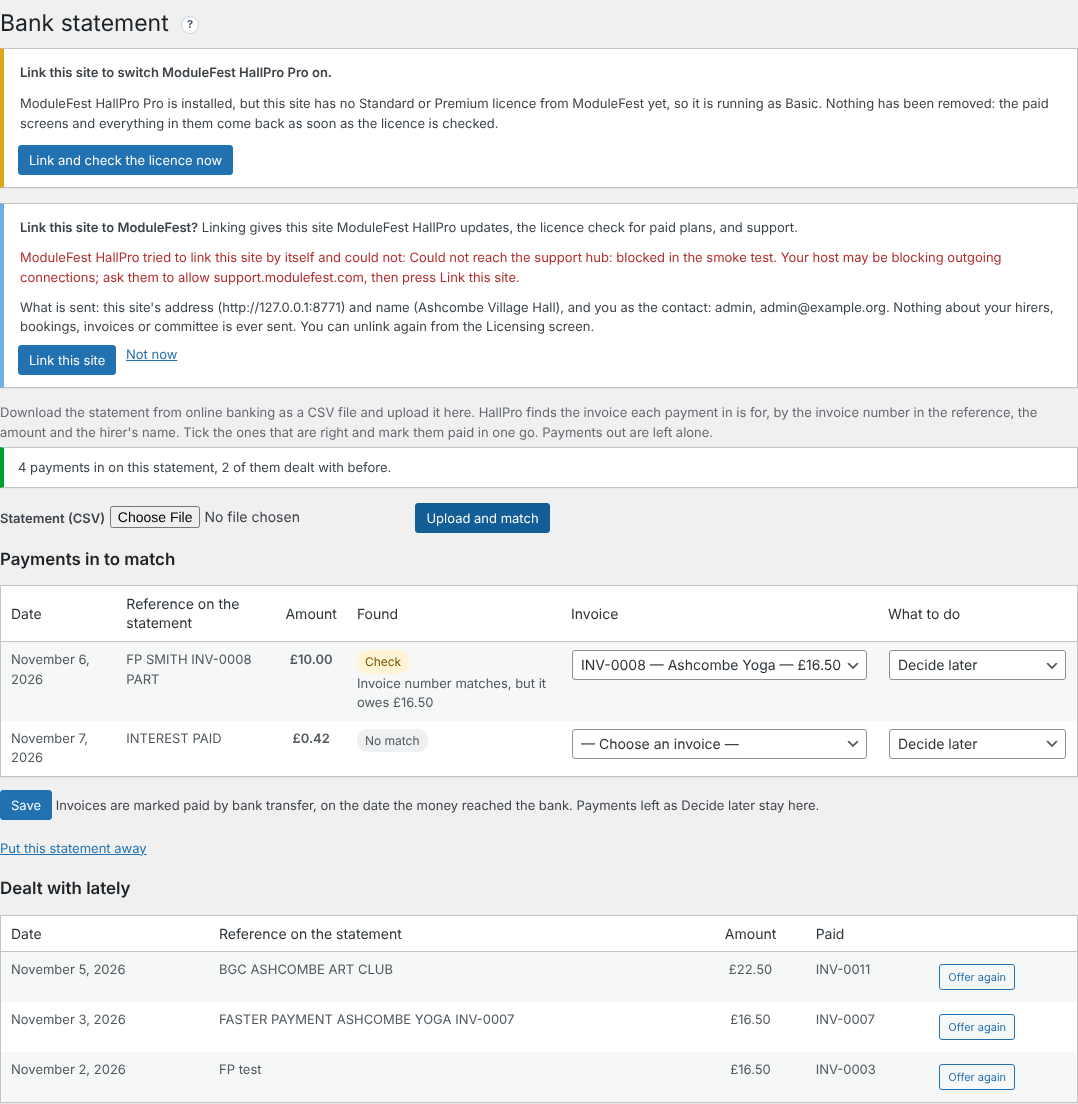
Payments matched to invoices 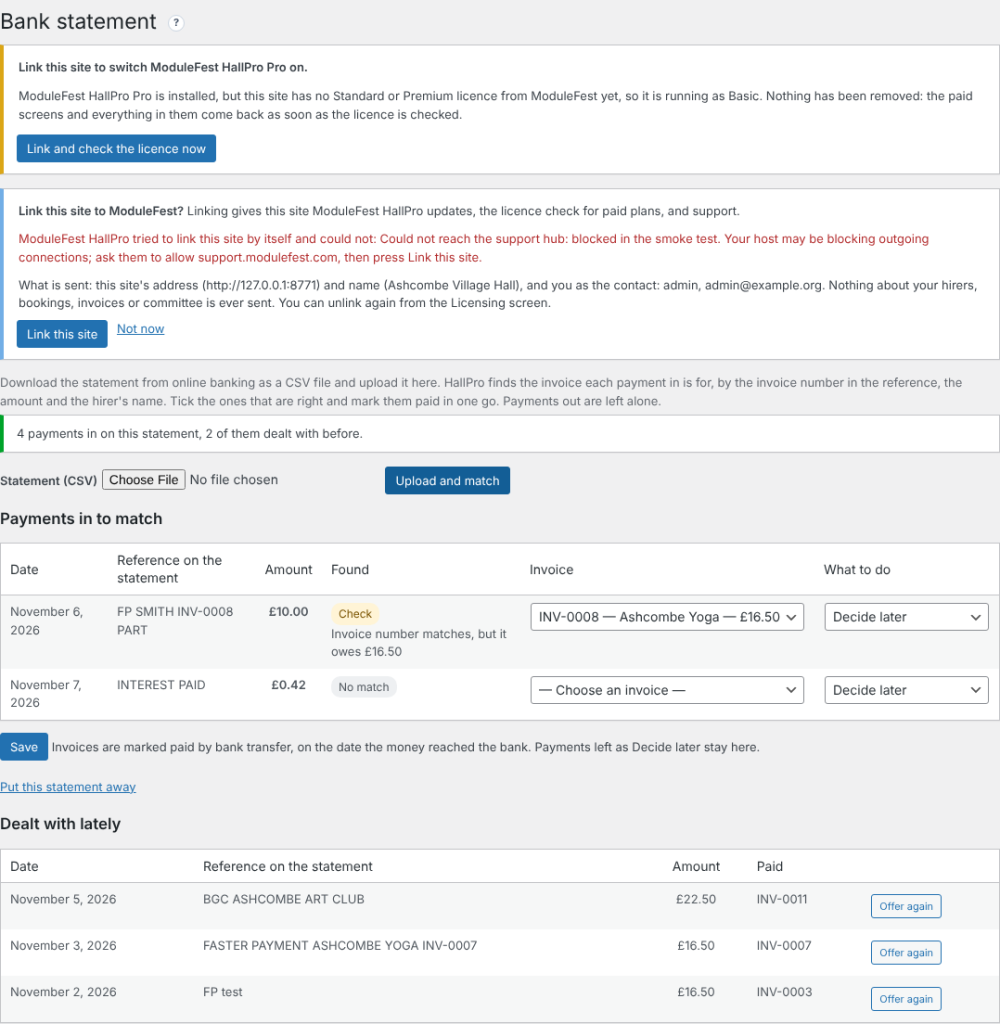
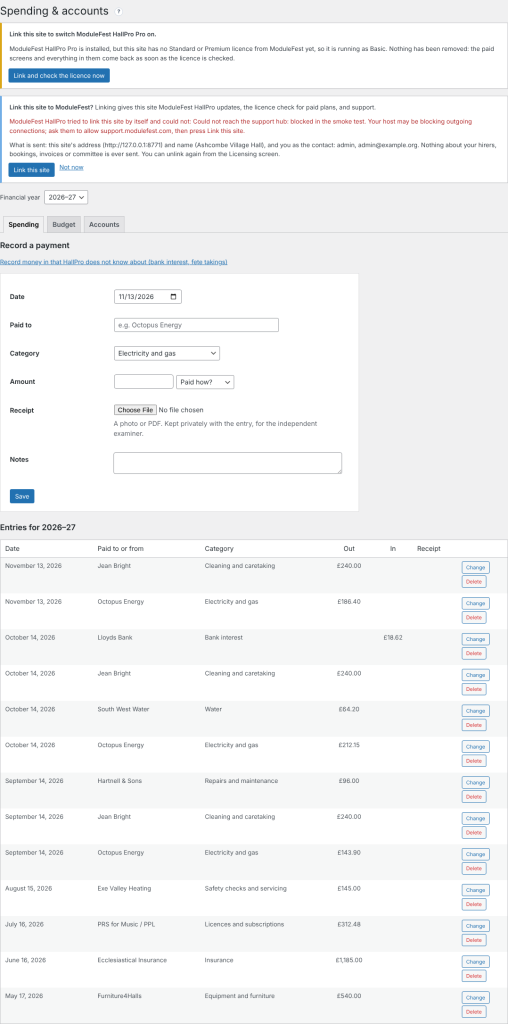
Keep the hall's spending in HallPro and get the year's accounts for the AGM.
Find it at Money › Spending & accounts.
- Record each payment with a category and a photo of the receipt.
- Set the year's budget on the Budget tab.
- Open the Accounts tab and press Print.
- Hire income, donations and grants are filled in for you.
- The budget and the difference are shown beside each line.
- On the Standard plan.
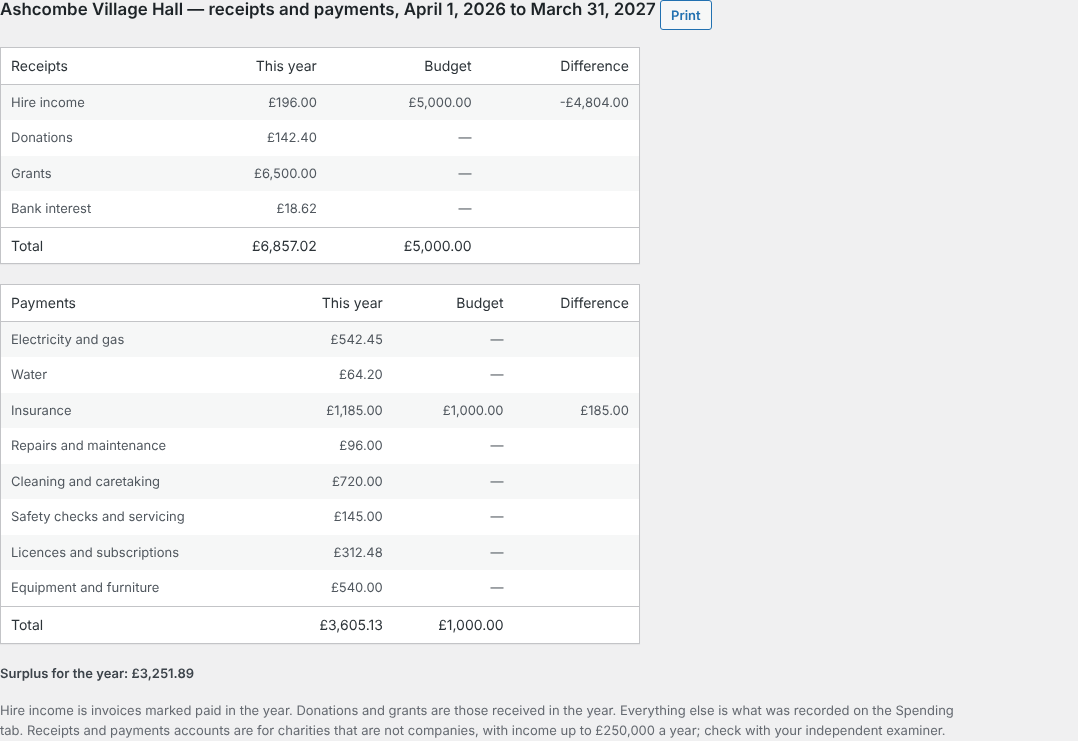
The receipts and payments account 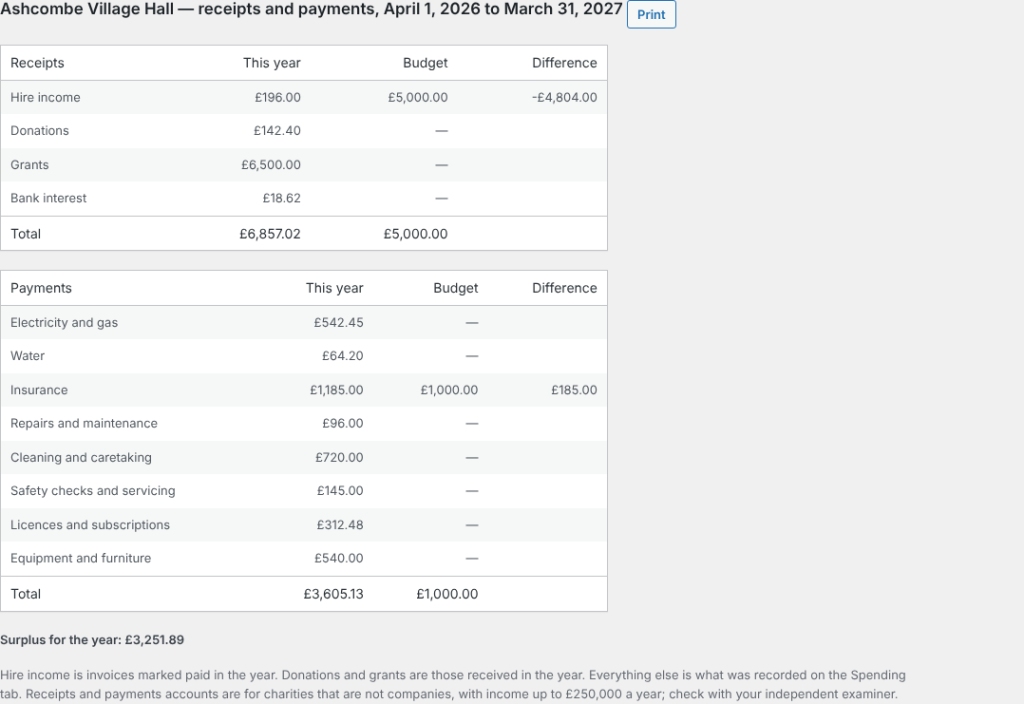
Hirers can now tell you how they found the hall when they arrive.
It is in the hirers' app, on the booking.
- From an hour before the hire, the hirer presses Arrival check.
- They say what was wrong, if anything, and add up to three photos.
- You see it above the end-of-hire checklist on Bookings and Damage deposits.
- The committee is emailed when something was wrong.
- Free on every plan.
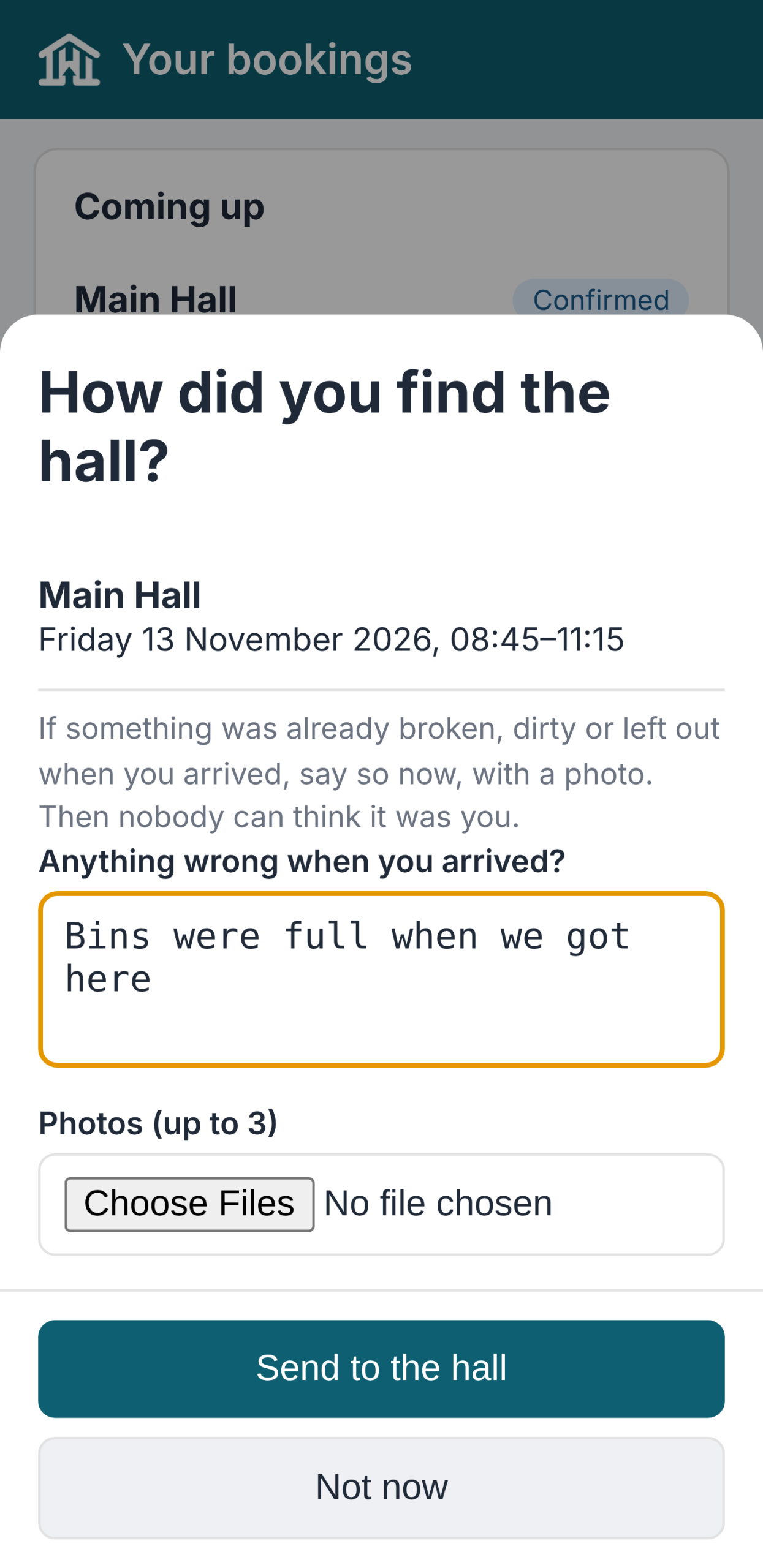
The arrival check 
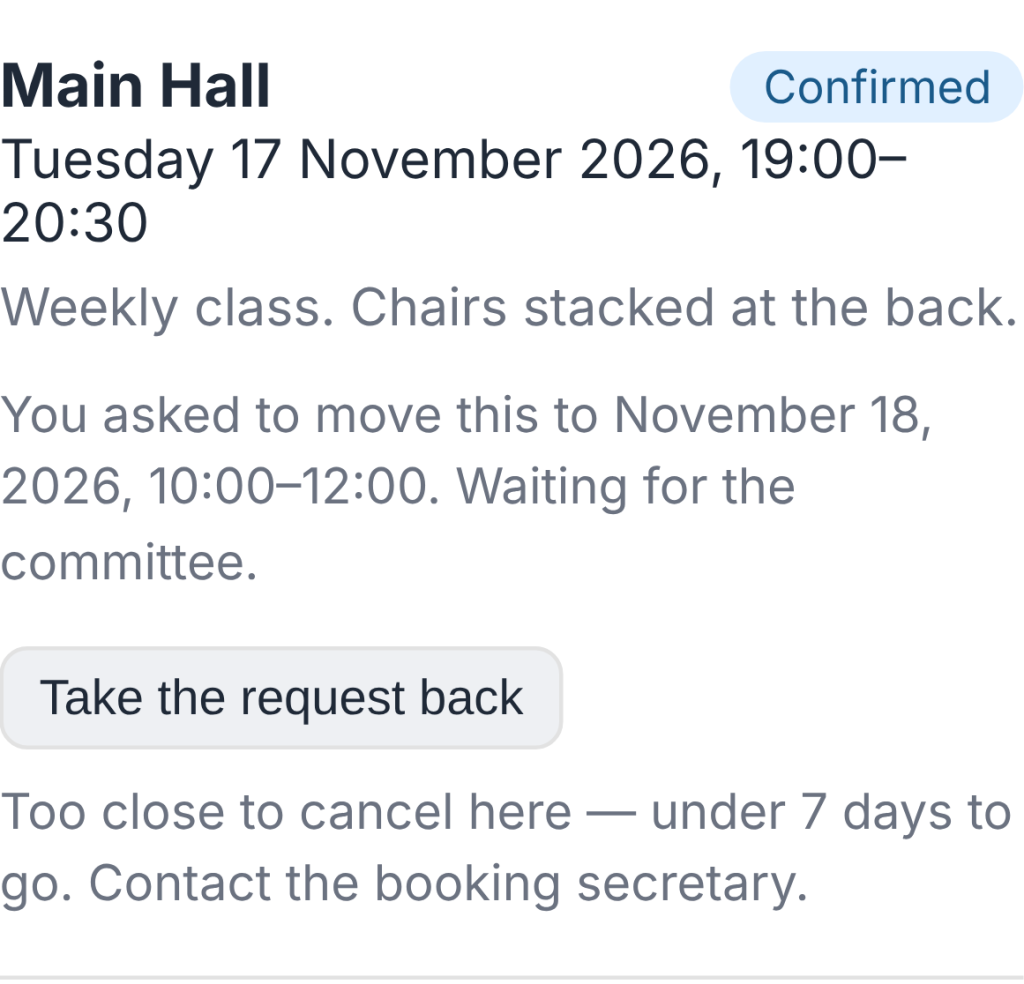
Hirers can now ask to move a booking, and you answer with one click.
Find it at Bookings (and on the Dashboard).
- In the hirers' app, the hirer presses Ask to move this booking and picks a new time.
- HallPro checks the hall is free and open then.
- You press Agree and move it or Say no.
- The hirer is emailed either way, and the old time is offered to the waiting list.
- If the new time costs a different amount, you are told; the invoice is not changed by itself.
- Free on every plan.

The request on the Bookings screen 
0.113.37November 11, 2026
You can now see how the foot of an invoice looks before you put in your own bank details.
Find it at Settings › Demo Data.
- Find Payment details and press Import.
- Open any unpaid invoice in the hirers' app, or its PDF.
- The invoice shows demo bank details, cheque wording and a treasurer to contact.
- The sort code is 00-00-00, which no bank uses, so a payment sent there by mistake is refused.
- Invoicing & Payments warns while the demo details are in. Save your own there, or remove Payment details, before sending real invoices.
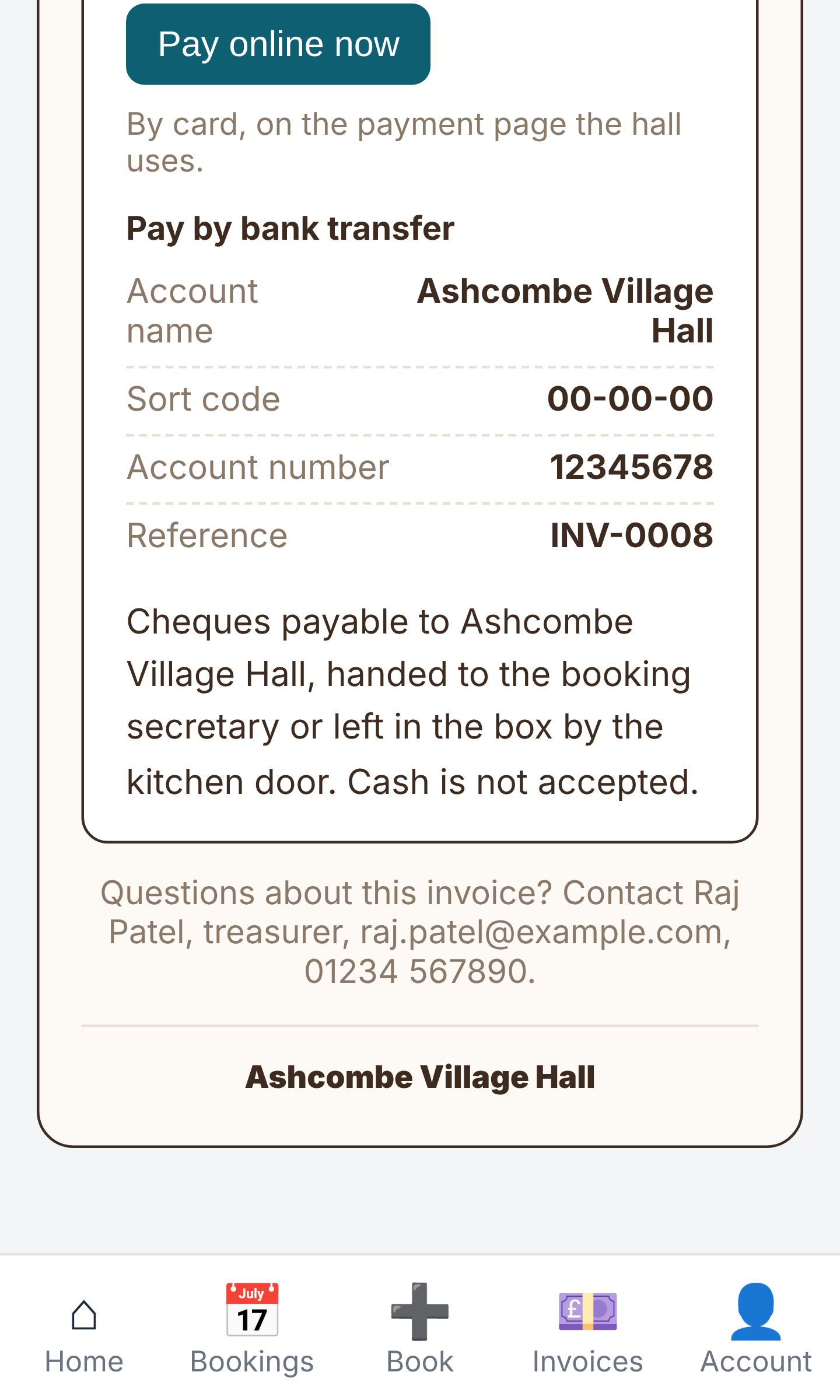
Demo payment details at the foot of an invoice
ModuleFest HallPro
Driv bygdehuset eller grendehuset ditt fra ett sted.
Flere nyheter
 Ny funksjonPet Groomer 2.77: Account credit and monthly billingManage advance payments and bill chosen clients just once a month.Se hva som er nytt →
 Ny versjonModuleFest Pet Walker 2.771.222Kunder kan nå betale på forskudd og få fakturaene sine betalt fra saldoen. Også i denne versjonen: etterskuddsbetaling per måned: én faktura ved månedsslutt for utvalgte…Se hva som er nytt →
 Ny versjonModuleFest Trades Business Manager 0.14.42Jobs, quotes, invoices and stock for tradesSe hva som er nytt →