









 New features
Fairer pricing, customer flags and your website on one screen
The pet business plugins have new ways to price fairly: fees for late cancellations and no-shows, a discount for households with several pets, price rises that tell the customers affected, and account credit. Customer flags warn the team about a customer at a glance, and your website now has one plain screen of its own.
Late-cancellation and no-show fees
Set how much notice you need, and a fixed fee or a share of the booking for a late cancellation and for a no-show. Mark a missed booking as a no-show and the fee goes on the next invoice. On every plan, even free.
- Settings › Bookings › Late-cancellation and no-show fees
Multi-pet discount
Give money off when a household books two or more pets together, as a percentage or a fixed amount, on every pet after the first or on the cheapest. On the Standard plan.
Price rises with notice
Enter a service's new price and the day it starts. Bookings before then keep their price, and the customers with bookings after it are told by email. On the Standard plan.
Account credit
Give a client credit with a reason, such as a goodwill gesture for a missed visit. It comes off their next invoices until it runs out.
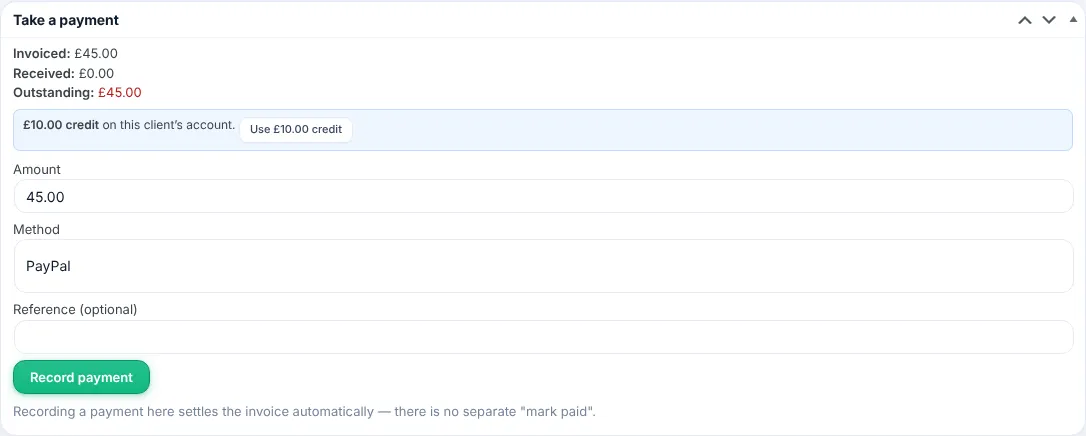
Customer flags
Short coloured flags such as VIP, Pays late or Handle with care, shown wherever the customer appears: bookings, the calendar, invoices and the staff app.
Your website on one screen
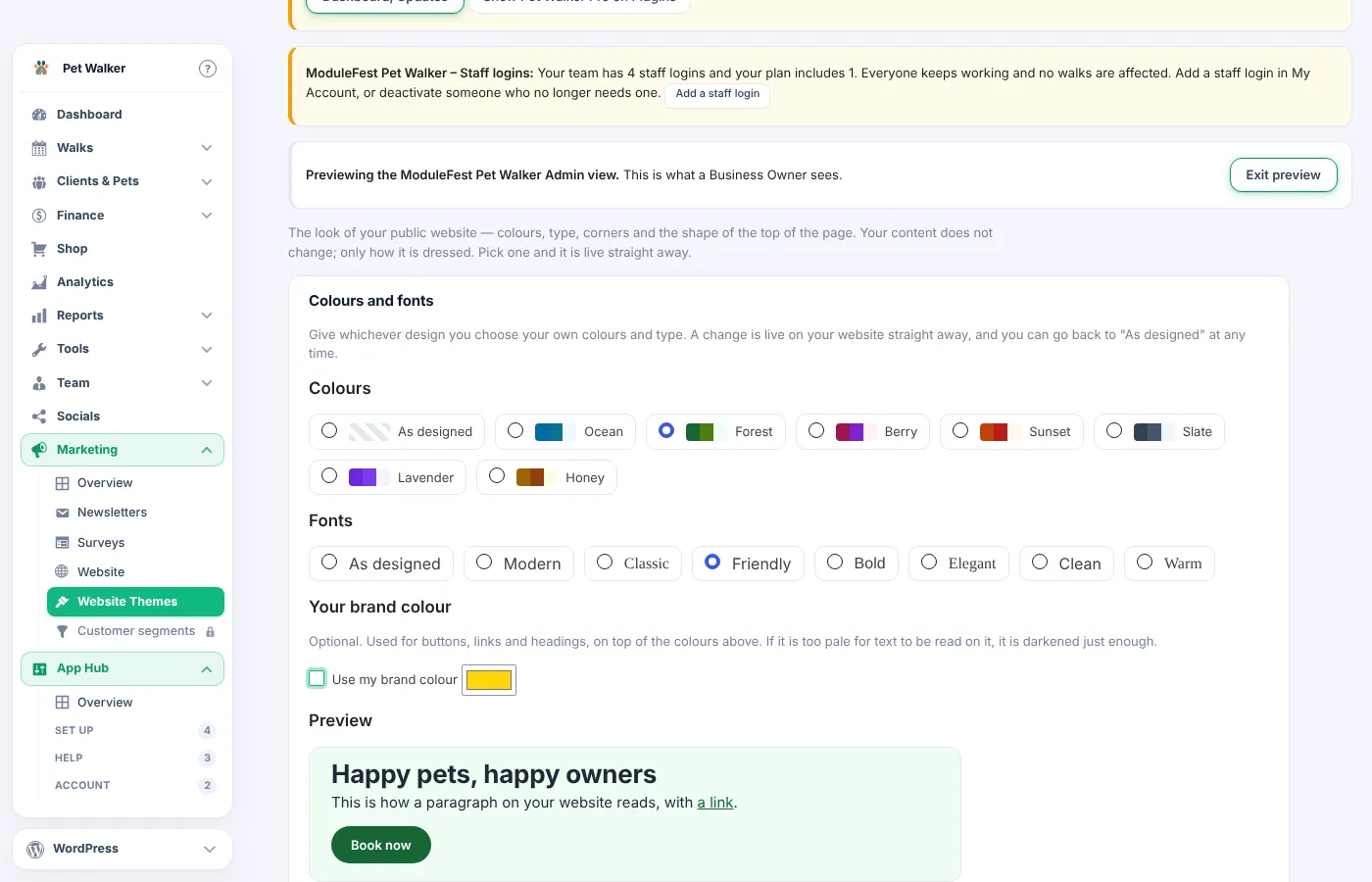
Every page of your website on one plain screen, built from locked sections so the layout cannot break. Preview colours and fonts before saving, and add team photos, a map, reviews from Google or Facebook and photos from the staff app.
- Marketing › Website
Notes de version
2.771.221November 13, 2026
You can now give money off when a customer books two or more of their pets at the same time.
Find it in Settings › Pricing › Multi-pet discount.
- Tick the box and enter the amount, as a percentage or a fixed amount.
- Choose every pet after the first, or the second pet only.
- Book the pets at the same time for the same customer, or on one group booking. The discount is added for you.
- The dearest pet is charged in full; the discount never takes a price below nothing.
- It comes off whatever each pet is being charged, special and sale prices included.
- It shows as its own line on the booking, the invoice and the staff app.
- Bookings already made keep their price if you change the setting.
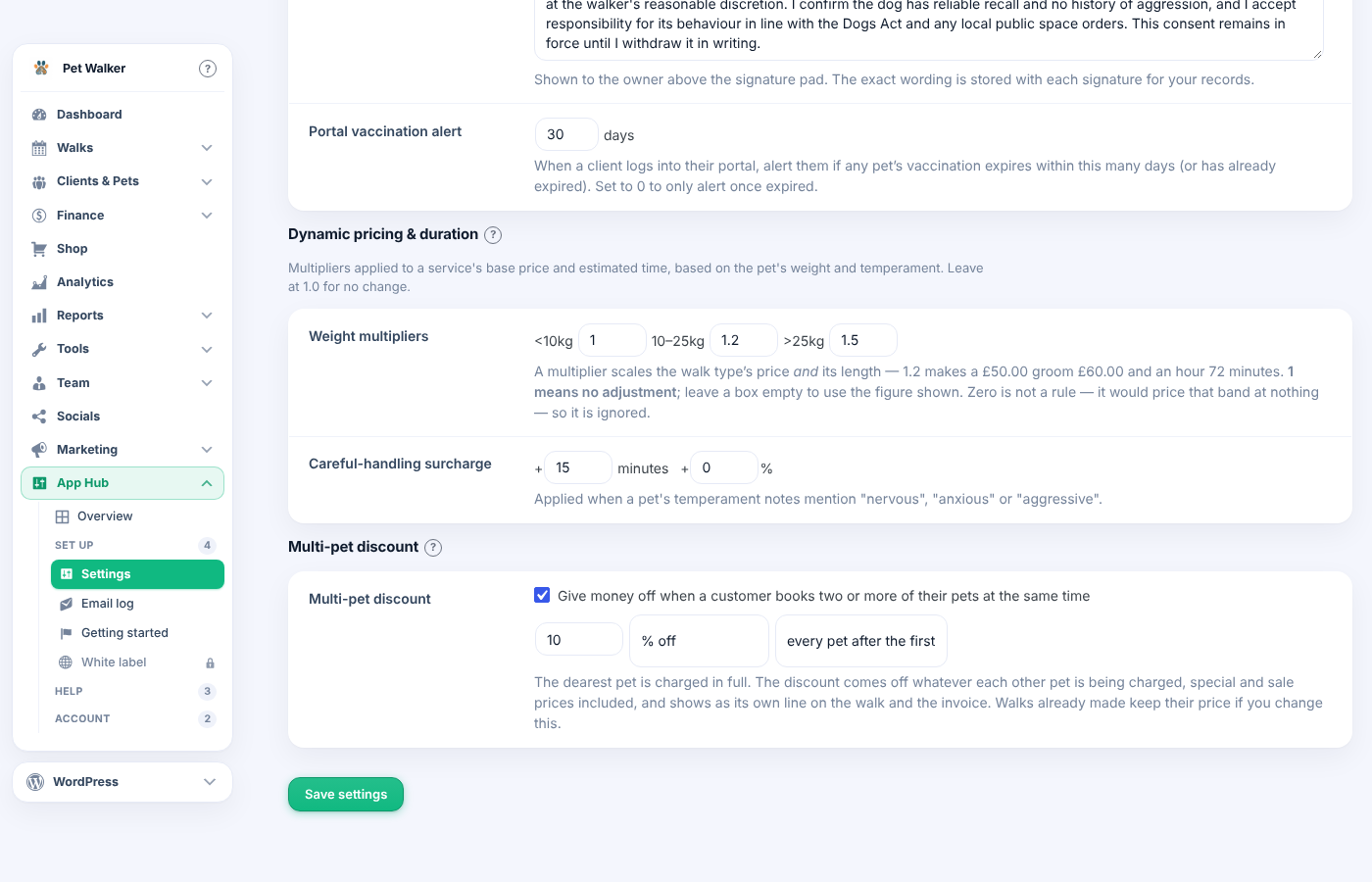
Multi-pet discount in Settings, Pricing 
The discount on a booking You can now charge a fee for late cancellations and no-shows.
Find it in Settings › Bookings › Late-cancellation and no-show fees.
- Set Notice required, for example 24 hours.
- Choose a fixed amount or a percentage of the booking for each fee.
- Mark a missed booking as No-show. A confirmed booking cancelled inside the notice period is charged the late fee.
- The fee goes on an invoice that says why, and any deposit paid is put towards it first.
- Untick Charge the fee on the booking before saving, or press Waive this fee afterwards.
- Customers see the policy when they book, and can still cancel online at the last minute, being told the fee first.
- Fees have their own line in the finance reports.
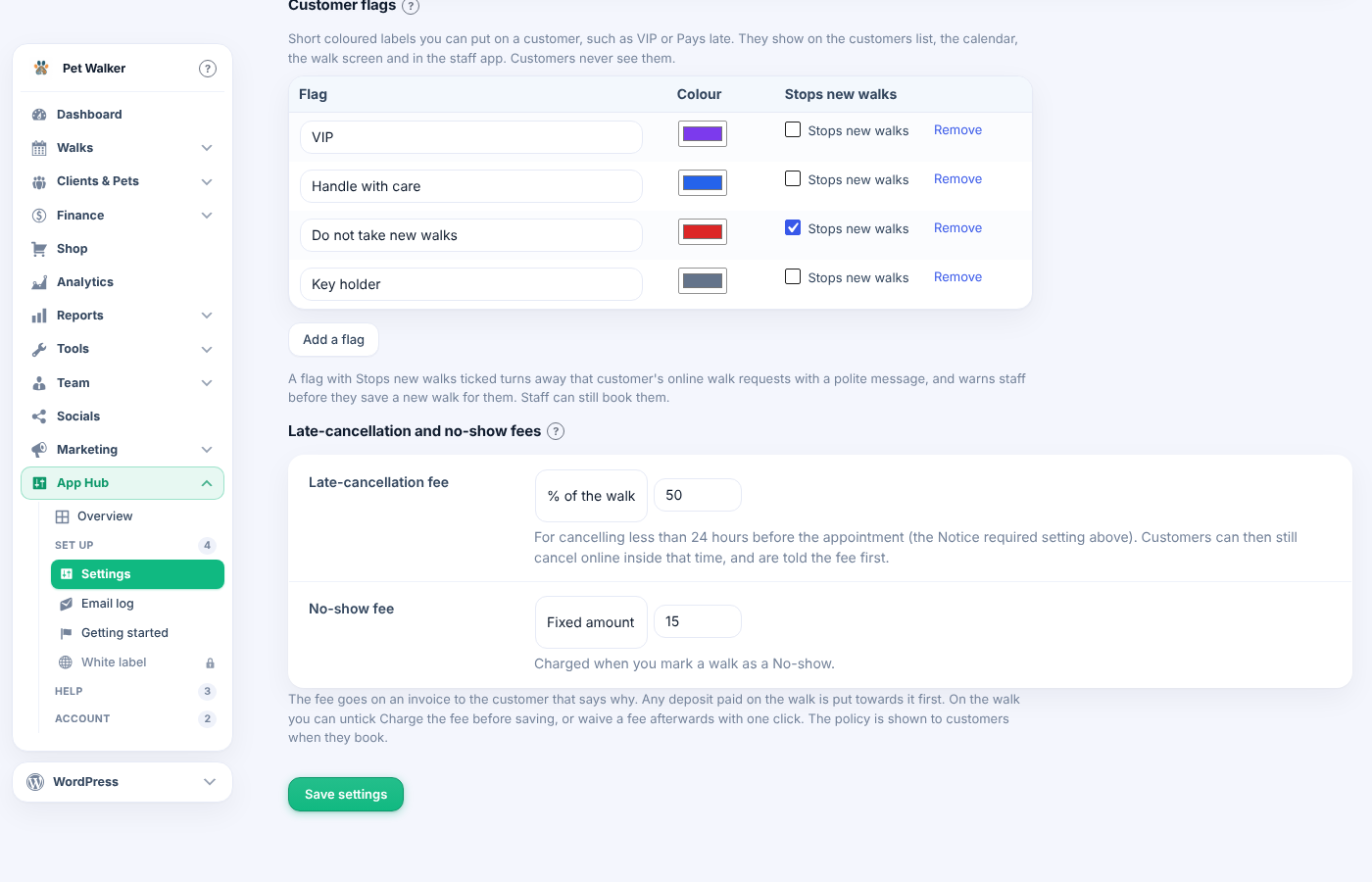
Fees in Settings, Bookings 
A late-cancellation fee on a booking You can now raise a price from a set date and tell the customers affected.
Find it on the service: Services › open a service › Change the price from a date.
- Enter the new price and the day it starts, then update the service.
- Leave Tell customers ticked to email everyone with a booking on or after that day, once each.
- Tick Reprice bookings already made only if those bookings should pay the new price too.
- Bookings for that day or later use the new price; earlier ones keep the old one.
- Customers with their own special price keep it and are not emailed.
- The change shows on the services list and under the price list on your website until it starts.
- Changed your mind? Tick Cancel this price change before the day.
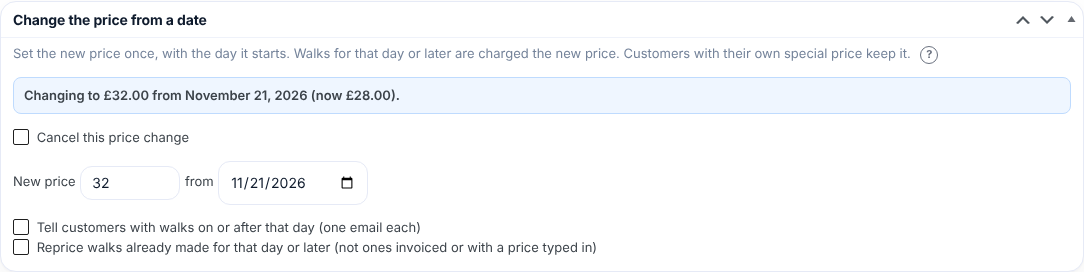
Change the price from a date, on a service
2.771.218November 12, 2026
You can now put coloured flags on a customer, such as VIP, Pays late or Handle with care, so the whole team sees them at a glance.
Set up the list in Settings › Bookings › Customer flags.
- Rename, recolour or remove the flags you start with, or press Add a flag.
- Open a customer and tick their flags in the Customer flags box. In the staff app, open one of their bookings and press Add a flag.
- Flags show on the customers list, the calendar, the booking screen and the staff app.
- A flag with Stops new bookings ticked turns away that customer's online requests with a polite message, and warns staff before saving a new booking. Tick Book them anyway to go ahead.
- Customers never see their flags.
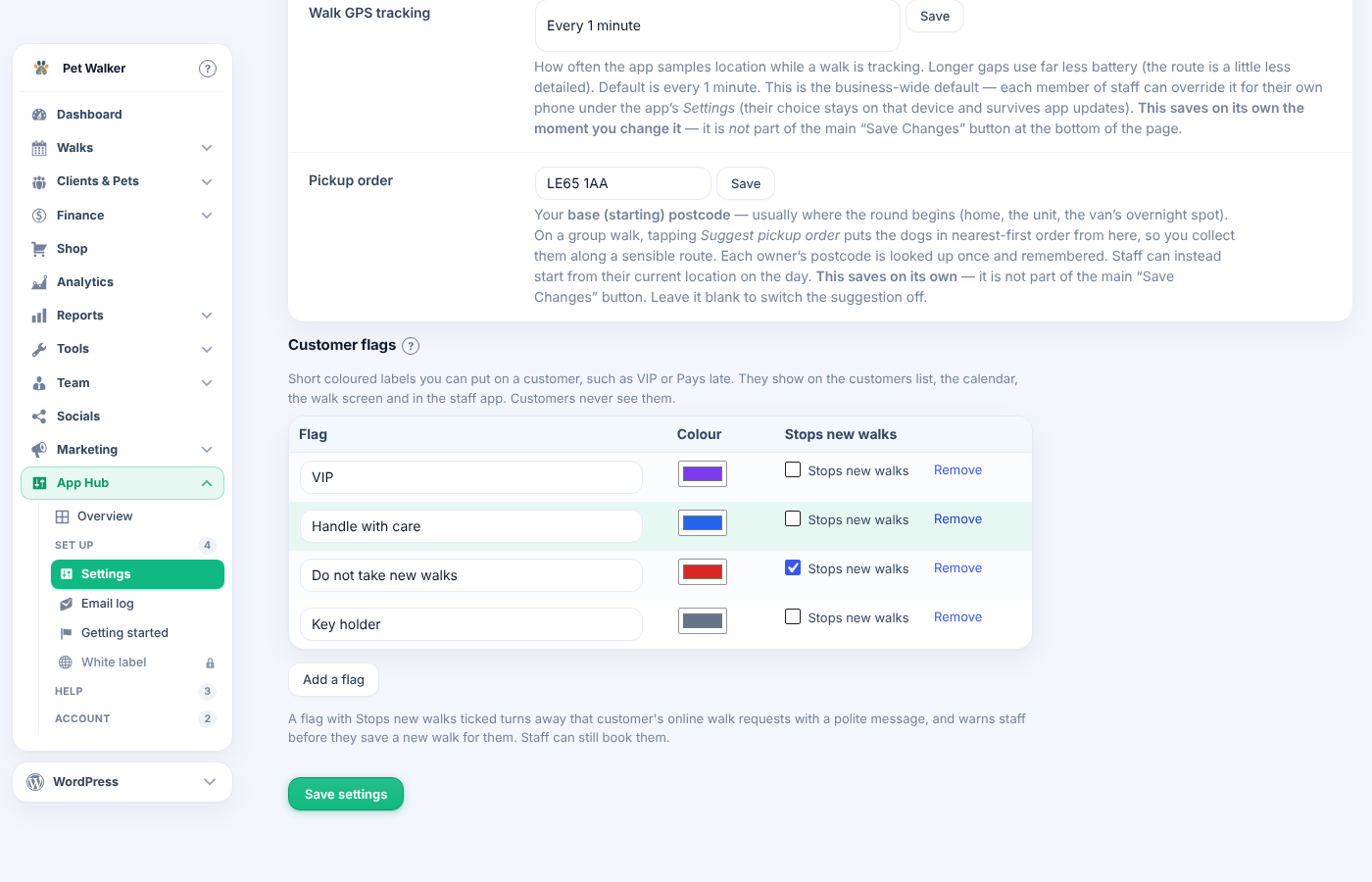
Customer flags in Settings, Bookings 
The warning on a new booking 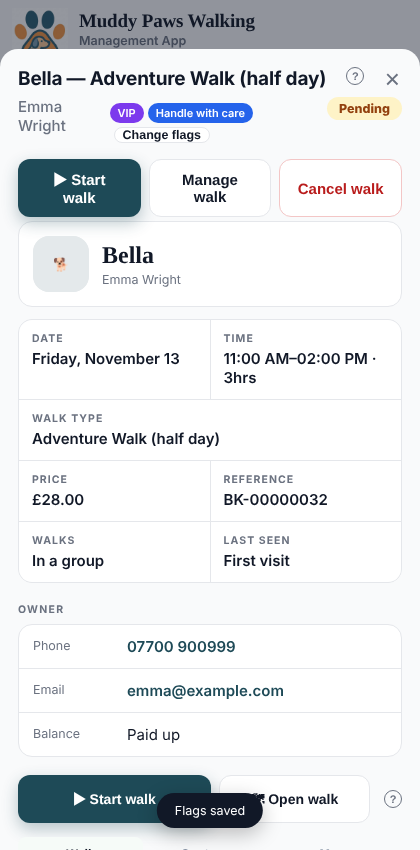
Flags in the staff app
2.771.209November 8, 2026
You can now give a client credit on their account, and use it on their invoices.
Find this on the client's record in Pet Groomer › Clients, at the top of the Account box.
- Enter the amount and a reason, for example "Goodwill for the missed visit".
- Press Add credit.
- On any unpaid invoice for that client, press Use credit in the Take a payment box. It takes up to what the invoice still owes; the rest stays on the account.
- Only the business owner can add a credit.
- A credit is not money received, so it stays out of your takings.
- It shows on the client's statement with your reason.

Account credit on the client record 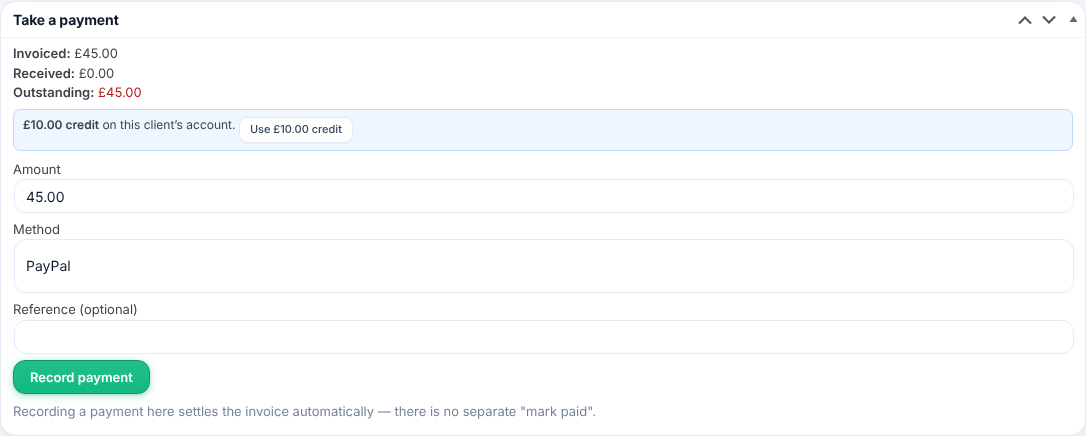
Use credit on an invoice
ModuleFest Pet Groomer
Le gestionnaire pour les entreprises de toilettage : réservations, clients et facturation
Autres actualités
 Nouvelle fonctionnalitéPet Groomer 2.77: Account credit and monthly billingManage advance payments and bill chosen clients just once a month.Voir les nouveautés →
 Nouvelle versionModuleFest Pet Walker 2.771.222Les clients peuvent désormais payer à l'avance et régler leurs factures en utilisant leur solde. Également dans cette version : paiement mensuel à échoir : une…Voir les nouveautés →
 Nouvelle versionModuleFest Trades Business Manager 0.14.42Jobs, quotes, invoices and stock for tradesVoir les nouveautés →