









Estas guías solo están disponibles en inglés.
ayuda de ModuleFest Media Library Manager
Video guides 7
Guías 45
- ↩️ Scenario: Recover a file deleted by mistake Open Dashboard → Recycle Bin, find the file and click Restore — it comes back with the same URL and ID. If it has already passed the retention period, restore it from your backup instead. 1. Open the Recycle Bin…
- ☁️ Cloud Import Cloud Import lets you browse your connected cloud storage and import files directly into WordPress without downloading them to your computer first. How to import: – Connect a cloud provider in Settings & Stats → Cloud tab – The Cloud…
- ☁️ Cloud Storage Media Library Manager can connect to cloud storage for backing up media files before deletion and importing files directly into WordPress. Only one provider can be connected at a time. Setup Guides — click a provider to expand 🟢 Google…
- ♻️ Recycle Bin The Recycle Bin is a safe staging area for files you want to delete. Files moved here are not immediately removed — they remain on your server until the Retention Period expires. While a file is in the bin: -…
- ♿ Alt Text Generator The Alt Text Generator scans your media library for images missing alt text and suggests suitable values — entirely from data already in WordPress, with no external API or cost. Suggestion sources (in order of preference): – EXIF caption, title,…
- ⚠️ Broken File Scanner The Broken File Scanner checks every attachment record in the WordPress database and verifies that the corresponding physical file still exists on the server. Broken records occur when files are deleted directly from the server (via FTP, cPanel File Manager,…
- ⚡ Cleanup Rules Cleanup Rules let you define conditions that Media Library Manager evaluates automatically on a schedule you choose. Files matching a rule's conditions have the rule's action applied without manual effort. Conditions available: MIME type, file size, upload age, days unlinked,…
- ⚡ Scenario: Set up hands-off automatic cleanup Create a rule in Tools → Cleanup Rules: set the conditions, choose an action (start with Move to Recycle Bin), click Preview to check what matches, enable the email notice and save, then choose when rules run in the Schedule…
- ⬆️ Scenario: Update Media Library Manager from the hub Open Media Library Manager → About (or Support), check Installed vs Latest, and click Install update now if a newer release is available — WordPress installs it and returns you to the page you were on. 1. Open the version…
- ⏱️ Dashboard Refresh Schedule The KPI Dashboard metrics are calculated by a background job and cached. The dashboard always loads instantly without running live database queries on every visit. Control when metrics are recalculated: – Daily — at the time you specify – Weekly…
- ⏱️ Retention Period The retention period controls how long files stay in the Recycle Bin before they are permanently deleted from your server. When you move a file to the Recycle Bin, a deletion timestamp is set. The daily cleanup cron checks this…
- 🎨 Grid Overlay Style Grid overlays add a visual indicator to every thumbnail in the WordPress Media Library grid, showing whether a file is in use or unlinked without opening the file. Choose from 14 styles ranging from subtle colour tints to bold glow…
- 🎫 Support The 🎫 Support sub-menu under Media Library Manager lets you raise, view, and reply to support tickets with ModuleFest without leaving WordPress. It connects to a Keen2Support hub — replies and status changes sync straight back into Media Library Manager.…
- 🎬 Video guides ModuleFest has made short narrated videos (about a minute or two each) for the main parts of Media Library Manager. They are listed under 🎬 Video guides on the About page and at the top of the Help Centre, and…
- 🎯 Scenario: Reclaim disk space safely Run a full scan, open the Unlinked Media Files list, confirm the files are genuinely unused, then move them to the Recycle Bin (with backup on) — nothing is deleted until the retention period expires, so you can restore anytime.…
- 🏷️ Tag Manager The Tag Manager lets you browse all media tags, see how many files have each tag, rename tags across all files at once, and delete tags you no longer need. Tags are applied from the Unlinked Media Files action bar…
- 🏷️ The new name (formerly MediaVault) From version 4.22.0 this plugin is called ModuleFest Media Library Manager. It was called MediaVault; the name changed because another plugin in the WordPress.org directory has a very similar name, and two similar names for two different plugins would confuse…
- 💚 Health Score The Health Score is a percentage measuring how well-maintained your media library is: (Total files − Unlinked files) ÷ Total files × 100 The icon changes based on your configured thresholds: – ❤️ Healthy — at or above the green…
- 📁 Default Backup Folder The Default Backup Folder controls where Media Library Manager stores backed-up files in your connected cloud storage. Browse your cloud storage and pick an existing folder, or create a new one. If left blank, Media Library Manager creates a folder…
- 📊 KPI Dashboard The KPI Dashboard gives you an at-a-glance view of your media library health through metric cards organised into five sections. All figures are cached — the dashboard always loads instantly. Sections: Library Health · Library Overview · Format & Performance…
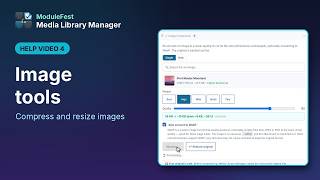
- 📐 Redimensionador de imágenes El Redimensionador de imágenes reduce las dimensiones en píxeles de una imagen (su ancho y su alto) manteniendo la proporción. Unas dimensiones menores suponen un archivo más pequeño, lo que acelera tus páginas. Elige una imagen, introduce un ancho y/o alto máximo, y…
- 📜 Scan History Scan History records the results of the last 10 library scans, showing the date, number of unlinked files found, and the Health Score at the time of each scan. Use it to track whether your library is getting healthier over…
- 📝 Files with Notes Files with Notes shows every media file that has a private note attached. Notes are visible only inside Media Library Manager — they do not appear on your site's front end or in the standard WordPress Media Library. Use notes…
- 📤 Email Settings Media Library Manager sends two types of automated emails: – Weekly Digest — a scheduled health summary (when enabled) – Cleanup Rule Notifications — triggered when a rule fires with "Email me" ticked All email settings are in Settings &…
- 📧 Weekly Email Digest The weekly digest sends an email summary of your media library health on a configurable schedule. It includes your Health Score, unlinked file count, recoverable space, Recycle Bin total, and files expiring within 48 hours. To set up: Open Settings…
- 📬 Get updates (Media Library Manager newsletter) The Get news for Media Library Manager card on About ModuleFest lets you ask for Media Library Manager tips, new features and update notes by email. It is optional, and no part of Media Library Manager depends on it. -…
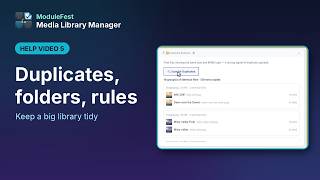
- 🔁 Duplicate Detector The Duplicate Detector finds files that are exact copies of each other — the same file uploaded more than once, even under different names. It first picks out files of the same type and size, then confirms each match by…
- 🔄 Scenario: Replace an image everywhere In Tools → Smart Replace, choose the source and replacement files, click Find References to preview what is affected, back up first, then Replace All to update every reference across the site at once. 1. Open Smart Replace Media Library…
- 🔄 Smart Replace Smart Replace finds every place a media file is referenced across your entire site and swaps it for a different file in one operation. How to use: – Search for the source file (the one to replace) – Search for…
- 🔒 Privacy & External Services Media Library Manager works inside your own WordPress site. It sends no analytics, usage data or site details to its developers, and nothing in it is locked or time-limited. It only talks to an outside service when you set that…
- 🔗 Dead Link Scanner The Dead Link Scanner searches all published post content for media URLs that no longer resolve to an existing file in the WordPress Media Library. This catches situations where a file was deleted directly (e.g. via FTP or server file…
- 🔗 Scenario: Fix broken media links Run Tools → Dead Link / Broken File Scanner, review the broken references, then either Smart Replace to a working file or restore the missing file from backup — re-run the scan to confirm it is fixed. 1. Open the…
- 🔗 Unlinked Media Files Unlinked media files are attachments that exist in your WordPress Media Library but are not referenced anywhere on your site — no post content, no featured image, no widget, no shortcode, no page builder block. Media Library Manager checks every…
- 🖼️ FooGallery Integration Media Library Manager integrates with FooGallery ↗ to let you create galleries directly from cloud-imported images. Workflow: – Connect a cloud provider (Settings & Stats → Cloud tab) – Browse and import images via the Cloud Import section on the…
- 🗂️ Virtual Folders Virtual Folders let you organise your media into a logical folder structure. They are an organisational layer inside Media Library Manager — they do not create real folders on your server or change file paths. Creating folders: Go to Tools…
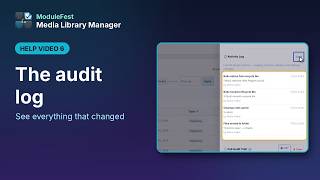
- 🗒️ Full Audit Trail The Audit Trail is a permanent log of every significant action taken within Media Library Manager, stored in a dedicated database table (wp_mediavault_audit). Logged events include: files moved to Recycle Bin, files restored, permanent deletions, cloud backups, Smart Replace operations,…
- 🗜️ Compression Advisor The Compression Advisor lists images above a configurable size threshold, sorted largest first. It helps you identify oversized images that could be compressed or converted to a more efficient format (WebP or AVIF) to improve page speed scores. To shrink…
- 🗜️ Scenario: Shrink large images to speed up the site In Tools → Image Compressor (or Resizer), filter to the largest files, select them and run it — originals are backed up automatically, so use Restore Original if the result is not right. 1. Open the Image Compressor Media Library…
- 🙈 Ignored Files Ignoring a file permanently excludes it from all future Media Library Manager scans. It will never appear in the Unlinked Media Files list, will not trigger Cleanup Rules, and will not affect your Health Score. Use this for files that…
- 🚀 Scenario: First-time setup Activate Media Library Manager, run a full scan from the Dashboard, review the KPI Dashboard, then set your retention period and auto-scan in Settings — and optionally link the site to Keen2Support for in-app support and updates. 1. Activate Media…
- 🤖 Auto-Scan Schedule The auto-scan runs a full library scan automatically on a schedule, so your unlinked files list is always up to date without manual intervention. Results are cached — the main screen loads instantly using the last scan's data. A fresh…
- 🧩 About ModuleFest Media Library Manager → 🧩 About ModuleFest is about ModuleFest, the company that makes Media Library Manager. It has three parts: – Who we are, with links to modulefest.com and the full Media Library Manager guides. – Get news for…
- 🧬 Scenario: Clean up duplicate files Run Tools → Duplicate Detector to group copies by content, keep one (the original or the copy actually in use — repoint others with Smart Replace first), and move the rest to the Recycle Bin. 1. Open the Duplicate Detector…
- 🧭 The menu bar Every Media Library Manager screen has a dark menu bar across the top, so you can move between the parts of Media Library Manager without going back to the WordPress side menu. – Media Library Manager logo — back to…
- 🪄 Compresor de imágenes El Compresor de imágenes vuelve a codificar una imagen con una calidad menor para reducir el tamaño del archivo sin cambiar sus dimensiones. Usa el control de calidad (más bajo = archivo más pequeño, más alto = mayor fidelidad) y, si quieres, convierte la imagen a WebP, un…
Nada coincide con eso. Pulsa Buscar para mirar dentro de las propias guías.