









 New features
Know when a scheduled task stops, slows down or is left behind
Since the multisite release, Cron Monitor has learned to spot the problems people miss: a repeating task that quietly stops, a task getting slower, and tasks left behind by removed plugins. Each task now has its own page, the Dashboard has 14-day trends, and you can set alert rules of your own. Still free.
Stopped and slowing tasks
You hear when a repeating task, such as a backup, stops running, and when a task starts taking at least three times as long as usual: on the Dashboard, in Health Check and in the weekly summary.
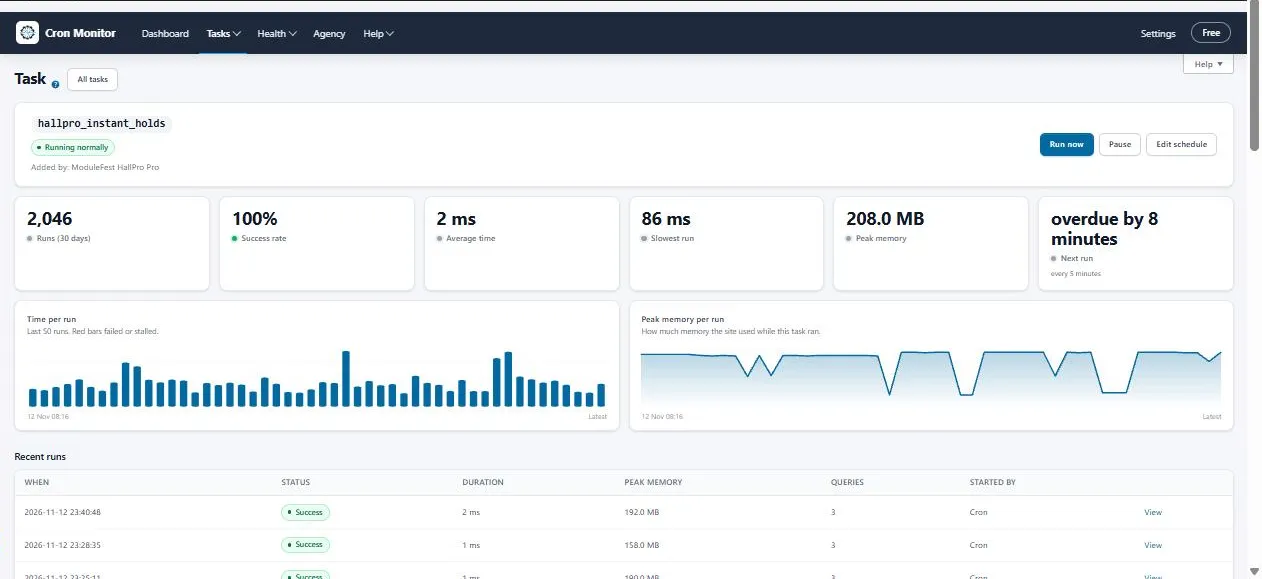
A page for every task
Open any task to see its history and a chart of how long it takes. A 24-hour timeline shows when each task will run, and quiet hours keep heavy tasks out of your busiest times.
Trends on the Dashboard
14-day charts of runs, failures and timings, also in the weekly summary email.
Leftover clean-up
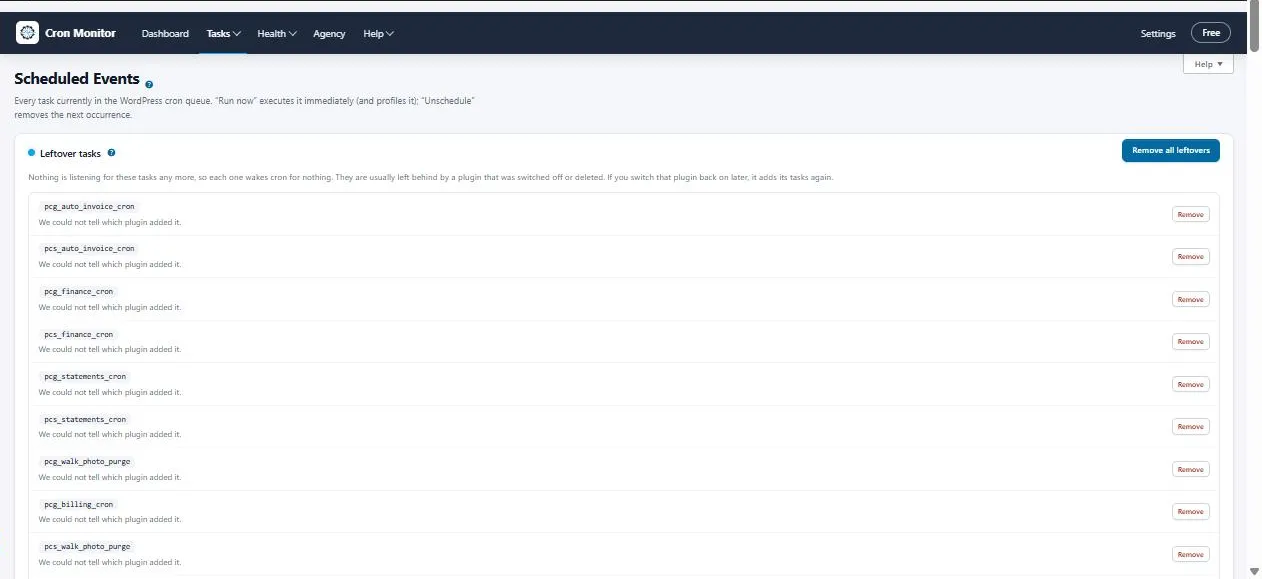
Tasks left behind by plugins you switched off or deleted are found and removed in one press, with a warning when one probably still belongs to an active plugin.
Your own alert rules
Watch an important task and hear if it runs too slowly or misses its time, by email, Slack, Teams, Discord or Google Chat. The alert history shows every alert sent.
On the WordPress Dashboard
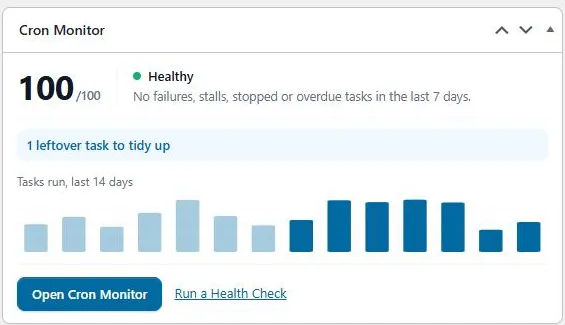
A widget shows the health score and anything that needs a look, and run history downloads as a CSV.
Notas da versão
1.23.0November 13, 2026
Cron Monitor now tells you when a repeating task stops running. A backup or sync that quietly stops is the problem people miss most, so you hear about it straight away.
- If a task stops, the Dashboard shows it with how often it should run and when it last ran.
- Go to Tasks › Scheduled Events and press Run now to run it once.
- If you stopped it on purpose, press It is meant to stop.
With alerts on, you get one email when a task stops, and it appears in your weekly summary.
Cron Monitor now warns you when a task starts taking much longer than usual. You hear about a slowing task before it starts timing out.
- If a task is taking at least three times as long as usual, the Dashboard shows it under "tasks are getting slower".
- Click the task name to open its page and see when its time started to climb.
- Health Check and your weekly summary email list it too.
You can now download your run history as a spreadsheet. It is handy for reports and for sharing with your developer or host.
- Go to Tasks › Run History.
- Pick a tab, such as Error, or choose All.
- Press Export CSV and open the file in Excel, Numbers or Google Sheets.
1.20.0November 12, 2026
A new Timeline shows when every scheduled task will run over the next 24 hours. Heavy tasks and busy moments stand out, so you can spread the load.
- Go to Tasks › Timeline.
- Look for shaded busy moments, where several tasks or heavy ones start together.
- Point at a dot to see the time and how long that task usually takes.
- Click a heavy task, then use Edit schedule to move it to a quieter time.
You can now keep heavy tasks, such as backups and imports, to a quiet time of night. Your site stays quick while people are using it.
- Go to Settings › Quiet hours and tick On.
- Set the window, for example 01:00 to 05:00.
- Tick the tasks to keep in the window. Heavy tasks are marked for you.
- Save. Their next runs move into the window straight away.
You can now send a client a read-only page showing how their site's scheduled tasks are doing. They don't need a login.
- Go to Settings › Agency status link and tick Client status page, then save.
- Press Open the page to check it, then copy the link under Link to send.
- Send the link to your client.
To stop an old link working, tick Make a new link when I save.
1.18.0November 12, 2026
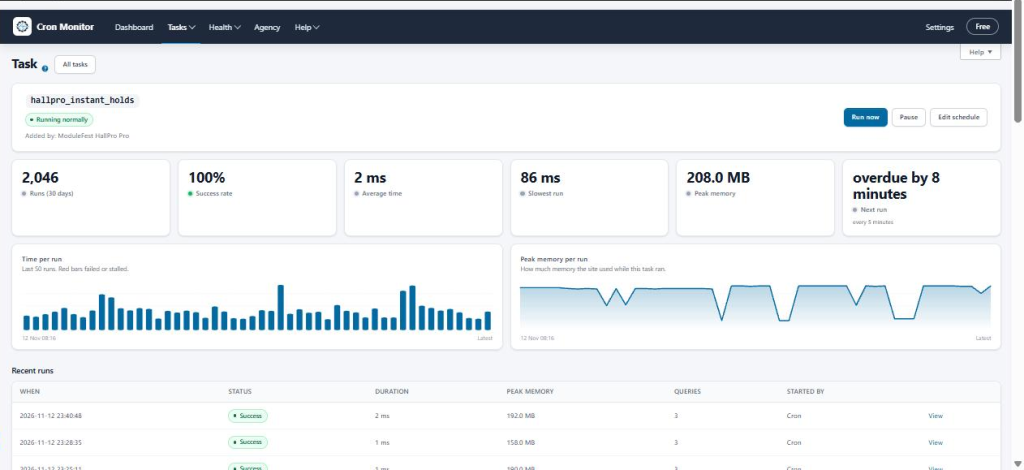
Every scheduled task now has its own page. Click any task name to see what it is, which plugin added it and how it has behaved.
- Go to Tasks › Scheduled Events, or Tasks › Run History.
- Click a task name.
- Check its figures for the last 30 days and the charts of its last 50 runs. Red bars show runs that failed.
- Use Run now, Pause or Edit schedule at the top.
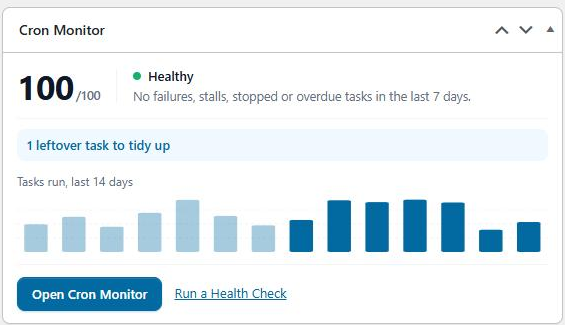
You can now see Cron Monitor's health score on the main WordPress Dashboard. You no longer need to open Cron Monitor to check that your scheduled tasks are fine.
- Go to Dashboard › Home.
- Find the Cron Monitor box, with your health score and a 14-day chart.
- Click any warning in the box to go straight to it.
To hide the box, untick Cron Monitor under Screen Options.
1.17.1November 12, 2026
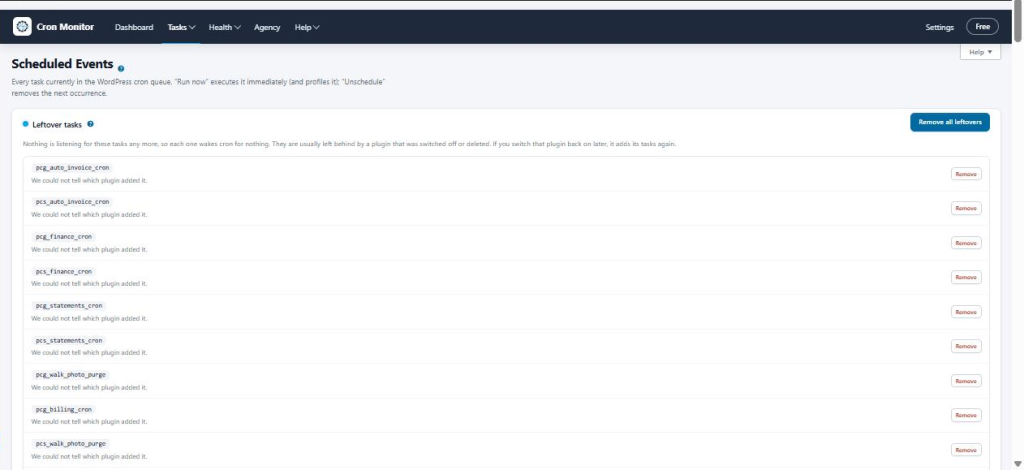
Cron Monitor now finds tasks left behind by plugins you have switched off or deleted, and removes them in one click. These leftovers wake cron for nothing, so tidying them up keeps your site lean.
- Go to Tasks › Scheduled Events.
- Under Leftover tasks, check which plugin each one probably came from.
- Press Remove for one task, or Remove all leftovers to tidy up in one go.
Removing a leftover is safe: nothing is listening for it. If you switch the plugin back on later, it adds its tasks again.
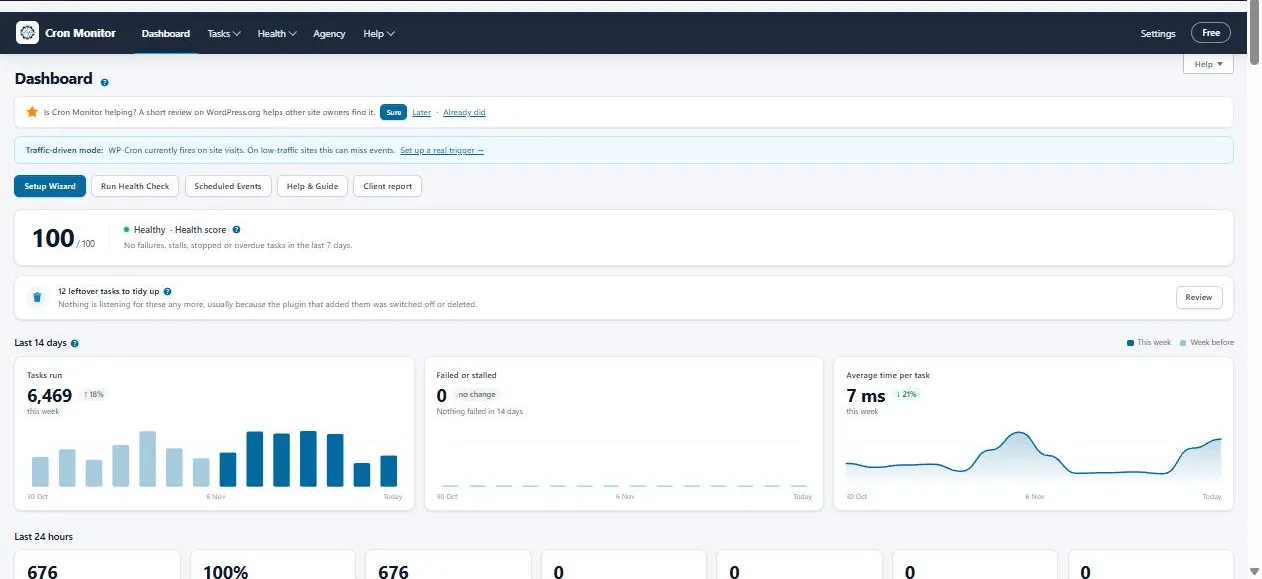
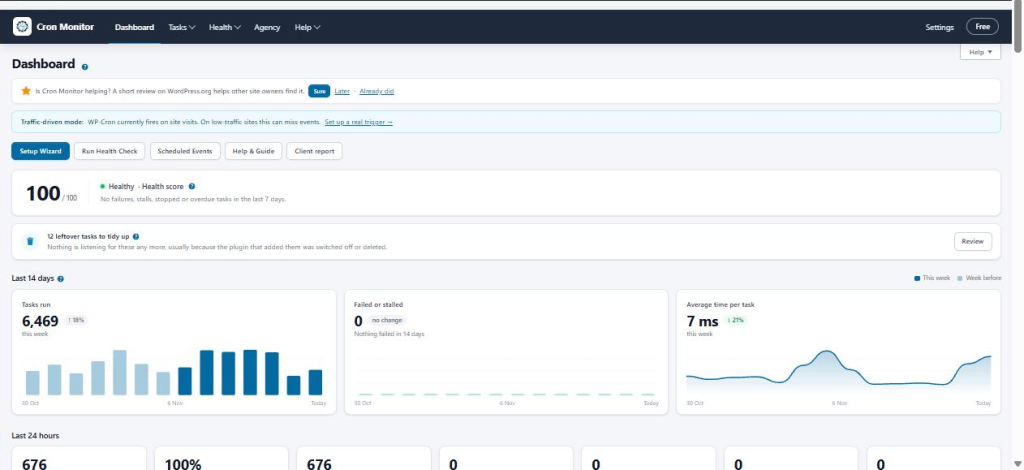
The Dashboard now shows how your background tasks are trending over the last 14 days. Three charts make it easy to see whether things are getting better or worse.
- Go to Cron Monitor › Dashboard.
- Under Last 14 days, compare this week (darker bars) with the week before (lighter bars).
- Check the pill beside each figure: green is better, red is worse.
- Point at any bar to see that day's figure.
Cron Monitor is now more careful about which scheduled tasks it calls leftovers. Some plugins only load their task code while cron is running, and their tasks could appear in the Leftover tasks list by mistake.
- Update Cron Monitor to the latest version.
- Go to Tasks › Scheduled Events.
- Check the Leftover tasks list. A task now only appears there after cron has run it and found nothing listening.
If you have not removed any leftover tasks yet, there is nothing else to do.
ModuleFest Cron Monitor
The control tower for your site's scheduled tasks.
Mais notícias
 Nova funcionalidadePet Groomer 2.77: Account credit and monthly billingManage advance payments and bill chosen clients just once a month.Ver as novidades →
 Nova versãoModuleFest Pet Walker 2.771.222Os clientes já podem pagar adiantado e ter as suas faturas pagas a partir do saldo. Também nesta versão: pay monthly in arrears: one invoice at…Ver as novidades →
 Nova versãoModuleFest Trades Business Manager 0.14.42Jobs, quotes, invoices and stock for tradesVer as novidades →