








Uma empresa britânica Criado e com suporte no Reino Unido Ajuda no horário do Reino Unido Sites alojados em Londres

Aguardando aprovação do WordPress.org WordPress plugin

ModuleFest Trades Business Manager

Run a trades business from your own WordPress site: jobs, a diary, enquiries, quotes, invoices and stock across your van and lock-up.

A partir de £24.99 per month. Já tem alojamento WordPress? Há um plugin gratuito, com melhorias sempre que precisar.

Sobre a demonstração ao vivo

No login needed – give a name and email and you are in. A made-up heating and plumbing firm, shared with everyone else trying it, reset every three days.

Comparar os planos, funcionalidade a funcionalidade ↓

  • v0.14.32
  • WordPress 6.2+, PHP 7.4+
  • Demonstração ao vivo para experimentar
  • Atualizações e suporte incluídos
  • Uma empresa britânica, com suporte a partir do Reino Unido

Já é cliente? Ir para a sua conta

Receba notícias do ModuleFest Trades Business ManagerDicas, novas funcionalidades e notas de atualização. Cancele quando quiser.

Run a trades business from your own website: jobs, the diary, enquiries, quotes, invoices and stock across your van and lock-up. Trades Business Manager is for plumbers, gas engineers, electricians, cleaners, gardeners and anyone who goes out to customers' homes.

The free plan runs a one-person business properly: quotes with options, invoices with deposits, credit notes and CIS, money owed, VAT return figures, repeat visits, service reminders, statements, job templates, job sheets and stock are all included. Standard adds an invoice designer, card payments, a customer portal, texts and reminders, quote follow-ups, review requests, online booking, expenses and accounting exports; Premium adds engineers with a staff phone app, route planning, a planning board, job profit, purchase orders, maintenance plans, compliance certificates, your own forms, a report builder and newsletters.
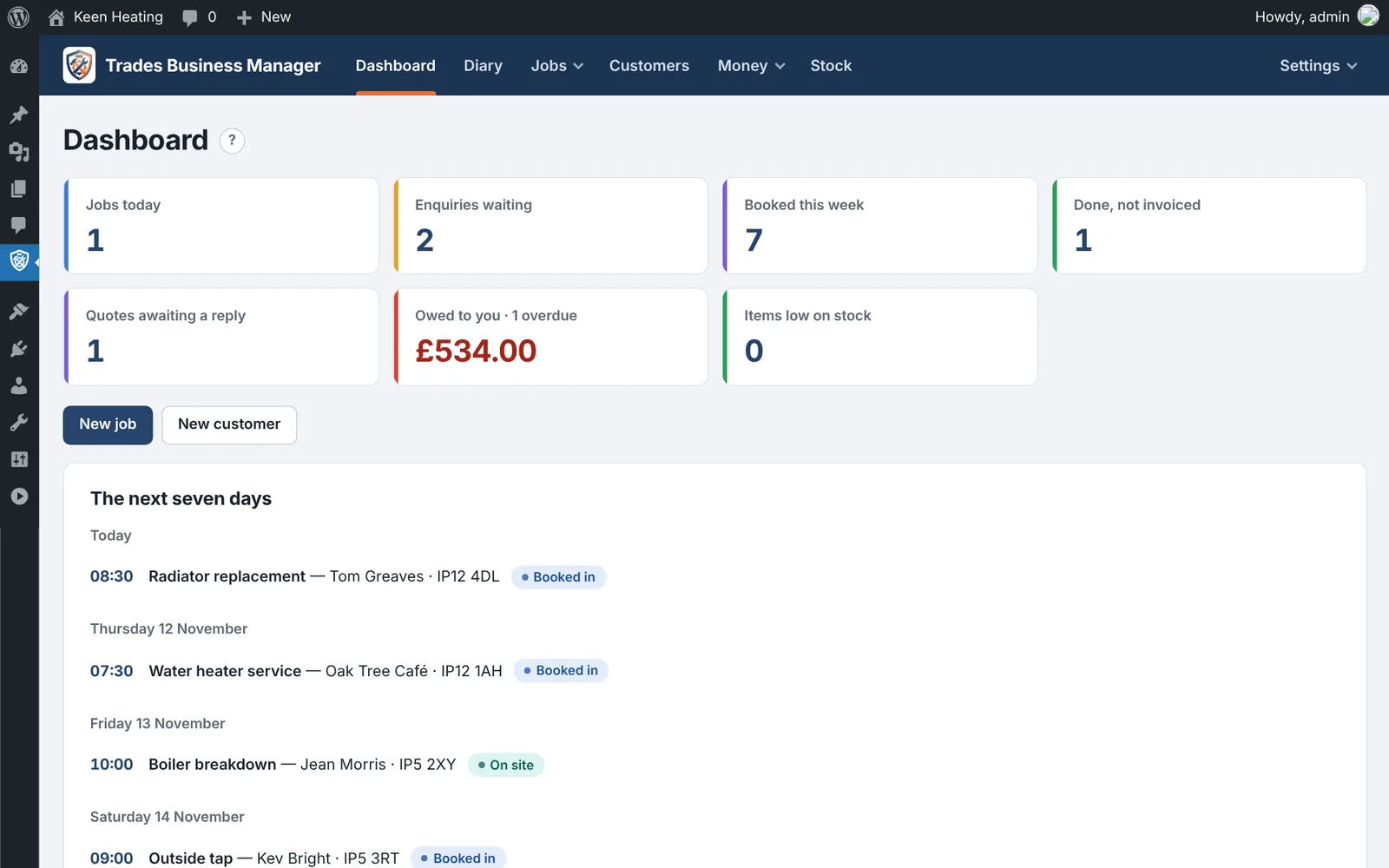
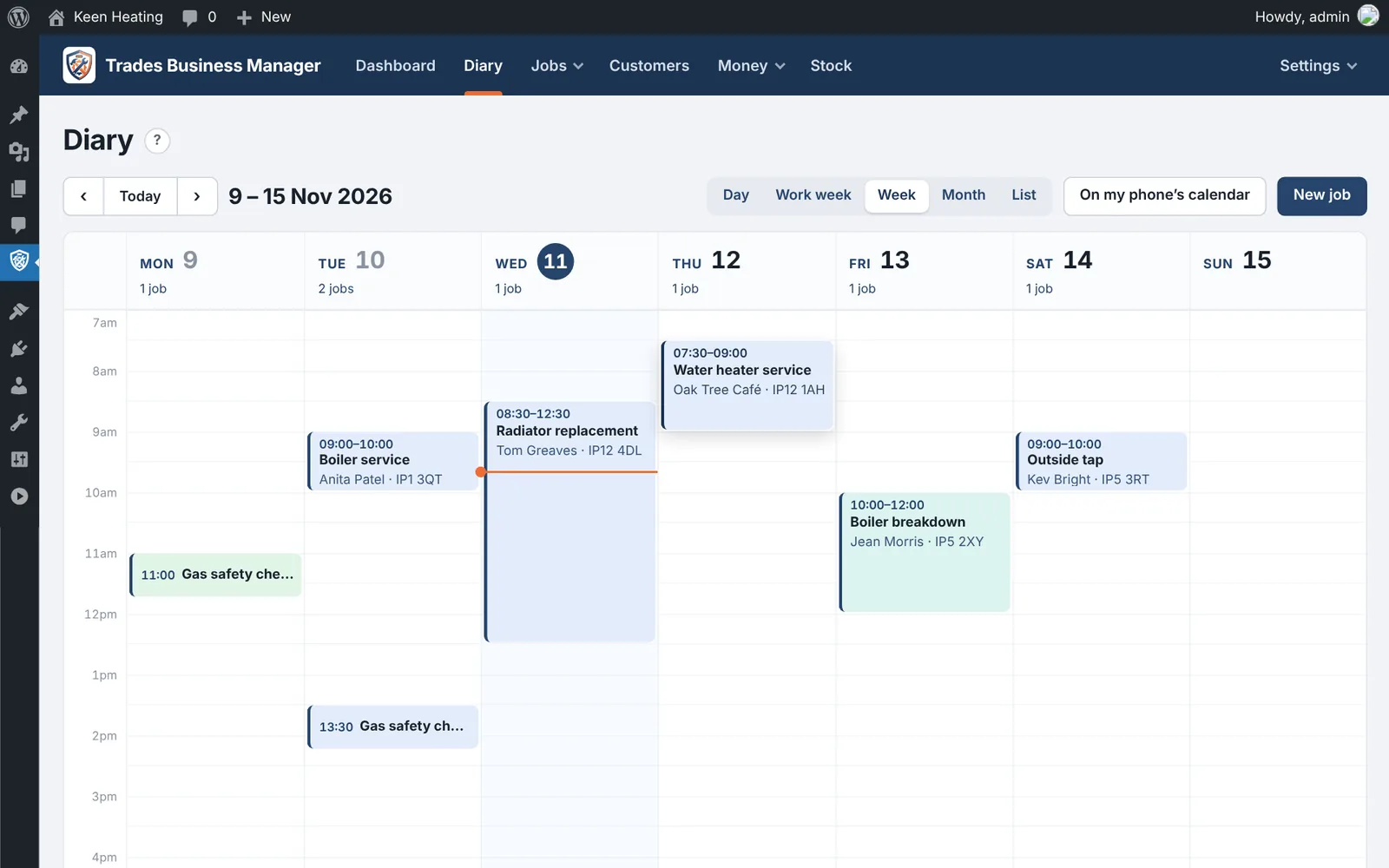
One place for the whole job

From the first call to the paid invoice

For plumbers, gas engineers, electricians, cleaners, gardeners and anyone who works in customers' homes. Basic is free for ever and runs a one-person business properly: quotes, invoices, deposits, CIS, VAT figures, repeat visits, service reminders and stock included.

Enquiries

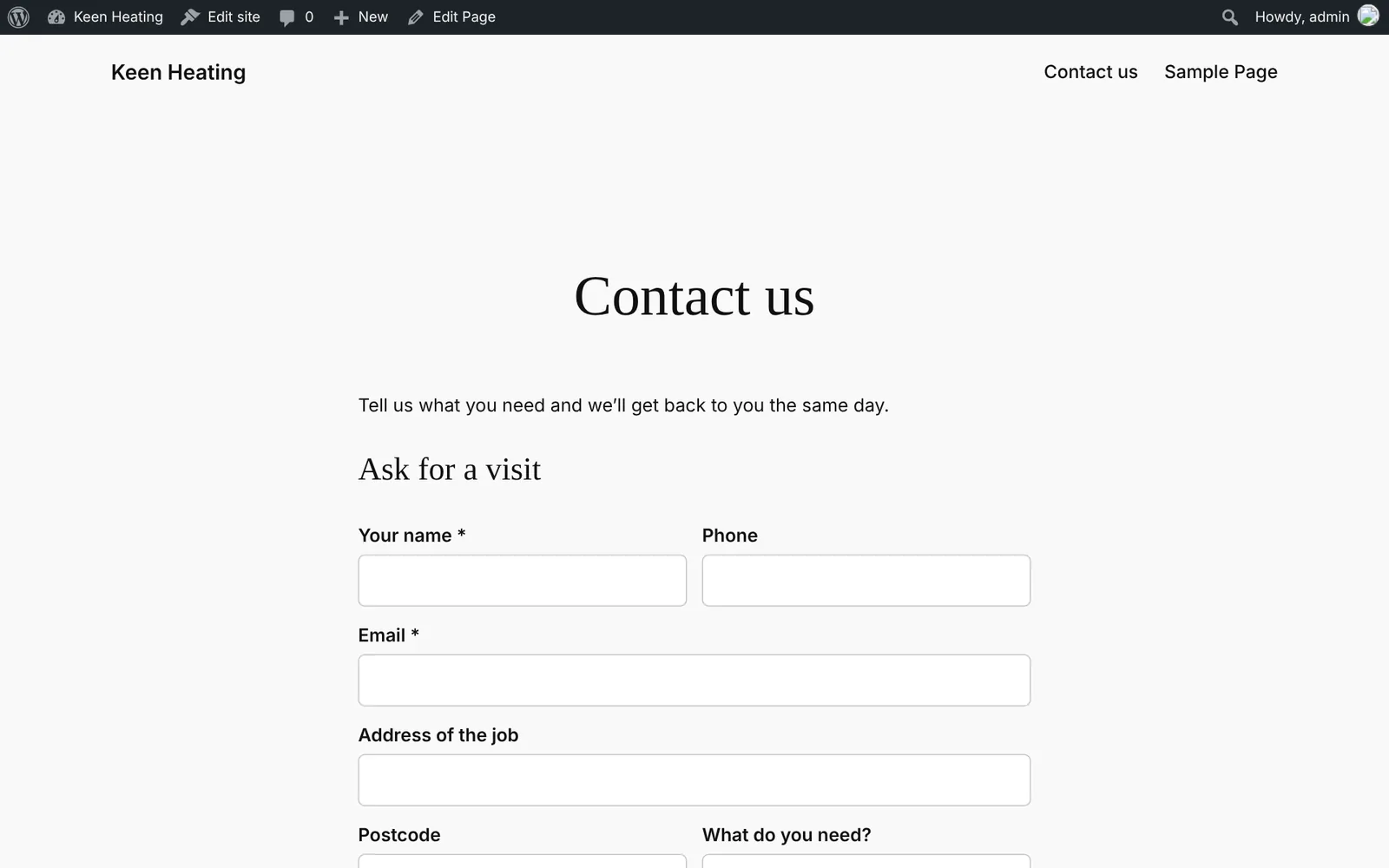
A form on your own website turns every enquiry into a customer and a job, and emails you straight away.

Jobs & diary

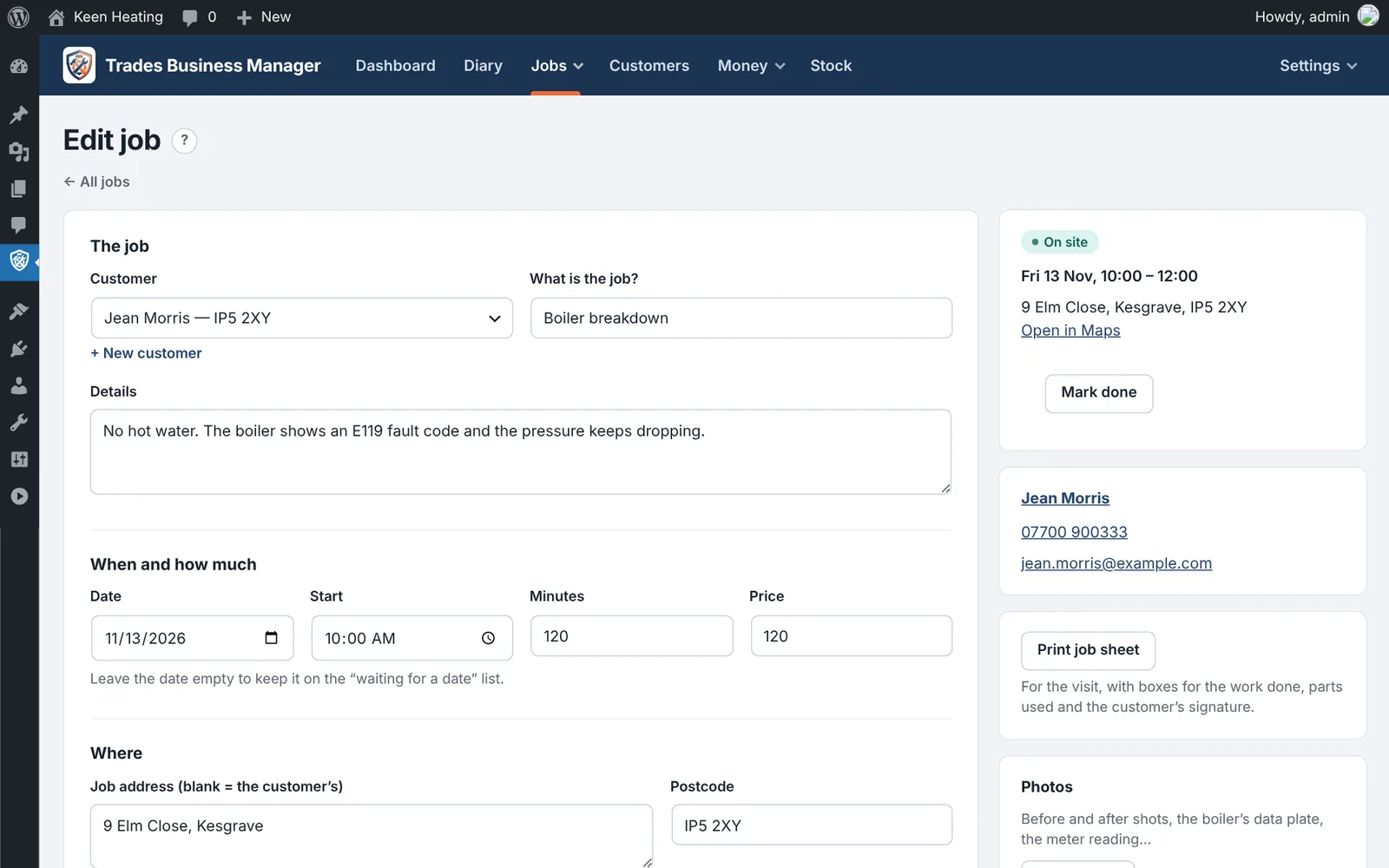
Every job from enquiry to done, a Monday-to-Sunday diary, clash warnings and a list of jobs still waiting for a date.

Quotes

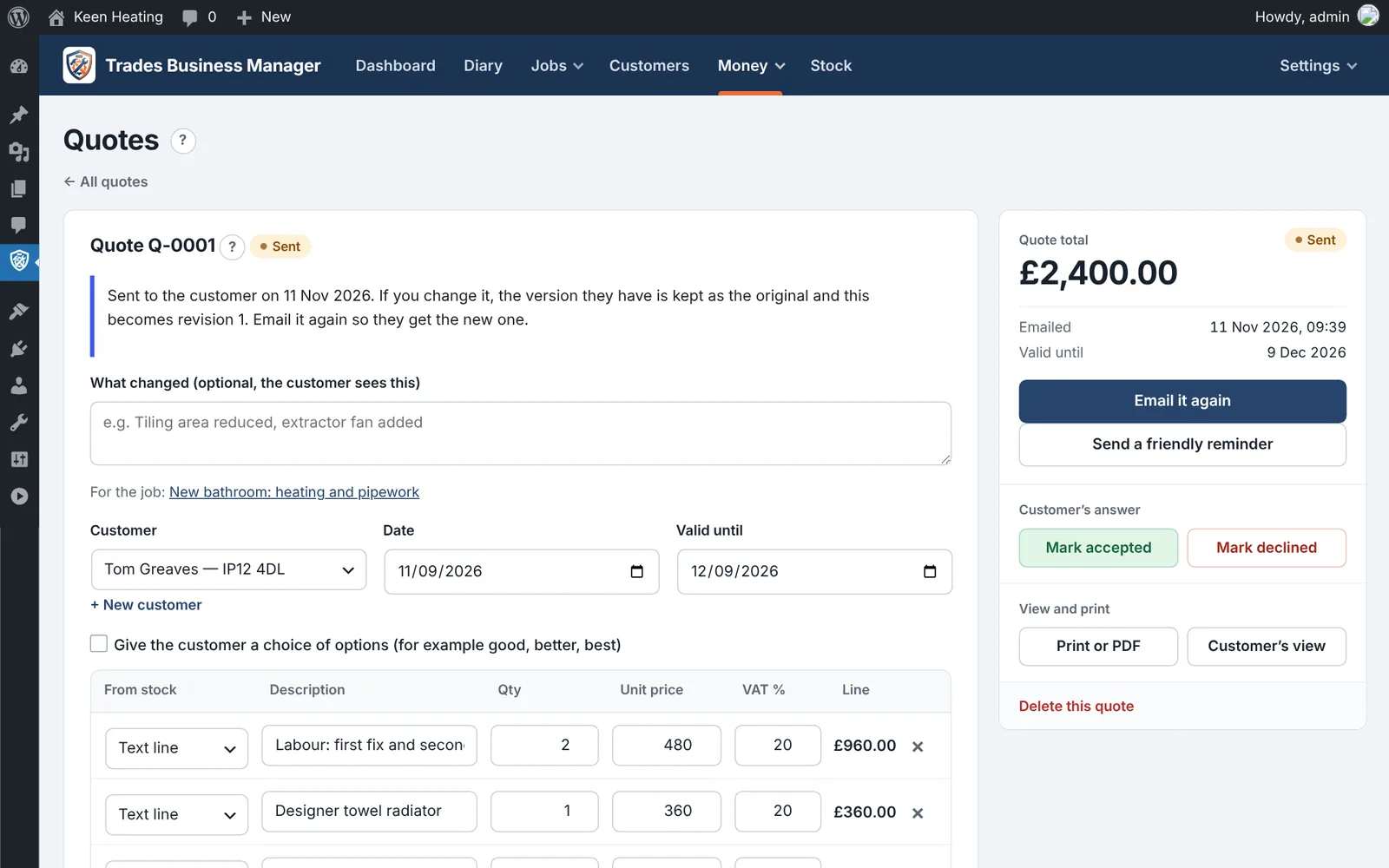
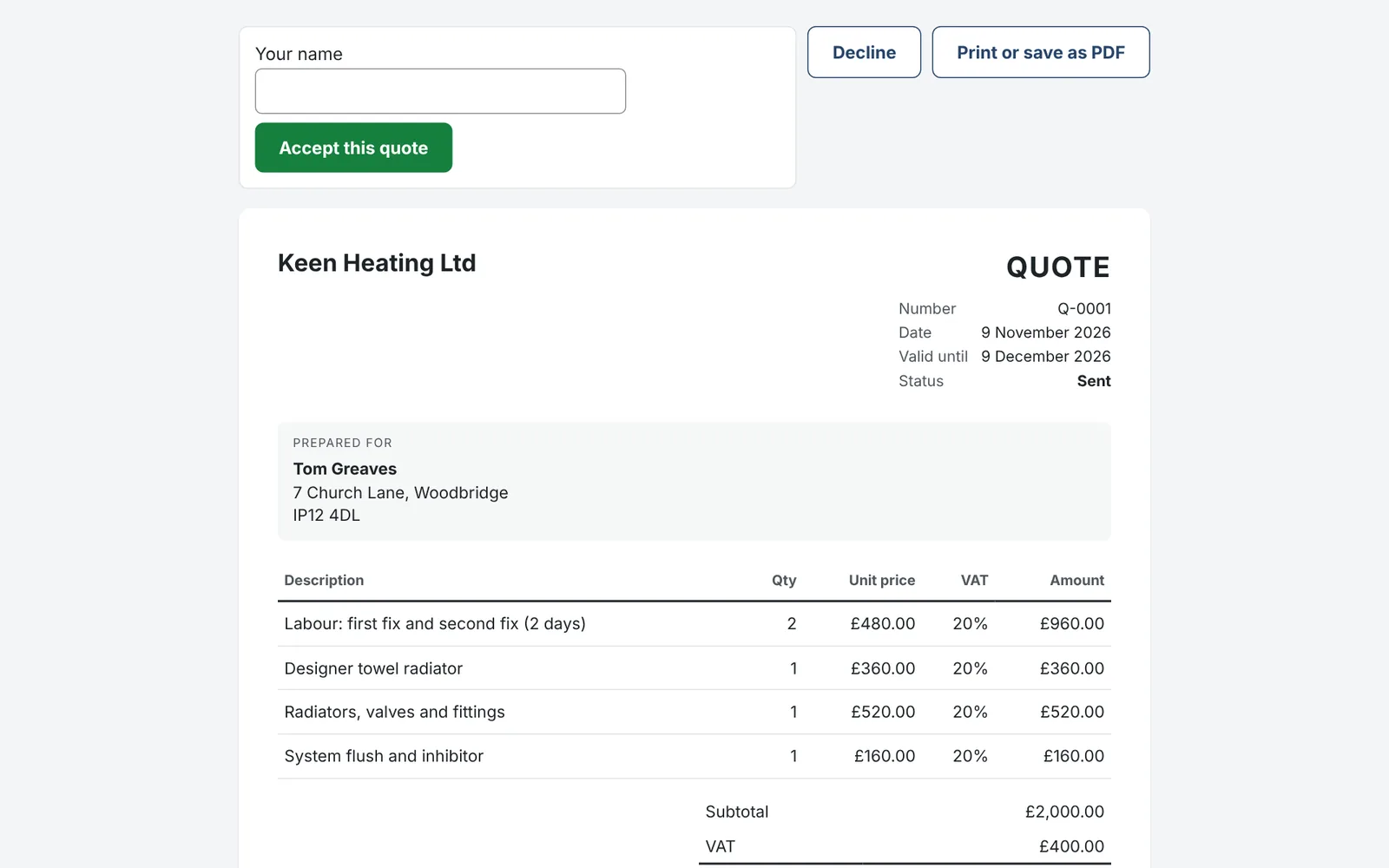
Build a quote from lines and email it. The customer accepts or declines online, and an accepted quote becomes an invoice in one click.

Faturas

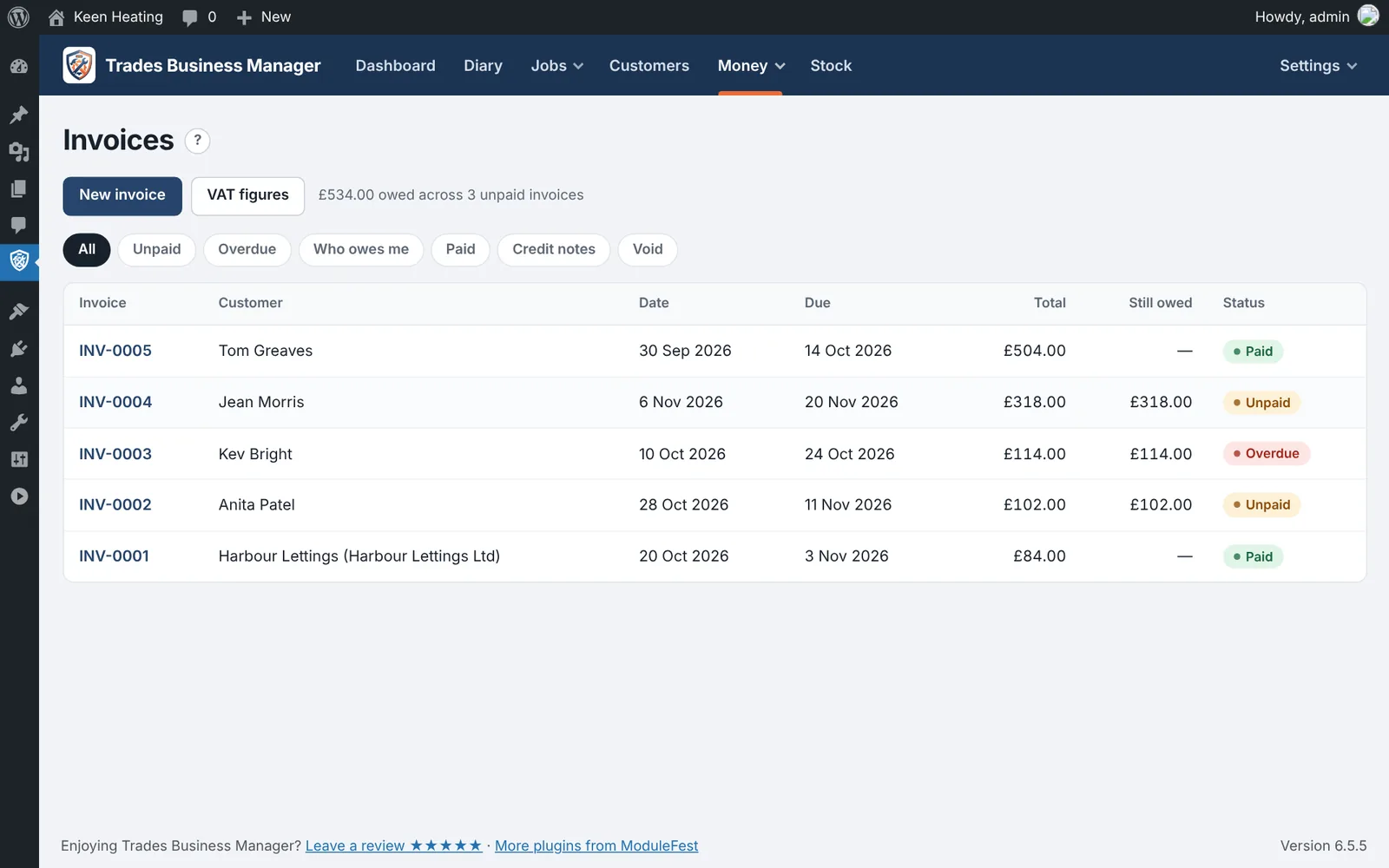
Numbered invoices with VAT per line, emailed with a link to view and print. Mark paid, void, chase the overdue ones.

Stock

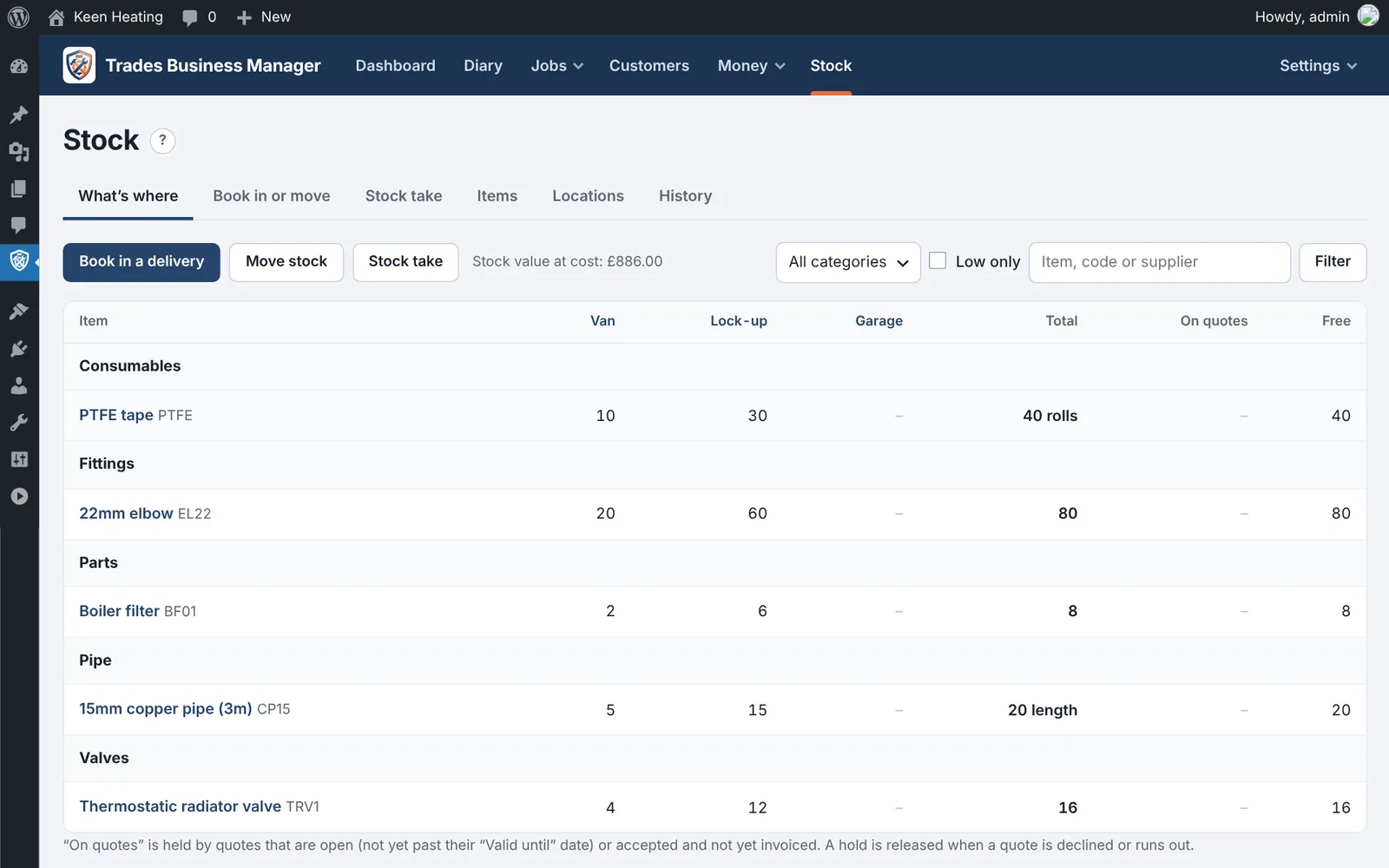
Parts and materials across the van, the lock-up and the garage: deliveries in, moves between places, and materials used on a job go onto its invoice.

A team on the road

Engineers with a staff phone app for photos and signatures, route planning and compliance certificates with expiry reminders. Premium plan.

Um olhar mais atento

Ver em ação

Funcionalidades

Tudo o que faz

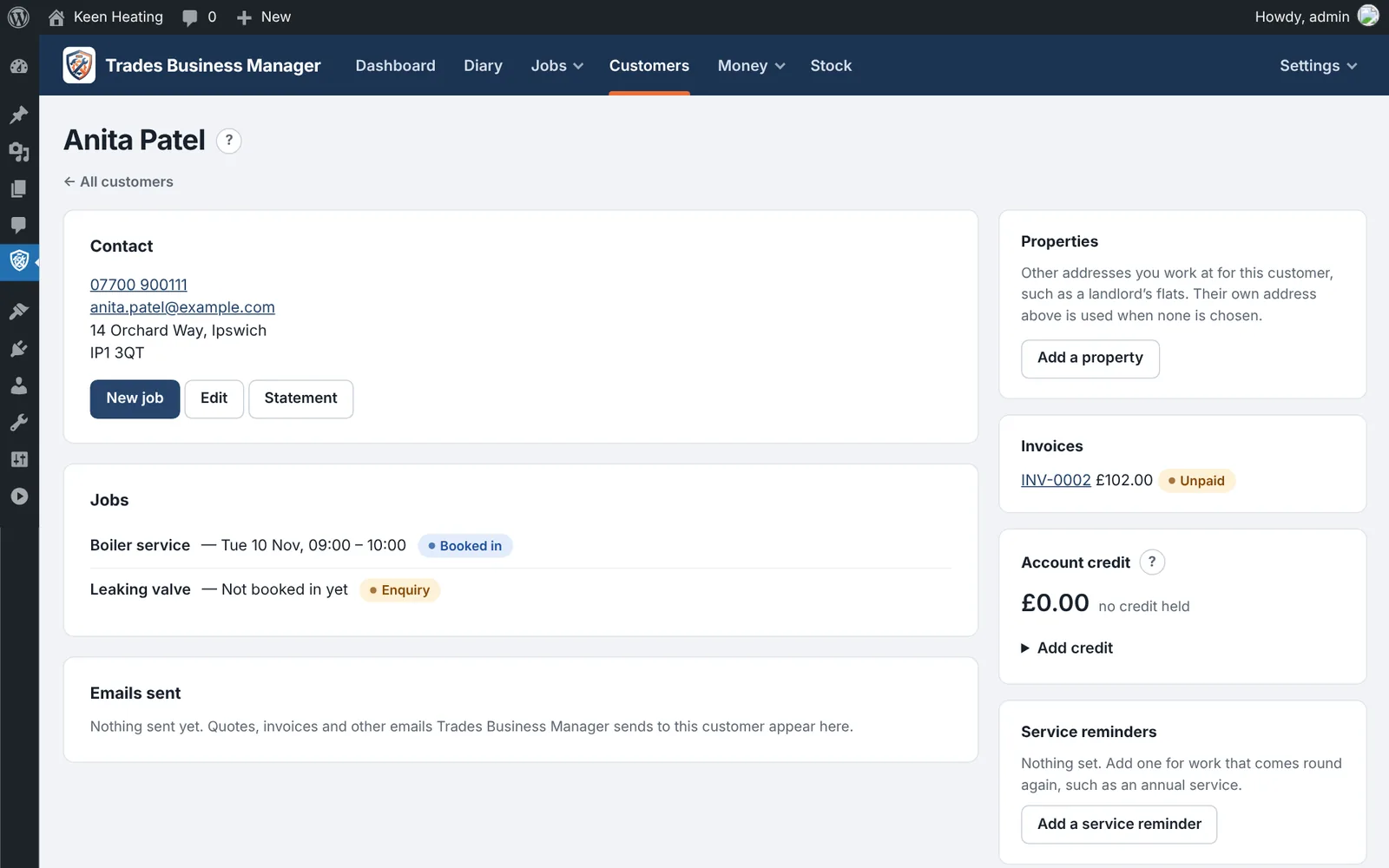
  • Customers One record per person or business, with notes only you see
  • Jobs From enquiry to booked in to done, with clash warnings
  • Week diary Monday to Sunday at a glance, plus every job still waiting for a date
  • Website enquiry form Each enquiry becomes a customer and a job, and you get an email
  • Quotes Built from lines, emailed, accepted or declined online, and turned into an invoice in one click
  • Invoices Numbered, VAT per line, emailed with a link to view and print, with overdue chasing
  • Stock Parts and materials across the van, lock-up and garage, with materials used going onto the job's invoice
  • Deposits and credit notes Take a deposit or part payments against an invoice, and raise a credit note when something comes back
  • CIS and VAT CIS deductions, VAT reverse charge, and the figures for your VAT return ready to copy
  • Who owes me Money owed, grouped by how late it is, with quotes still waiting for an answer to chase
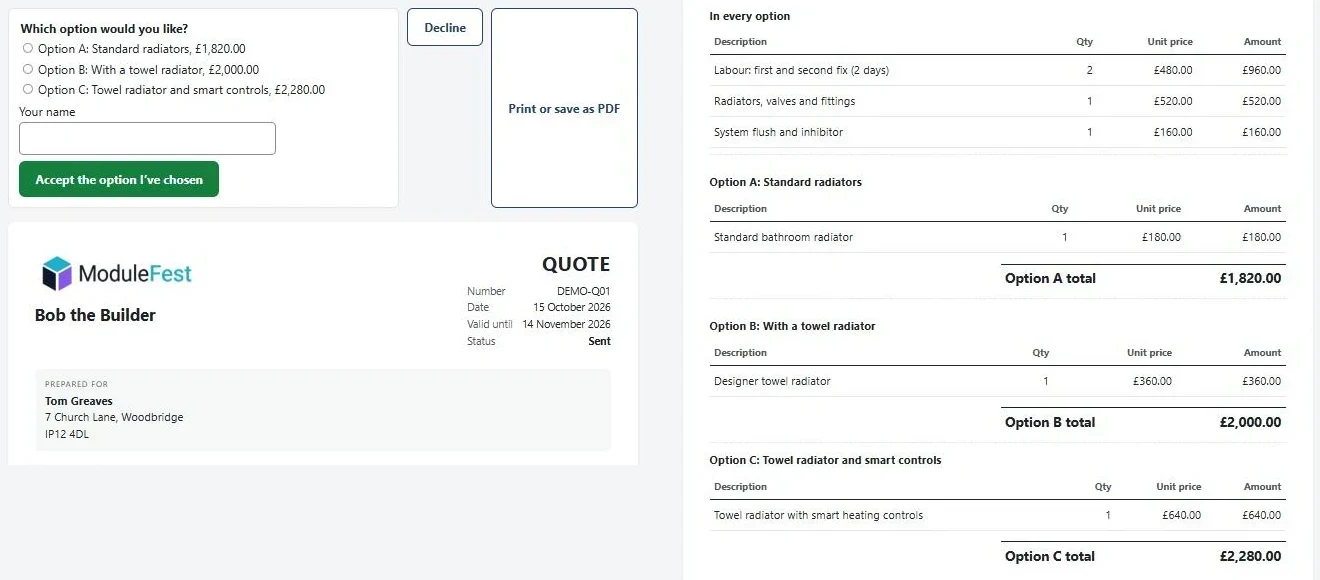
  • Quotes with options Good, better and best on one quote, with your terms and conditions accepted online
  • Repeat visits and reminders Regular work books itself into the diary, and customers are reminded before an annual service is due
  • Job sheets and photos Printable job sheets that include the job's photos, with notes kept on each job
  • Customers and addresses More than one address per customer, and import and export from a spreadsheet
  • Statements and late payment Customer statements to print or email, and late payment interest and compensation for business customers worked out for you
  • Templates and your phone Job templates for the work you price the same way every time, and your jobs in Google, Apple or Outlook calendar
  • Variations and revisions When the work changes, send a variation the customer approves online, and change a sent quote with every earlier version kept
  • Account credit and refunds Hold an overpayment or goodwill credit on a customer's account, use it on a later invoice, and record refunds

Aplicações incluídas

Aplicações incluídas

Aplicação da equipa

For engineers on the road

The day's jobs, photos and customer signatures on the phone of whoever is out on the job. Premium plan.

Customer portal and app

Para os seus clientes

Customers see their quotes and invoices, accept quotes, pay online and book from their phone. Standard plan.

Planos e preços

Planos simples que crescem consigo

Comece gratuitamente e suba de plano quando precisar. Cada plano mantém os seus dados e definições exatamente onde estão.

As encomendas abrem em breve. Contacte-nos e entretanto tratamos de si.

Basic

Gratuito para sempre

  • Customers and jobs, with clash warnings
  • Weekly diary and jobs waiting for a date
  • Website enquiry form that creates the customer and job
  • Quotes with options, accepted online
  • VAT invoices, deposits and credit notes
  • CIS and VAT reverse charge
  • Who owes me, and VAT return figures
  • Repeat visits and service reminders
  • Customer statements and late payment charges
  • Job templates and your diary on your phone
  • Job sheets, photos and notes
  • Stock across van, lock-up and garage
  • Import from a spreadsheet
  • Variations and quote revisions
  • Account credit and refunds
Fale connosco

Licença Premium

£49.98 por mês

  • Tudo o que está no Standard, mais
  • Engineers and a staff phone app, with photos, signatures and parts used
  • Route planning
  • Compliance certificates with expiry reminders
  • Report builder
  • Newsletters and customer groups
  • Timesheets and job profit
  • Purchase orders
  • Planning board
  • Customer visit page with the van on a map
  • Maintenance plans by Direct Debit
  • Your own forms and checks
  • Supplier price lists, staff time off and calendars
  • Appliance register at each address
Fale connosco

Duas formas de começar

  • Opção 1 Já tenho alojamento WordPress Instale o plugin gratuito a partir do WordPress.org; a sua licença desbloqueia o resto.
  • Opção 2 Alojem por mim Alojamento WordPress com ModuleFest Trades Business Manager instalado e ativado, e um design pronto a usar como ponto de partida. O site é criado por si; nós mantemo-lo alojado, seguro e atualizado. Escolha Standard ou Premium e acrescente alojamento por £7.50 por mês.

Disponível assim que o ModuleFest Trades Business Manager estiver publicado no WordPress.org.

Comparar os planos, funcionalidade a funcionalidade

Tudo o que está no Basic, mais no Standard, e ainda mais no Premium.

Funcionalidade Basic Gratuito para sempre Licença Standard £24.99 per month Licença Premium £49.98 per month
The work, every day
Customers and jobs, with clash warnings Incluído Incluído
Diary with day, work week, week, month and list views, and the jobs still waiting for a date Incluído Incluído
Website enquiry form that creates the customer and job Incluído Incluído
Quotes customers accept online, with good/better/best options and revisions: change a sent quote and the earlier version is kept Incluído Incluído
VAT invoices, emailed, with overdue chasing Incluído Incluído
Stock across van, lock-up and garage Incluído Incluído
Private notes on customers Incluído Incluído
Deposits and part payments, with the balance on the invoice Incluído Incluído
Credit notes to correct or cancel a sent invoice Incluído Incluído
CIS deductions and VAT reverse-charge invoices Incluído Incluído
Who owes me: money owed, by how late it is Incluído Incluído
VAT return figures for each quarter Incluído Incluído
Bring customers and prices in from a spreadsheet, and download everything Incluído Incluído
More than one address per customer (a landlord's flats), with access notes Incluído Incluído
Printable job sheets for one job or the whole day Incluído Incluído
Photos and notes on every job Incluído Incluído
Quotes to chase, with a friendly reminder in one press Incluído Incluído
Terms and conditions the customer agrees to when they accept Incluído Incluído
Repeat visits that book themselves into the diary, and can invoice each visit Incluído Incluído
Service reminders: customers are emailed when their annual service or check is due, and the next one is set by itself Incluído Incluído
Your diary on your phone: jobs in Google, Apple or Outlook calendar Incluído Incluído
Customer statements to print or email Incluído Incluído
Late payment interest and compensation for business customers, worked out for you Incluído Incluído
Job templates: the jobs you price the same way every time, in one click Incluído Incluído
Novo Variations after a quote is accepted: just the new work, or all the work with the original lines; the customer approves the difference online Incluído Incluído
Novo Account credit and refunds: keep overpayments on account and take them off a later invoice Incluído Incluído
Novo Emails when a customer pays online, a thank-you receipt for them, and a copy of a paid invoice in one press Incluído Incluído
Getting paid and keeping customers
Invoice and quote designer: your logo, colours and layout Não incluído Incluído
Pro-forma invoices and stage payments on quotes (deposit, stages, final balance) Não incluído Incluído
Online payments by card (Stripe or SumUp) or PayPal, with card refunds sent back through Stripe Não incluído Incluído
Customer portal and phone app for your customers Não incluído Incluído
Texts, WhatsApp and email to customers: booking confirmations, day-before reminders, "on my way", payment reminders, quote follow-ups, service reminders with a booking link, customers' replies in one place, and a morning-of-visit update ("you're visit 2 of 4") with an arrival window. Each customer's preferred way is set on their record; text and WhatsApp appear once Twilio is set up Não incluído Incluído
Google review requests after each job Não incluído Incluído
Online booking on a page of its own, with deposits paid online Não incluído Incluído
Expenses with receipt photos, mileage at HMRC rates, and Making Tax Digital quarters Não incluído Incluído
Exports for Xero, QuickBooks and FreeAgent, and bank statement matching against your invoices Não incluído Incluído
A team on the road
Engineers and a staff phone app with photos, signatures and parts used, time off for engineers, and their own Google or Outlook calendars counted as busy Não incluído Incluído
Route planning for the day Não incluído Incluído
Compliance certificates with expiry reminders, and an appliance register at each address Não incluído Incluído
Report builder with charts and downloads, including quote revisions and variations Não incluído Incluído
Customer newsletters and customer groups Não incluído Incluído
Timesheets and the profit on every job Não incluído Incluído
Purchase orders to suppliers, booked into stock, and supplier price lists imported into your costs Não incluído Incluído
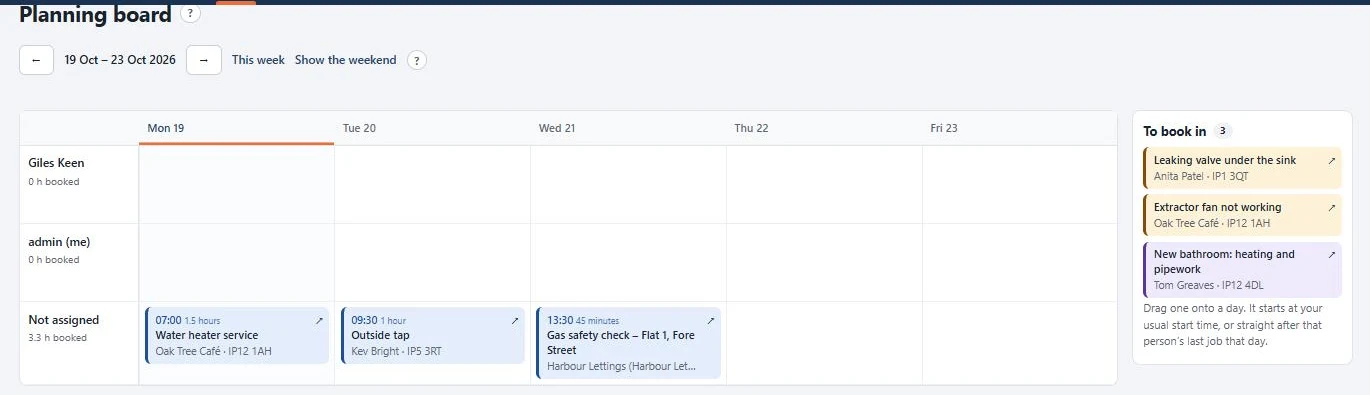
Planning board: drag jobs between people and days Não incluído Incluído
Customer visit page: their place in the day, the arrival time, and the van on a map Não incluído Incluído
Maintenance plans paid monthly by Direct Debit (GoCardless): customers can cancel online, and changes made in GoCardless come back into Trades Business Manager Não incluído Incluído
Your own forms and checks: risk assessments, checklists, van checks Não incluído Incluído

Texts and WhatsApp go through your own Twilio account, which Twilio bills directly. Email needs nothing extra.

Card payments and deposits go through your own Stripe, PayPal or SumUp account, and Direct Debits through your own GoCardless account. ModuleFest takes no cut.

The accounting exports are files in each package's import format. A live link is planned.

What's new

Histórico de versões

Tudo o que foi acrescentado e corrigido, versão a versão. O seu site oferece cada atualização em Plugins › Atualizações.

0.14.32November 12, 20261 change
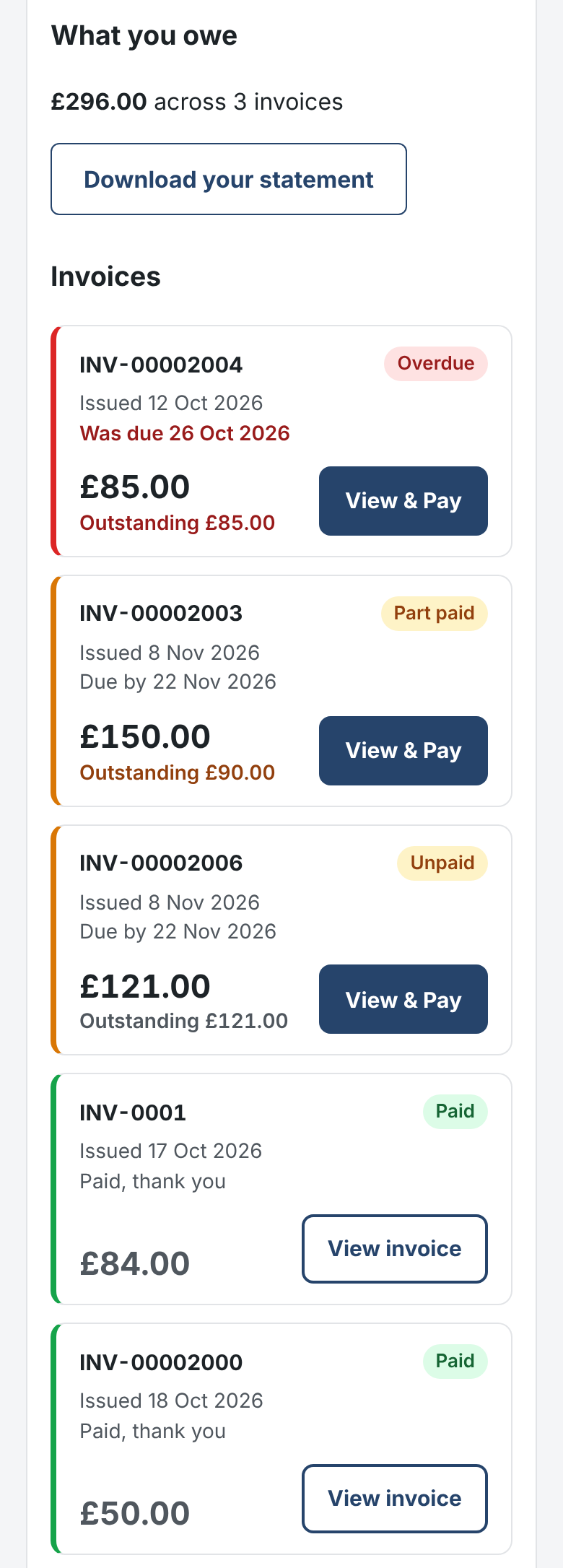
  • Invoices in your customer portal are now easy-to-read cards.

    Where: Customer portal › Invoices, on the phone or computer

    Each card shows the invoice number, status, when it was issued and when it is due, the invoice amount and what is still outstanding.

    1. Open your account from your sign-in link.
    2. Scroll to Invoices.
    3. Press View & Pay to see an invoice and pay it by card, or View invoice for one already paid.
    • Invoices still to pay come first, overdue ones at the top.
    • Part paid invoices show the outstanding amount under the original total.
    • Credit notes show as cards too.
    Invoice cards with the outstanding amount and View & Pay
    Invoice cards with the outstanding amount and View & Pay
0.14.28November 11, 20261 change
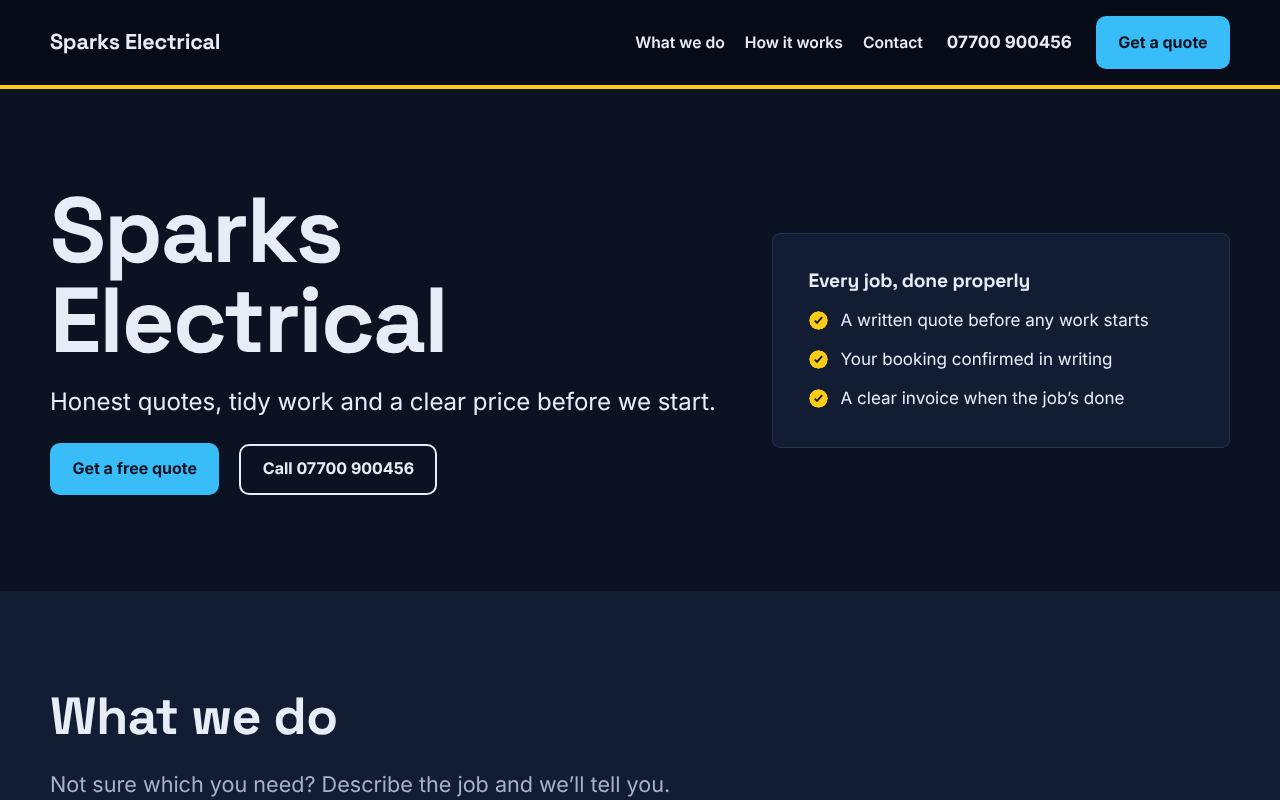
  • Your website now shows the design you picked when you signed up.

    Where: your website, for sites hosted by ModuleFest

    Some hosted sites showed the standard Trusted colours instead of the chosen design. That is fixed, and sites that were affected put themselves right with this update.

    1. Open your website's home page.
    2. Check the colours and fonts match the design you chose.
    3. To try another, go to Settings › Website design and pick one.
    • Nothing you have written on your pages is changed.
    • Changing design later keeps its colours too.
    A hosted site showing the design picked at sign-up
    A hosted site showing the design picked at sign-up
0.14.24November 10, 20261 change
  • Trades Business Manager now comes with a ready-made website for your business, with twelve designs to choose from.

    Where: Settings › Website design

    1. Open Settings › Website design.
    2. Press Use this design on the one you like.
    3. Press View your website to see it.
    • Your business name, phone, address and job types (with usual prices) come from Trades Business Manager.
    • Every Get a quote button opens your enquiry form, so enquiries land in Trades Business Manager.
    • Change design whenever you like. Once you've edited the home page, your words are kept.
    • On sites ModuleFest hosts, the design picked at sign-up is already in place.
    • Part of the Standard and Premium plans, ticked on the plan comparison. The free WordPress.org plugin doesn't include it.
0.13.0October 31, 20262 changes
  • See your figures for Making Tax Digital for Income Tax, quarter by quarter, in HMRC's categories.

    Find it in Money › Tax quarters.

    1. Pick the quarter. Each one shows its dates and when the update is due.
    2. Check your takings and each expense heading, for the quarter and the year so far.
    3. Press Download for bridging software (CSV), or Summary for your accountant to print.
    • Choose when money counts: when it arrives, or when you invoice.
    • You're warned about expenses with no heading and anything with no date.
    • Trades Business Manager doesn't send anything to HMRC itself.
  • When the work changes after a quote is accepted, add a variation and the customer approves it online.

    Find it in Money › Quotes: open the accepted quote and look under Changes to the work.

    1. Press Add a variation.
    2. Add the extra work, or work taken off as a minus amount, and say why it changed.
    3. Press Save and email to the customer. They approve or decline from the link.
    4. The quote shows each change and the new total.
    • Turn into an invoice adds approved changes after the quote's lines.
    • The original quote stays exactly as agreed.
0.12.1October 31, 20261 change
  • Your engineers' own Google or Outlook appointments can now count as busy in Trades Business Manager.

    Find it in Team › Engineers › Their own calendars.

    1. In Google Calendar or Outlook, copy the calendar's secret address in iCal format.
    2. Paste it next to the person and press Connect.
    • About once an hour Trades Business Manager reads it. Their appointments show as busy in the diary and the staff app.
    • Booking a job over one warns you of the clash, and online booking won't offer that time.
    • Only the start and end times are kept, never what the appointment is.
    • Press Disconnect to stop and delete them.
0.12.0October 27, 20265 changes
  • Keep a record of the boilers and appliances at each address.

    1. Open the customer and find Appliances. Press Add an appliance.
    2. Choose what it is, then add the make, model, serial number, where it is, when it went in and when its warranty ends. For a customer with several properties, choose which one.
    • Appliances at the job's address print on the job sheet.
    • In the staff app, the job shows Appliances here. Engineers can add one or correct it there.
    • You get an email 30 days before a warranty ends. Tick Email customers when an appliance's warranty is about to end under Settings › Certificates to tell the customer too.
    • Certificates and service reminders can name the appliance.
  • Split a bigger quote into a deposit, stage payments and a final balance.

    1. Open the quote and press Set up stage payments on the right.
    2. Name each stage and set it as a percentage of the quote or an amount including VAT, and say when it is due. The last stage is always what is left.
    3. Send the quote. The customer sees How you pay with each amount.
    4. Once it is accepted, press Invoice: Deposit (and then each later stage) on the quote. Invoice this job on the job does the same.

    The final invoice lists the whole quote and takes off what the earlier stage invoices came to, so the VAT comes out right.

  • Record holidays, training and sick days for your engineers.

    1. Go to Team › Engineers and find Time off.
    2. Choose who, the first and last day, all day or just mornings or afternoons, and why. Press Add time off.
    • It shows across the top of the diary (or as a shaded block for half days), on the planning board and in the staff app.
    • Booking a job for them then warns you of the clash, and online booking won't offer them.
    • If they already have jobs in that time you are told, so you can move them.
  • Update your stock costs from a supplier's price list.

    1. Go to Stock › Supplier prices.
    2. Upload the CSV from your merchant and choose how selling prices follow: leave them, keep each item's mark-up, or cost plus a mark-up.
    3. Press Check the changes. You see every price that changes and any codes that aren't in your stock.
    4. Press Save. Each import is listed with who ran it.

    Codes are matched to each item's SKU.

  • Match the money coming into your bank to your invoices.

    1. Download your statement from online banking as CSV.
    2. Go to Money › Bank matching and upload it.
    3. Each payment in is matched to an unpaid invoice: by the invoice number in the reference, then by the amount and customer's name. Strong matches are ticked for you.
    4. Check the invoice next to each ticked line and press Record ticked payments.

    Payments out are ignored. Lines you have uploaded before are not brought in twice, and payments you already recorded by hand are spotted.

0.11.2October 31, 20261 change
  • Customers booking online can now pay their deposit with PayPal or SumUp, as well as by card through Stripe.

    Switch the services on in Settings › Online payments, then turn on deposits in Jobs › Online booking.

    • If Stripe is on, nothing changes: customers pay on Stripe's page.
    • With PayPal or SumUp, customers go to their deposit's own page and pick how to pay. Paying confirms the booking.
    • Their time is held for an hour while they pay. If they don't pay, it's freed up again.
    • The deposit comes off their final invoice.
0.11.1October 31, 20266 changes
  • You can now choose one of the customer's properties on repeat visits and on certificates, just like on jobs and service reminders.

    Repeat visits

    1. Go to Jobs › Repeat visits and press New repeat visit (or open one).
    2. Choose the customer, then pick the property under Where. Its address fills in.
    3. Press Save and book the visits. Each visit goes in the diary at that property, with its contact and access notes on the job sheet.

    Certificates

    • On Record a certificate, pick the property under Where. The certificate, its expiry reminder and any renewal job are for that property.
  • Customers can now see what they owe in their portal, and download a statement.

    • What you owe shows the total left to pay, after payments and credit notes.
    • Download your statement opens their statement, ready to print or save as a PDF.
    • Part-paid invoices show how much is left to pay.
    • Their credit notes are listed, each with a link to view it.
    Try it from any customer: View portal as customer.
  • A job form, such as the Job completion checklist, can now be required before a job is marked done.

    1. Open Jobs › Forms and checks and open the form.
    2. Tick Must be filled in before a job can be marked done and save.

    From then on:

    • In the staff app, Job done tells the engineer which form to fill in first.
    • In the office, the job screen says which form is missing. If it was done another way, tick Mark it done anyway, because: and give the reason. The reason is saved as a note on the job.
  • Download everything now really is everything. As well as customers, jobs, quotes and invoices, the zip holds:

    • repeat visits, service reminders and job templates
    • expenses and mileage, purchase orders, certificates
    • forms and the forms filled in, messages sent, timesheets
    • maintenance plans and customer groups

    Secret link codes and payment-service ids are left out.

    Find it in Settings › Import and export.
  • You can now archive a customer you no longer work for, even one with invoices.

    1. Open the customer.
    2. Press Archive this customer.

    They leave the customer list, the pickers on new jobs, quotes and invoices, your groups and your newsletters. Their jobs, quotes and invoices stay exactly as they are.

    • Show archived customers on the Customers screen finds them again. Press Bring back this customer to undo.
    • If an archived customer sends an enquiry or books online, they come back by themselves.
  • If your website doesn't have the enquiry form on a page yet, Trades Business Manager can make one for you.

    1. Go to Settings › Your business and find Website enquiry form.
    2. Press Make the enquiry page.

    You get a Get a quote page with the form on it. Add it to your menu, like the booking page.

0.10.5October 31, 202614 changes
  • If you open a Trades Business Manager link that was bookmarked, is more than a day old, or was made for someone else's login, Trades Business Manager now says so and offers to open what the link points to.

    • You'll see a yellow note at the top of the list: That link was made for another login or has run out.
    • Press Open what the link points to to go straight to the quote, invoice, job or customer.
  • Your accounts exports now include credit notes, so your sales figures are right.

    • Xero: credit notes are in the sales invoices file with minus amounts, and Xero imports them as credit notes against the customer.
    • Your accountant's file lists each credit note, and shows part-paid invoices as part paid.
    • QuickBooks can't import credit notes, so add each one there as a credit memo. The screen now says so.
    Find it in Money › Accounts exports.
  • The Owed to you by customer report now adds up what is actually left to pay, after part payments and credit notes. It matches Money › Invoices › Who owes me.

    If you made your own copy of the report, add the new Left to pay column to it.
  • Statements now show credit notes in their own Credited column. The Paid column shows only money the customer has paid.

  • A credit note now shows everything on it, not just the amount. You see its number, date, what was credited and why.

    Find it in Money › Invoices, on the Credit notes tab.

    1. Open a credit note.
    2. Check the lines, the total credited and the reason.
    3. Press Email it to the customer or Print or PDF.
  • Once a customer accepts a quote, their copy no longer tells them how to accept it. It shows the quote as accepted.

    Find it in Money › Quotes: open an accepted quote and press Customer's view.

    • The status reads Accepted.
    • No accept or decline buttons, and no instructions about them.
  • In the staff app's Office tab, part-paid invoices now show what is left to pay and a Part paid label.

  • The customer portal no longer lists visits that are done or invoiced under Coming up.

  • The summary at the top of Money › Accounts exports now counts every payment received, including deposits and part payments. It also says how many credit notes are in the period.

  • The staff app now shows dates the UK way, for example "Wednesday 28 October".

    Find it in Team › Staff app.

    1. Press Open the app, or scan the code with a phone.
    2. The day at the top of today's jobs is written day first.
    • Dates follow your WordPress language and date settings.
  • The ? help button works again on an accepted quote. The quote itself still can't be changed.

  • Newsletter send results now show on the screen instead of in a browser pop-up. The count of customers reads properly, for example "1 has ticked".

    Find it in Customers › Newsletters.

    1. Open a newsletter and press Send or Schedule.
    2. The result appears at the top of the screen.
  • The help now explains correctly what happens when you delete a customer. Their jobs, quotes and emails are removed too.

    Find it in Customers › the customer.

    1. Press Delete this customer at the bottom of their record.
    2. Confirm.
    • A customer with invoices can't be deleted, because you must keep invoices for your records.
  • On the customer's copy of a quote, the Print or save as PDF button keeps its normal size next to the accept box.

0.10.4October 31, 20261 change
  • This is a behind-the-scenes tidy-up. Nothing looks or works differently, and you don't need to do anything.

    What changed

    • The links in your emails (quotes, invoices, credit notes, newsletter unsubscribe links) and the private calendar link are now read in a single, checked place in Trades Business Manager.
    • A line in a file comment that mentioned a paid add-on was reworded, so the free plugin describes only itself.
    • In 0.10.4 that place now uses WordPress's own way of reading a web address, so the plugin no longer reads the address bar directly anywhere on these pages.

    What stays the same

    • Quote and invoice links still open the document without a login.
    • Customers can still accept a quote, pay an invoice and unsubscribe from newsletters.
    • A link that has expired or been changed still shows the same "not valid" message.
    • Your calendar link keeps working. You don't need to add it to your calendar again.
    Updating is the usual way: Dashboard › Updates in WordPress.
0.3.9October 20, 20261 change
  • The app icons are now the right way round. The customer portal is the blue icon and the staff app is the white one.

    Find it in Team › Staff app.

    • If you added either app before, remove it from the home screen and add it again to get the new icon.
0.3.8October 20, 20261 change
  • The staff app and the customer portal can now both be added to the same phone. Each has its own icon on the home screen.

    Find it in Team › Staff app.

    1. Scan the code with the phone camera and sign in.
    2. Add it to the home screen.
    3. The customer portal can be added alongside it.
0.3.7October 20, 20263 changes
  • Customer groups can now fill themselves from rules and stay up to date.

    Where to find it: Trades Business Manager › Customers › Customer groups.

    Novidades

    • Groups built from rules, for example “has a boiler service due”.
    • A live count of who matches.
    • Ready-made starting points.
    • Add people by hand, or take them out.

    How to use it

    1. Press New group and pick a starting point or add your own rules.
    2. Watch the live count as you change the rules.
    3. Add or remove individual customers if you need to, then save.

    Included in the Premium plan (Trades Business Manager Pro).

  • Customers can now add your portal to their phone’s home screen, where it opens like an app with your name and icon.

    Where to find it: The customer portal, on a phone.

    Novidades

    • “Add to home screen” for the customer portal.
    • Its own app name and icon.

    How to use it

    1. Open the portal on a phone.
    2. Tap Add to home screen when prompted (or use the browser’s Share menu).
    3. The portal now has its own icon.

    Included in the Standard and Premium plans (Trades Business Manager Pro).

  • Screens with two columns now fit on a phone. They fold into one column, and wide tables no longer push the page sideways.

    Find it on any record, for example Customers › the customer, on your phone.

    • Scroll down for what was in the right-hand column.
0.3.6October 20, 20261 change
  • The "translation loading was triggered too early" warning no longer appears. It showed on newer versions of WordPress at the top of screens.

    Find it on Dashboard: the screens open cleanly.

    • Nothing to change: it's fixed by updating Trades Business Manager.
0.3.5October 20, 20262 changes
  • Trades Business Manager can now send its emails through your own SMTP server.

    Where to find it: Trades Business Manager › Settings › Email.

    Novidades

    • SMTP settings for your own mail server.
    • Send a test email.
    • A testing override for demo sites, so no real customers are emailed.

    How to use it

    1. Enter your SMTP server, port, user name and password (from your email provider).
    2. Press Save and send a test email.
    3. On a demo site, turn on the testing override so all email goes to you.
    Your email provider’s help pages list the SMTP server and port, for example smtp.office365.com and 587.

    Included in the free Trades Business Manager plugin.

  • Deleting customers is now safer, protecting your financial records.

    Where to find it: Open a customer and press Delete.

    Novidades

    • Customers with invoices can’t be deleted.
    • Deleting any other customer tells you exactly what will be removed first.

    How to use it

    1. If the customer has invoices, you will be told why they can’t be deleted.
    2. Otherwise, check the list of what will be removed, then confirm.
    This keeps your accounts complete: a customer with invoices can never be deleted.

    Included in the free Trades Business Manager plugin.

0.3.4October 20, 20263 changes
  • The diary now has five views, and booking a job is as simple as clicking a free slot.

    Where to find it: Trades Business Manager › Diary.

    Novidades

    • Day, work week, week, month and list views.
    • Click an empty hour to book a job there.

    How to use it

    1. Use the view buttons at the top to switch between Day, Work week, Week, Month and List.
    2. Click an empty hour to start a new job at that time.

    Included in the free Trades Business Manager plugin.

  • Customer groups let you target newsletters, for example landlords or annual-service customers.

    Where to find it: Trades Business Manager › Customers › Customer groups.

    Novidades

    • Create customer groups.
    • Send a newsletter to a group.

    How to use it

    1. Press New group and give it a name.
    2. Add customers to it.
    3. When sending a newsletter, choose the group.

    Included in the Premium plan (Trades Business Manager Pro).

  • The customer portal now has its own branded page.

    Where to find it: Trades Business Manager › Settings › Customer portal.

    Novidades

    • A stand-alone portal page with your logo and colours.
    • It does not depend on your website theme.

    How to use it

    1. Make sure your logo and colour are set in the designer.
    2. Open the portal page; it uses your branding automatically.

    Included in the Standard and Premium plans (Trades Business Manager Pro).

0.3.3October 20, 20266 changes
  • You can now protect your website enquiry form with Google reCAPTCHA.

    Where to find it: Trades Business Manager › Settings › Your business, in the enquiry form section.

    Novidades

    • Optional Google reCAPTCHA on the website enquiry form.
    • Works with reCAPTCHA v2 (tick box) or v3 (invisible).

    How to use it

    1. Get a site key and secret key from Google reCAPTCHA.
    2. Choose v2 or v3 and paste in both keys.
    3. Save. The check appears on the enquiry form straight away.
    Version 3 is invisible to visitors; version 2 shows the familiar I’m not a robot tick box.

    Included in the free Trades Business Manager plugin.

  • Adding a customer is now a quick pop-up, so you never leave the page you are working on.

    Where to find it: The “+ New customer” link on quotes, invoices and jobs.

    Novidades

    • “+ New customer” opens a small form over the page.
    • If the email address already exists, that customer is picked instead of creating a duplicate.

    How to use it

    1. Press “+ New customer”.
    2. Fill in the name, email and phone, then press Add.
    3. The customer is selected and you carry on.

    Included in the free Trades Business Manager plugin.

  • Every customer record now lists the emails Trades Business Manager has sent them.

    Where to find it: Trades Business Manager › Customers, then open a customer and look for Emails sent.

    Novidades

    • An Emails sent list on each customer record.
    • Quotes, invoices, reminders and other Trades Business Manager emails are listed with the date.

    How to use it

    1. Open the customer.
    2. Scroll to Emails sent to see what went out, and when.

    Included in the free Trades Business Manager plugin.

  • Invoices can now be paid by PayPal or SumUp, as well as by card through Stripe.

    Where to find it: Trades Business Manager › Settings › Online payments.

    Novidades

    • PayPal and SumUp, alongside Stripe.
    • Step-by-step set-up guides.
    • A connection check to prove it works.

    How to use it

    1. Choose PayPal, SumUp or Stripe and follow the set-up guide.
    2. Paste in your keys and press Check connection.
    3. Pay buttons appear on your online invoices.

    Included in the Standard and Premium plans (Trades Business Manager Pro).

  • Setting up and sharing the customer portal is now much easier.

    Where to find it: Open any customer and look for the Customer portal panel. Set-up is under Trades Business Manager › Settings › Customer portal.

    Novidades

    • A QR code for the portal.
    • View portal as customer.
    • Create the portal page for me, in one click.

    How to use it

    1. Press Create the portal page for me if you have not got one yet.
    2. Print the QR code on your cards or van; customers scan it and sign in with their email.
    3. Use View portal as customer to see exactly what they see.
    The QR code is safe to print on a business card or your van: customers still sign in with their own email address.

    Included in the Standard and Premium plans (Trades Business Manager Pro).

  • Engineer permissions are now clear and easy to set.

    Where to find it: Trades Business Manager › Team › Engineers.

    Novidades

    • The Team screen explains what engineers can and can’t do.
    • Three simple permission levels to choose from.

    How to use it

    1. Open Engineers and choose the engineer.
    2. Pick one of the three permission levels; the screen spells out what each allows.
    3. Save.

    Included in the Premium plan (Trades Business Manager Pro).

0.3.2October 20, 20263 changes
  • Quote and invoice lines can now come straight from your stock, and quoted parts are held so you don’t sell them twice.

    Where to find it: On any quote or invoice, use the From stock box on each line. Stock take is under Trades Business Manager › Stock.

    Novidades

    • Pick quote and invoice lines from stock.
    • A quote holds the stock until it is invoiced, declined or expires.
    • Labour and services can be set up as priced items.
    • A full stock take screen.

    How to use it

    1. On a quote line, choose an item from stock; the description and price fill in.
    2. Save the quote; those items show as held in Stock.
    3. When the quote is invoiced the stock is used; if it is declined or expires, it is released.

    Included in the free Trades Business Manager plugin.

  • Documents now follow your VAT status automatically and carry your business details.

    Where to find it: Trades Business Manager › Settings › Quotes & invoices.

    Novidades

    • No VAT is shown unless you enter a VAT number.
    • With a VAT number, invoices are titled Tax invoice.
    • Logo, contact strip, bank details and how-to-accept text on documents.
    • Set the next quote and invoice numbers yourself.

    How to use it

    1. Enter your VAT number under Settings › Your business if you are registered; leave it blank if not.
    2. Check the next quote and invoice numbers under Settings, Quotes & invoices, especially if you are moving from another system.
    3. Preview an invoice to see the result.
    If you are VAT registered, double-check your VAT number before sending your first invoice: it decides whether VAT is shown.

    Included in the free Trades Business Manager plugin.

  • Pro-forma invoices let you request payment before the job, then convert to a full invoice.

    Where to find it: Open a quote and press Pro-forma invoice.

    Novidades

    • Create a pro-forma invoice from any quote.
    • Turn it into a proper invoice once paid.

    How to use it

    1. Open the accepted quote.
    2. Press Pro-forma invoice and email it to the customer.
    3. When they pay, convert it to a full invoice.

    Included in the Standard and Premium plans (Trades Business Manager Pro).

0.3.1October 20, 20262 changes
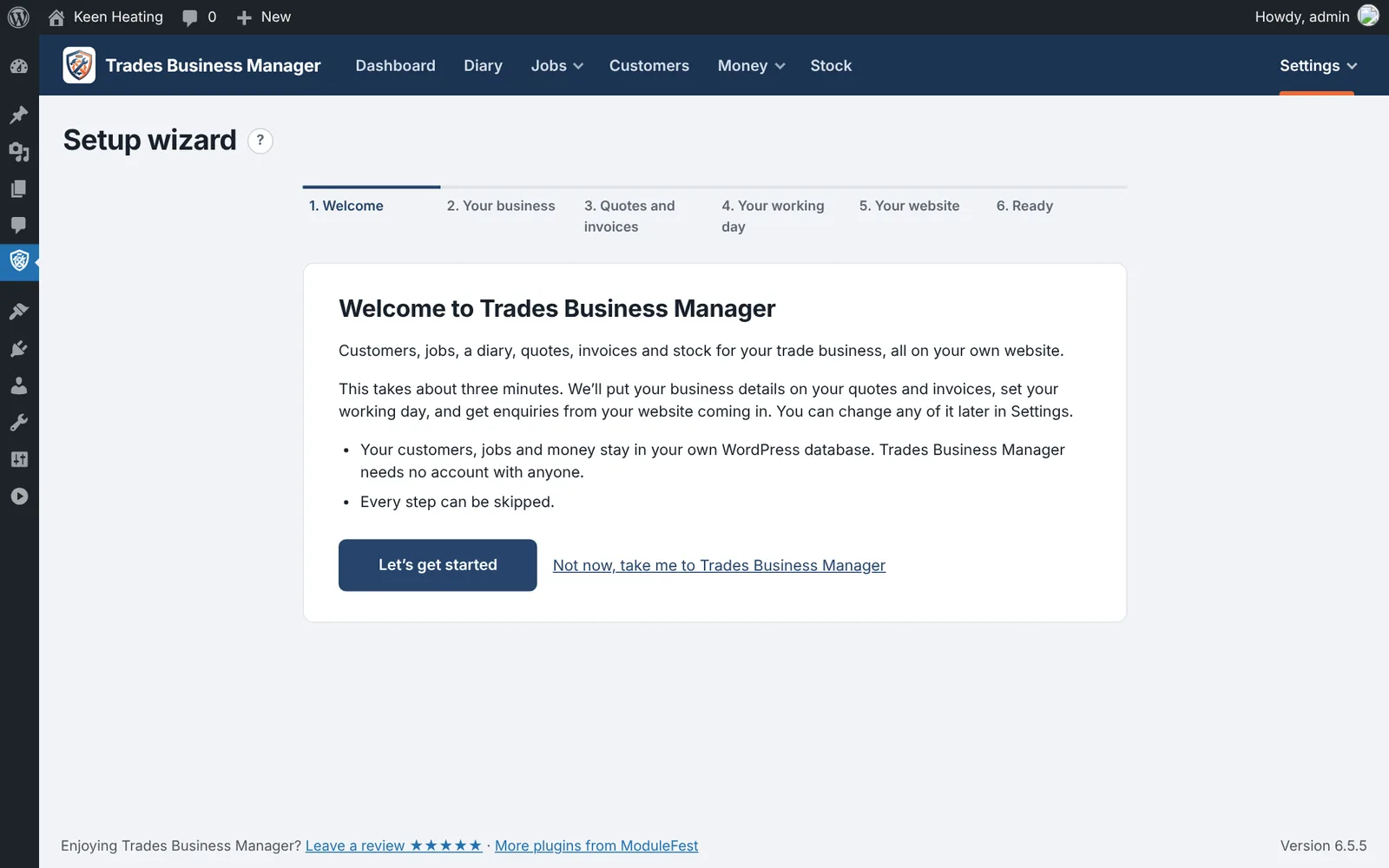
  • Demo data fills Trades Business Manager with a realistic sample business, so you can explore every screen before using it for real.

    Where to find it: Trades Business Manager › Settings › Demo data.

    Novidades

    • Load a sample heating and plumbing business.
    • Refresh the sample to this week, so the diary always looks current.
    • Remove all the sample data in one go.

    How to use it

    1. Press Load demo data.
    2. Explore the diary, jobs, quotes and invoices.
    3. Press Refresh to move the sample jobs to this week.
    4. When you are ready, press Remove demo data. Your own records are not touched.
    Removing the demo data only removes the sample records. Your own customers, jobs and invoices are never touched.

    Included in the free Trades Business Manager plugin.

  • Adding a new customer while writing a quote, invoice or job no longer loses your work.

    Where to find it: The “+ New customer” link under the Customer box on a quote, invoice or job.

    Novidades

    • “+ New customer” on quotes, invoices and jobs.
    • You come back with everything you had typed still there.
    • The new customer is already chosen.

    How to use it

    1. Start your quote, invoice or job.
    2. Press “+ New customer” and enter their details.
    3. Save, and you are taken back with your work intact and the new customer selected.

    Included in the free Trades Business Manager plugin.

0.3.0October 20, 20261 change
  • Trades Business Manager is now one free plugin. The paid plan features come in a separate add-on called Trades Business Manager Pro, which you add when you buy a plan.

    Where to find it: In WordPress, go to Plugins › Add New and search for Trades Business Manager. For plans, go to Trades Business Manager › Settings › Plan & licence.

    Novidades

    • Trades Business Manager is a single free plugin that can be listed on WordPress.org.
    • Plans, the licence and hub updates live in a separate Trades Business Manager Pro add-on.
    • A Get updates card and an About ModuleFest screen.

    How to use it

    1. Install and activate Trades Business Manager from WordPress.org.
    2. To unlock a plan, buy it and install Trades Business Manager Pro from the link in your email.
    3. Your existing data stays where it is.

    Included in the free Trades Business Manager plugin.

0.2.4October 20, 20261 change
  • Your licence now only shows as active once ModuleFest has confirmed it. The screen names the plan you're on.

    Find it in Settings › Plan & licence.

    1. Paste your licence key and press Activate.
    2. If the key is refused, you see the reason and nothing on your site changes.
    • Removing a licence checks that the site's place on it has been freed, so you can use it on another site.
0.2.3October 20, 20262 changes
  • Your website can now be linked to your ModuleFest Hub account, which keeps your licence, updates and support together.

    Where to find it: Trades Business Manager › Settings › Plan & licence.

    Novidades

    • Link a site to your ModuleFest Hub account.
    • See the link status in Trades Business Manager.

    How to use it

    1. Open Plan & licence.
    2. Press Fetch my licence and sign in to ModuleFest Hub to approve the link.
    3. You return to Trades Business Manager with the site shown as linked.

    Included in the Standard and Premium plans (Trades Business Manager Pro).

  • A licence that never expires is no longer shown as expired. Your plan's features stay switched on.

    Find it in Settings › Plan & licence.

    • Lifetime licences show as active, with no end date.
0.2.2October 20, 20261 change
  • Every Trades Business Manager screen now has a navigation bar along the top, with a fresher look and layouts that work on a phone.

    Where to find it: Open any Trades Business Manager screen; the bar is along the top.

    Novidades

    • A navigation bar across the top of every Trades Business Manager screen.
    • A cleaner, more modern look.
    • Better layouts on phones.

    How to use it

    1. Use the menus in the bar to jump between Diary, Jobs, Customers, Money, Stock, Reports and Team.
    2. On a phone, the bar folds into a menu button.

    Included in the free Trades Business Manager plugin.

0.2.1October 20, 20263 changes
  • Unsubscribes now always stick. Once a customer unsubscribes, the enquiry form on your website can no longer sign them back up.

    Find it in Customers › Newsletters, on the Who gets them tab.

    • One unsubscribe covers every customer record with that email address.
    • The count at the top shows how many customers are unsubscribed.
  • A newsletter is now only ever sent once to each customer. If a send is interrupted, it carries on where it stopped without sending anyone a second copy.

    Find it in Customers › Newsletters.

    1. Open your newsletter and press Send.
    2. Leave the screen if you like. Each customer gets it once.
  • Invoicing a quoted job now includes the materials used as well. You no longer need to add parts by hand.

    Find it on the job: Jobs › the job › Invoice this job.

    1. Book materials out of stock to the job as you use them.
    2. When the work is done, press Invoice this job.
    3. The invoice has the quote's lines, then each material at its selling price.
    • Pressing it twice opens the first invoice rather than making a duplicate.
0.2.0October 20, 20265 changes
  • Quotes and invoices are now part of the free plugin, so every Trades Business Manager user can price work and get paid.

    Where to find it: Trades Business Manager › Money › Quotes (or Money › Invoices).

    Novidades

    • Create quotes and invoices with line items and VAT.
    • Email them to the customer with a link to view them online.
    • Customers can accept a quote online.

    How to use it

    1. Press New quote and choose the customer.
    2. Add your lines: labour, parts and anything else.
    3. Press Save and email to customer. They get a link to view and accept it.
    4. When the work is done, turn the quote into an invoice.

    Included in the free Trades Business Manager plugin.

  • You can now track your stock across every place you keep it, and charge for parts as you use them.

    Where to find it: Trades Business Manager › Stock.

    Novidades

    • Stock items with a quantity at each location.
    • Move stock between locations.
    • Materials used on a job go onto its invoice automatically.

    How to use it

    1. Add your locations, for example Van 1 and Lock-up.
    2. Add stock items with a cost price, selling price and quantity at each location.
    3. On a job, record the materials used; they appear on the invoice when you invoice the job.

    Included in the free Trades Business Manager plugin.

  • The invoice and quote designer lets you brand your documents without touching any code.

    Where to find it: Trades Business Manager › Money › Invoice design.

    Novidades

    • Your logo and brand colours.
    • A choice of layouts.
    • Bank details and footer text on every document.
    • A live preview while you design.

    How to use it

    1. Upload your logo and pick your brand colour.
    2. Choose a layout and watch the preview update.
    3. Check your bank details and footer text (from Settings, Quotes & invoices), then press Save.

    Included in the Standard and Premium plans (Trades Business Manager Pro).

  • The report builder turns your jobs, quotes and invoices into charts and tables you can download.

    Where to find it: Trades Business Manager › Reports.

    Novidades

    • Choose what to report on and how to group it.
    • Charts on screen.
    • Download as Excel, CSV or PDF.

    How to use it

    1. Pick what you want to report on, for example invoices by month.
    2. Choose the date range and how to group the figures.
    3. View the chart, then download it as Excel, CSV or PDF.

    Included in the Premium plan (Trades Business Manager Pro).

  • You can now email newsletters to your customers straight from Trades Business Manager, with opt-in and unsubscribe handled for you.

    Where to find it: Trades Business Manager › Customers › Newsletters.

    Novidades

    • Write and send newsletters from Trades Business Manager.
    • Customers opt in, and every email has a one-click unsubscribe link.
    • Send to everyone or to a customer group.

    How to use it

    1. Press New newsletter and write your message.
    2. Choose who it goes to: all opted-in customers or a group.
    3. Send a test to yourself, then send it.

    Included in the Premium plan (Trades Business Manager Pro).

Quer ver ModuleFest Trades Business Manager em ação?

Explore a demonstração ao vivo. Todas as funcionalidades estão ativas e ela repõe-se sozinha, por isso experimente tudo o que quiser.

Sobre a demonstração ao vivo

No login needed – give a name and email and you are in. A made-up heating and plumbing firm, shared with everyone else trying it, reset every three days.

Mais da ModuleFest

O resto do catálogo

ModuleFest Pet Sitter

Booking and business software

O gestor para negócios de pet sitting: reservas, clientes e faturação

Em desenvolvimento A partir de £24.99 per month

Já tem alojamento WordPress? Há um plugin gratuito, com melhorias sempre que precisar.

ModuleFest Pet Trainer

Booking and business software

O gestor para negócios de treino de cães: reservas, clientes e faturação

Em desenvolvimento A partir de £24.99 per month

Já tem alojamento WordPress? Há um plugin gratuito, com melhorias sempre que precisar.

ModuleFest Lantern

Plugin WordPress

Assiduidade, comunicação com os pais e proteção de menores para escolas de necessidades educativas especiais

Em desenvolvimento A partir de £24.99 per month

Já tem alojamento WordPress? Há um plugin gratuito, com melhorias sempre que precisar.

ModuleFest HallPro

Plugin WordPress

Gira o seu salão comunitário ou de aldeia a partir de um só lugar.

Em desenvolvimento A partir de £24.99 per month

Já tem alojamento WordPress? Há um plugin gratuito, com melhorias sempre que precisar.