









 New features
Safeguarding case files, several schools and more for Lantern
Lantern 0.99 brings the tools a growing school or trust asks for: safeguarding case files, a therapy and interventions planner, staff training with expiry reminders, governor and Ofsted reports, local authority returns and several schools in one Lantern. For families: collection safety, a daily digest, trips with consent and parents' evening booking.
Several schools in one Lantern
Run a group of schools from one Lantern, move pupils between them, and see the group on one dashboard. Premium plan.
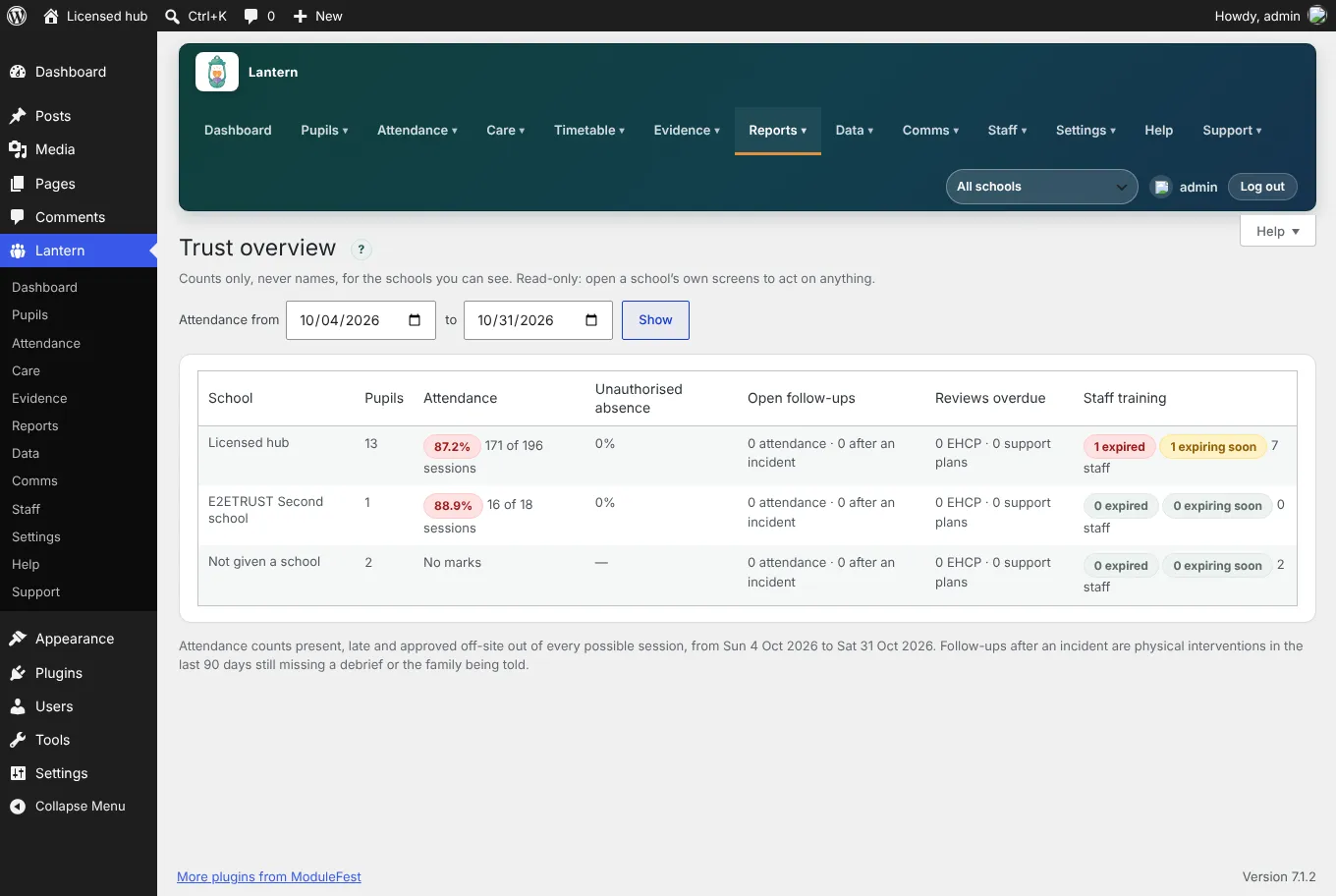
Safeguarding case files
Gather concerns and incidents into a case, record actions and referrals, and keep it to the DSL team. Premium plan.
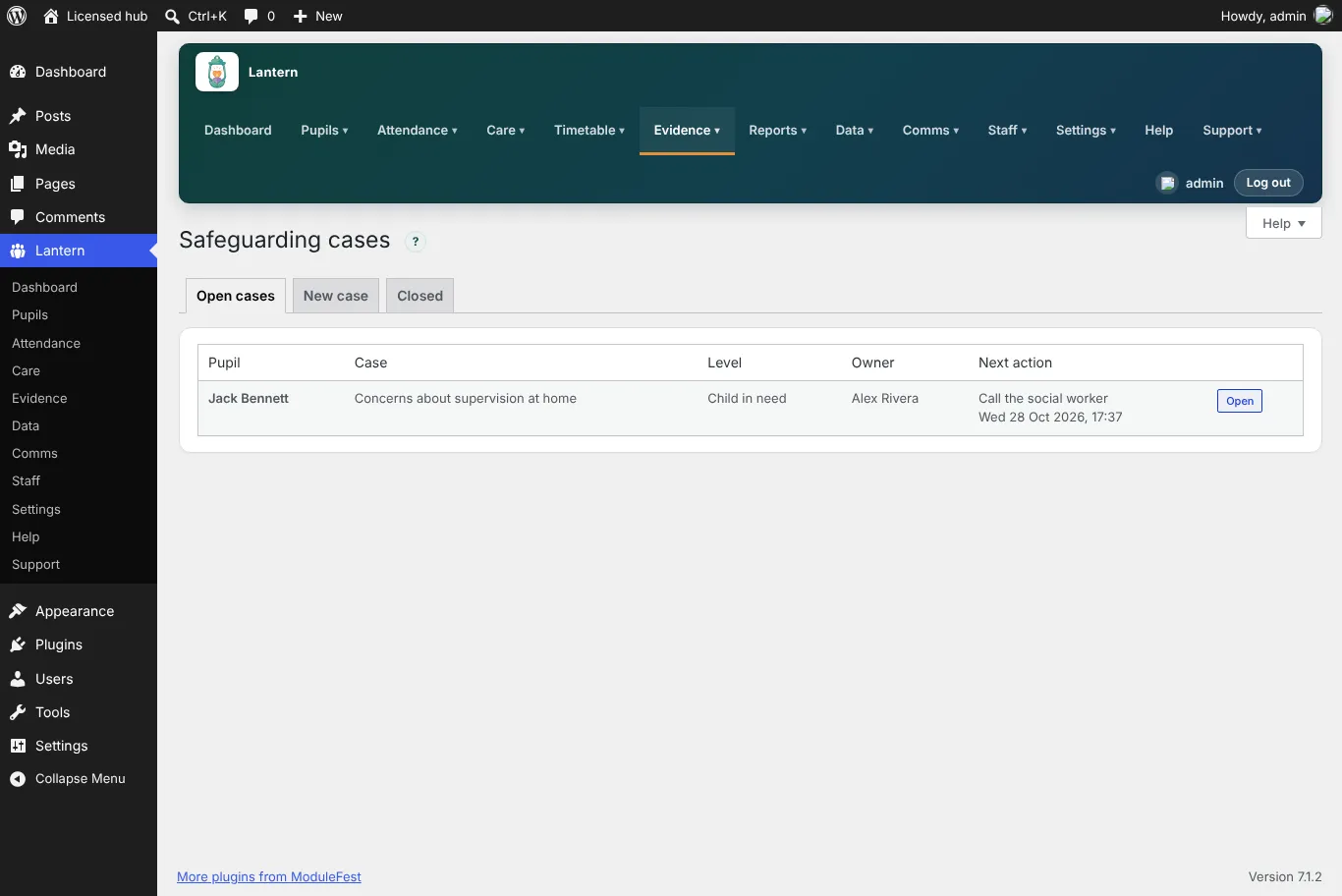
Therapy and interventions planner
Plan each pupil's therapies by the week, record sessions in Lantern Staff and see the impact. Premium plan.
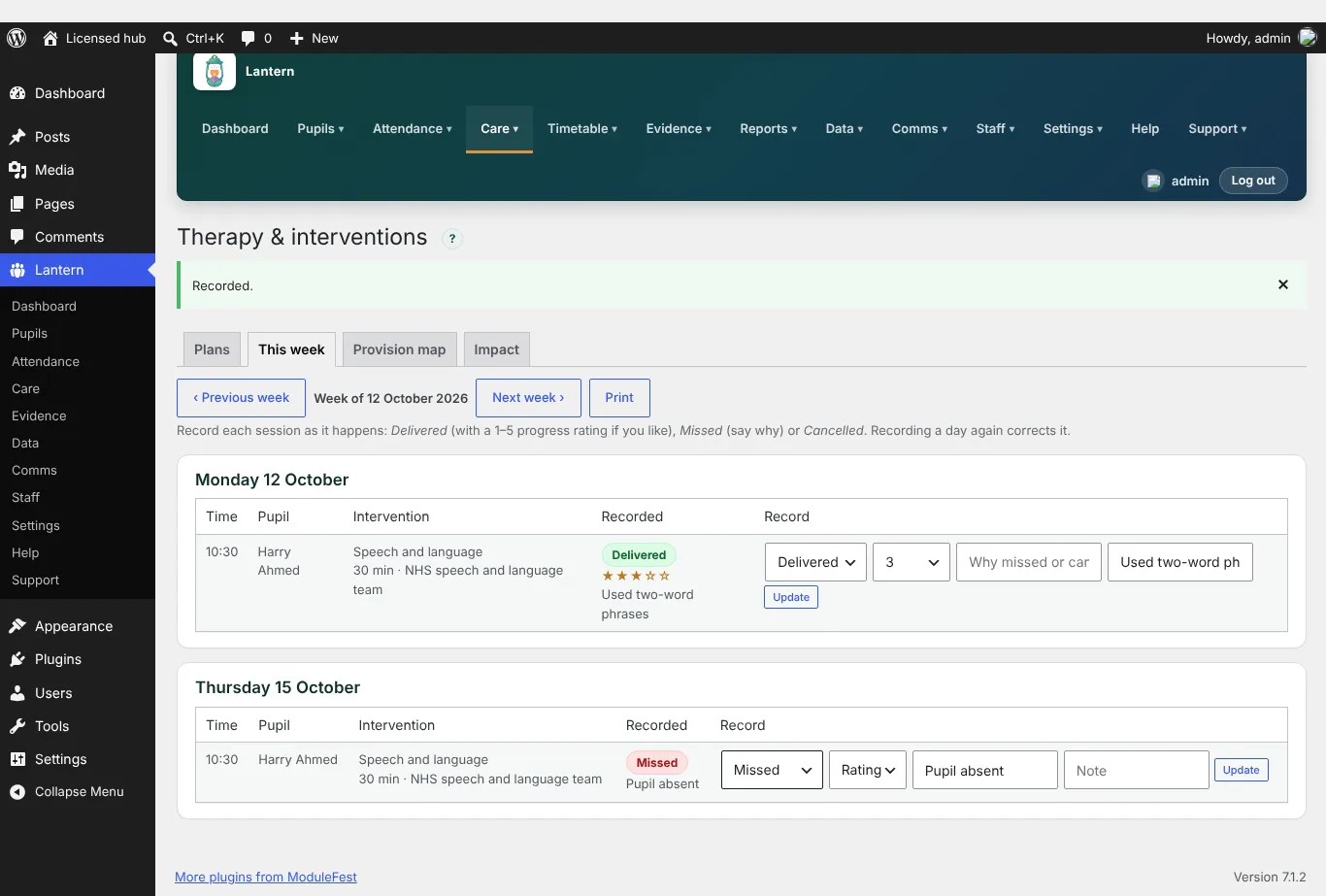
Staff training and DBS
A training matrix, DBS records and courses, with an Expiring tab for the next 30, 60 and 90 days and reminders. Premium plan.
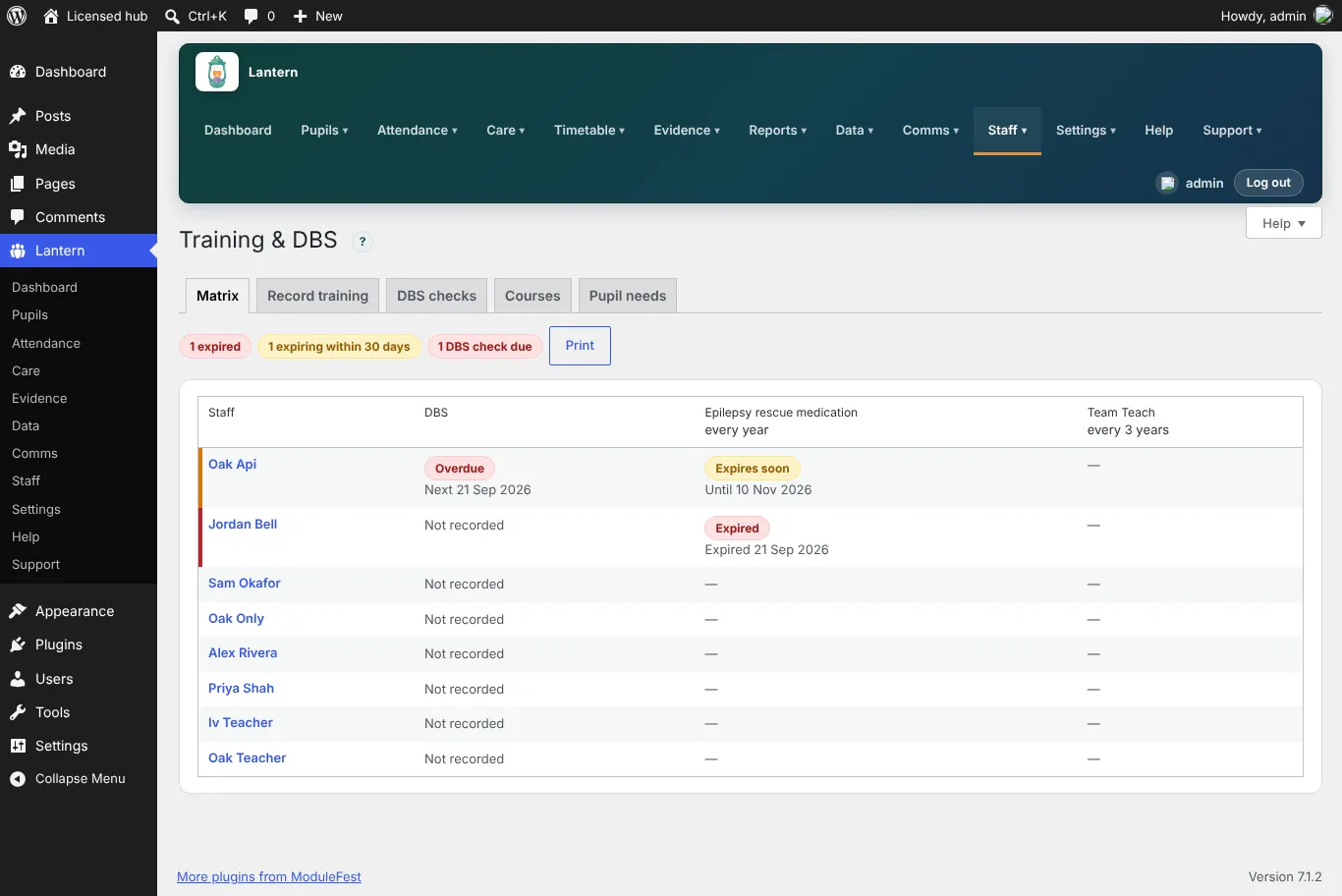
Reports and returns
Governor and Ofsted reports, local authority returns in each authority's format, records retention for leavers, an audit and data access log, MIS imports and single sign-on. Premium plan.
For families
Collection safety with a home-time list in Lantern Staff, a daily "how was today" digest, trips with consent, and parents' evening booking in Lantern Family.
Note di rilascio
0.99.21November 2, 2026
You can now see which staff training is running out, get a weekly reminder, and staff can check their own training on their phone.
Find it at Staff › Training & DBS › Expiring.
- Choose Next 30 days, Next 60 days or Next 90 days.
- To be reminded, tick the weekly reminder and press Save.
- The reminder emails the people who manage Lantern, and nobody else, only when something expires in the next 30 days or a DBS check is due.
- Send it now sends one straight away.
- In Lantern Staff, each person opens Care › My training to see their own courses and expiry dates.
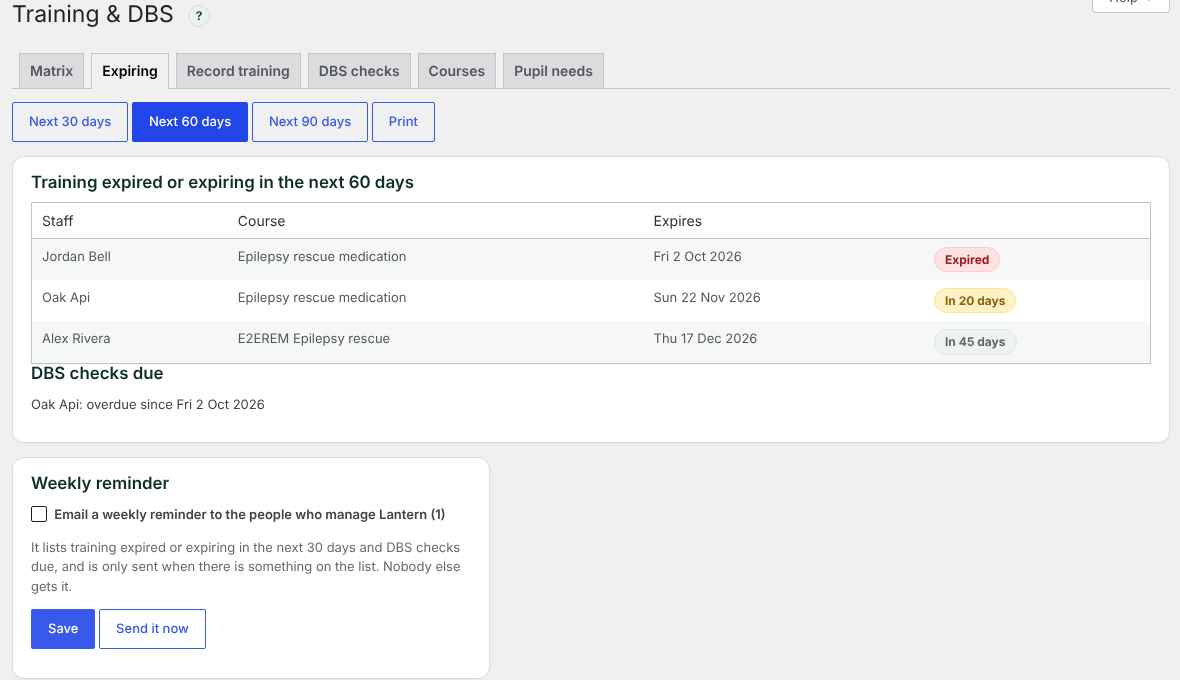
Training expiring in the next 60 days 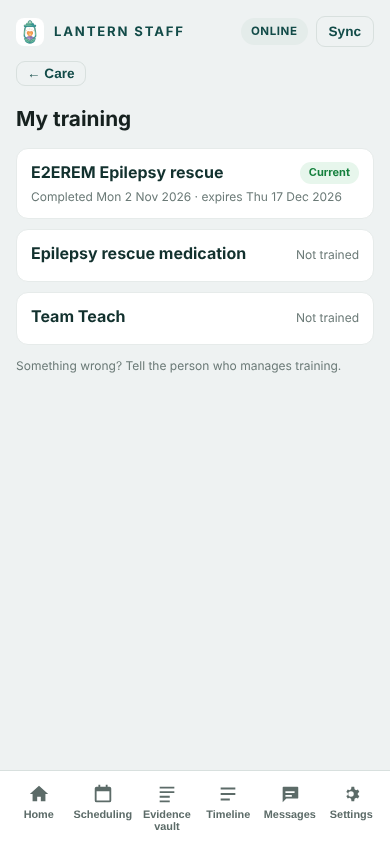
My training in Lantern Staff
0.99.20November 2, 2026
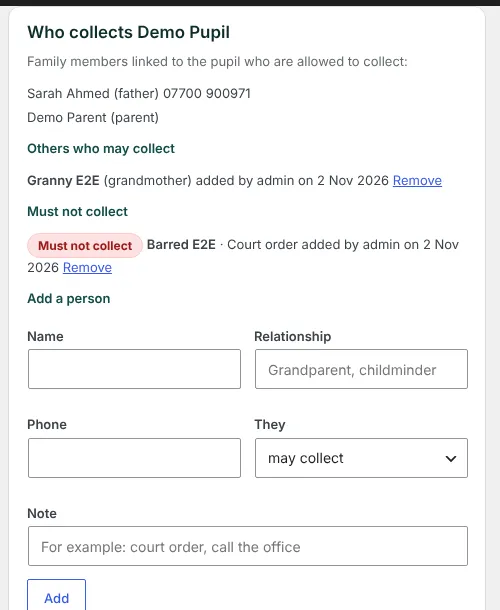
You can now record who may collect each pupil and who must not, and staff see who is collecting at home time. Families can tell you when someone different is collecting.
Find it at Attendance › Transport & handover.
- Open Travel arrangements, choose a pupil under Who collects and press Show.
- Add anyone else who may collect, and anyone who must not, with a note.
- Add a one-off change under Collection changes, or let the family add it in the Home time tab of Lantern Family.
- At home time, staff open Care › Home time in Lantern Staff and press Handed over.
- Anyone who must not collect is shown in red. Families never see this list.
- Nothing is deleted: removals and cancellations keep who did it and when.
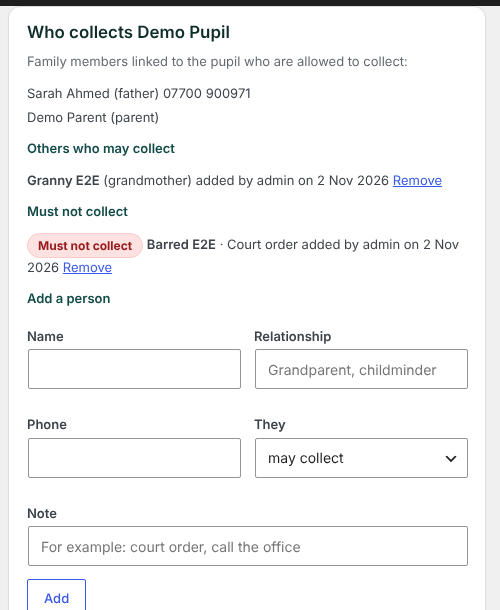
Who collects a pupil 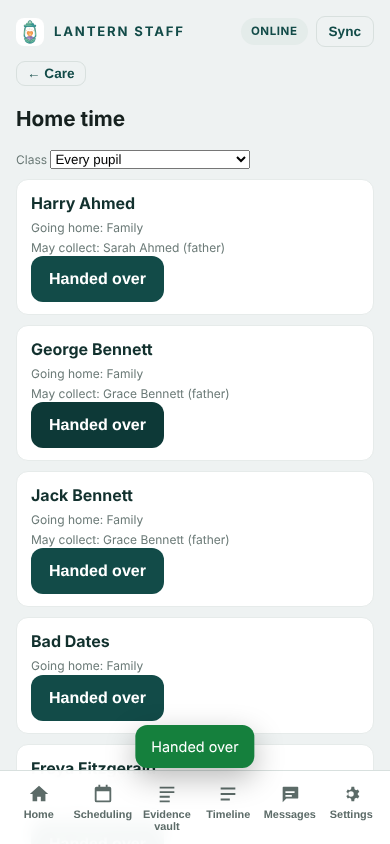
Home time in Lantern Staff
0.99.19November 1, 2026
You can now view an attendance and safeguarding overview across all your trust's schools on a single dashboard.
Go to Reports > Trust overview to see your multi-school data.
- Select your desired date range to view attendance and unauthorised absence figures.
- Review the rows for each school to check open follow-ups, overdue reviews, and staff training status.
- Scroll to the bottom to check totals for any pupils and staff not assigned to a specific school.
0.99.18October 31, 2026
You can now generate complete annual review and EHCP preparation packs for your pupils in minutes.
Find this under Pupils > View Pupil > Annual Review.
- Select your target date range and choose which information to include, such as progress, attendance, and support plans.
- Review and edit any section before finalising the document.
- Click to print your pack or download it as a secure file.
You can now plan trips and visits and collect consent from families in Lantern Family. One printed sheet then holds everything staff need on the day.
Find it at Care › Trips & visits.
- Press New trip or visit and add the date, place, times and what families need to know.
- Link the trip's risk assessment.
- Add a class or individual pupils.
- Families answer yes or no in the new Trips tab, with a note if they like.
- Print the Take-with-you sheet.
- Record answers given by phone or on paper yourself.
- Remind families who have not answered sends them a notification.
- The sheet lists each pupil with consent, their medicines, your notes and their contacts. Pupils without consent are listed separately.
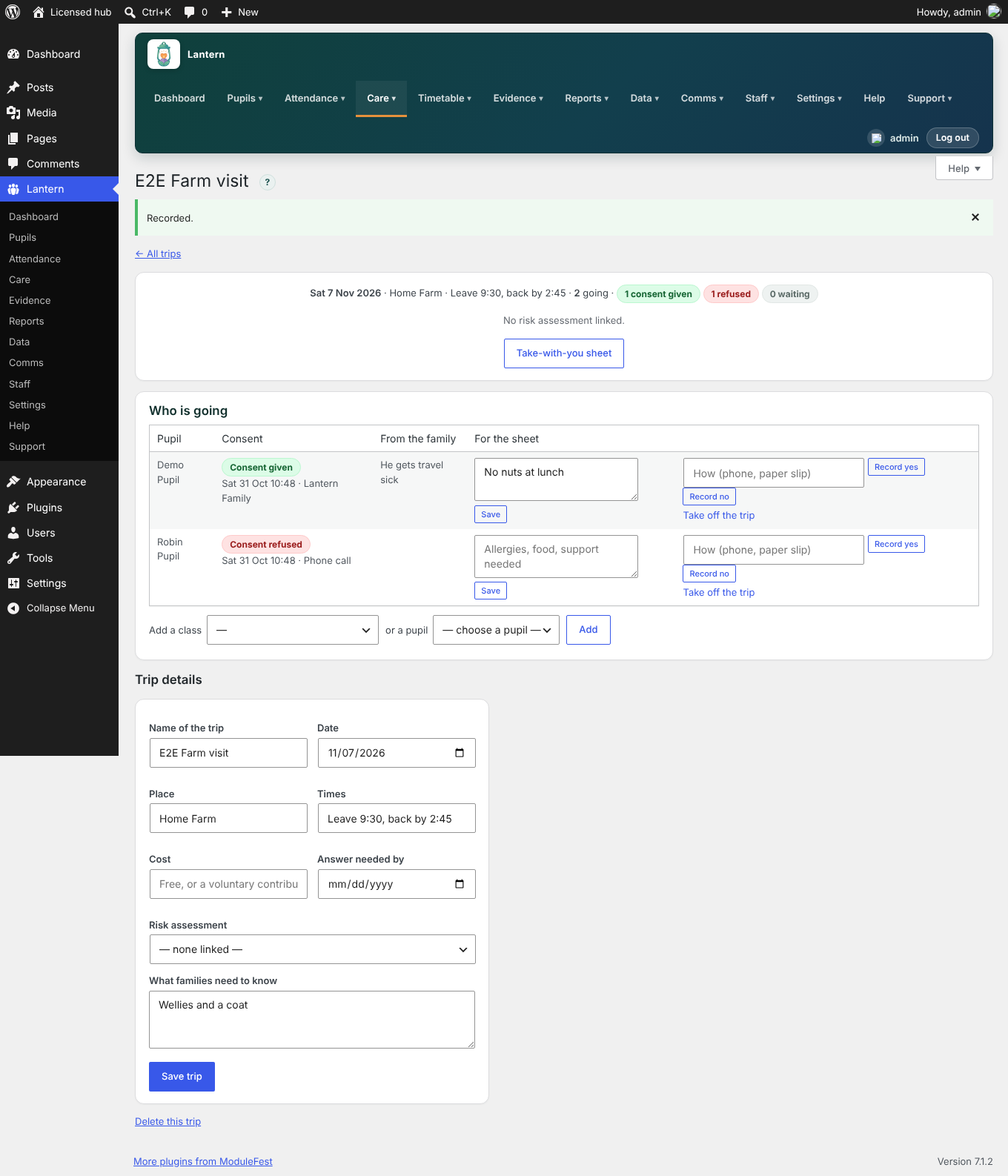
A trip with each family's answer 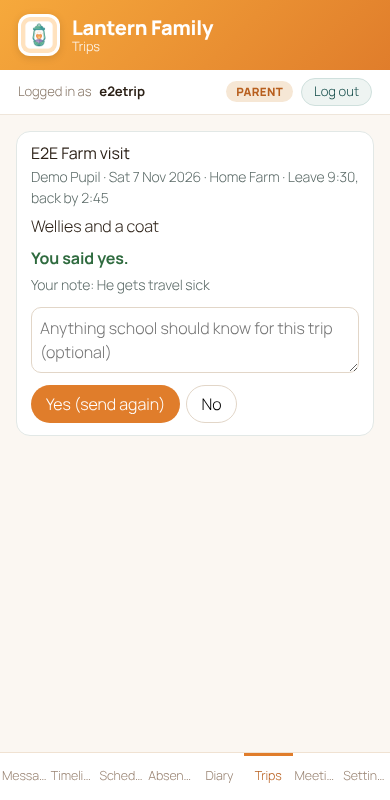
The Trips tab in Lantern Family
0.99.16October 30, 2026
Approve behaviour notes before families see them
Staff already write a note for the family on each behaviour record. Now a manager can check it first.
Switch it on
- Open Care → Behaviour support → Family approval and tick Behaviour records wait for a manager before families see them.
- From then on, a behaviour record that staff share with the family waits on this tab instead of appearing straight away on the family's Timeline in Lantern Family.
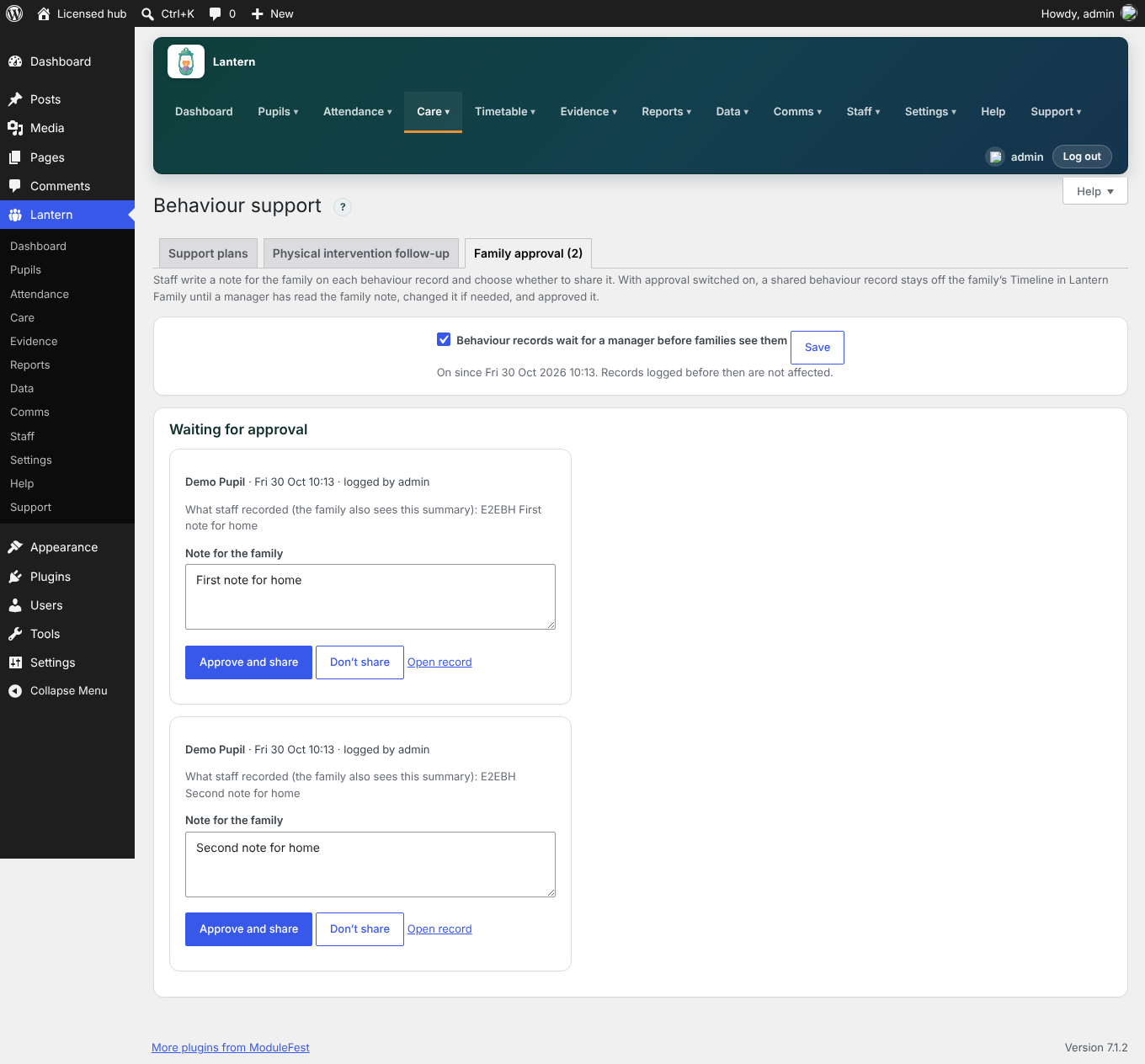
Records waiting for approval Decide
- Read what staff recorded and the note for the family. Change the wording if you need to.
- Press Approve and share and the record appears on the family's Timeline. Families with notifications on see News from school.
- Or press Don't share and it stays on the pupil's record for staff only.
- For a physical intervention, approving records the family as told by Lantern message, if nobody has recorded it yet.
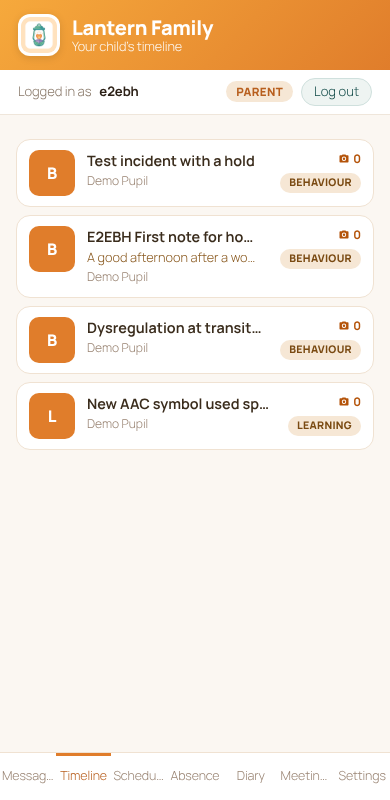
What the family sees after approval Good to know: records logged before you switched it on are not affected, and other kinds of record (learning, medical) are never held. Families see the record's summary as its title as well as the note, so keep summaries suitable for home. Switching approval off releases anything still waiting.
Standard plan, with Lantern Pro. Open the ? next to the screen title for help.
0.99.15October 27, 2026
A daily digest for families
Families now get one short "How the day went" for their child, with nothing extra for staff to write.
For the school
- Open Care → Home–school diary → Daily digest (you need the manage-plugin permission).
- Switch on Send the digest automatically, choose a time, and choose what goes in: attendance (in school or away, morning and afternoon) and the published diary entry.
- Press Send today now to send it by hand at any time. A day is only sent once.
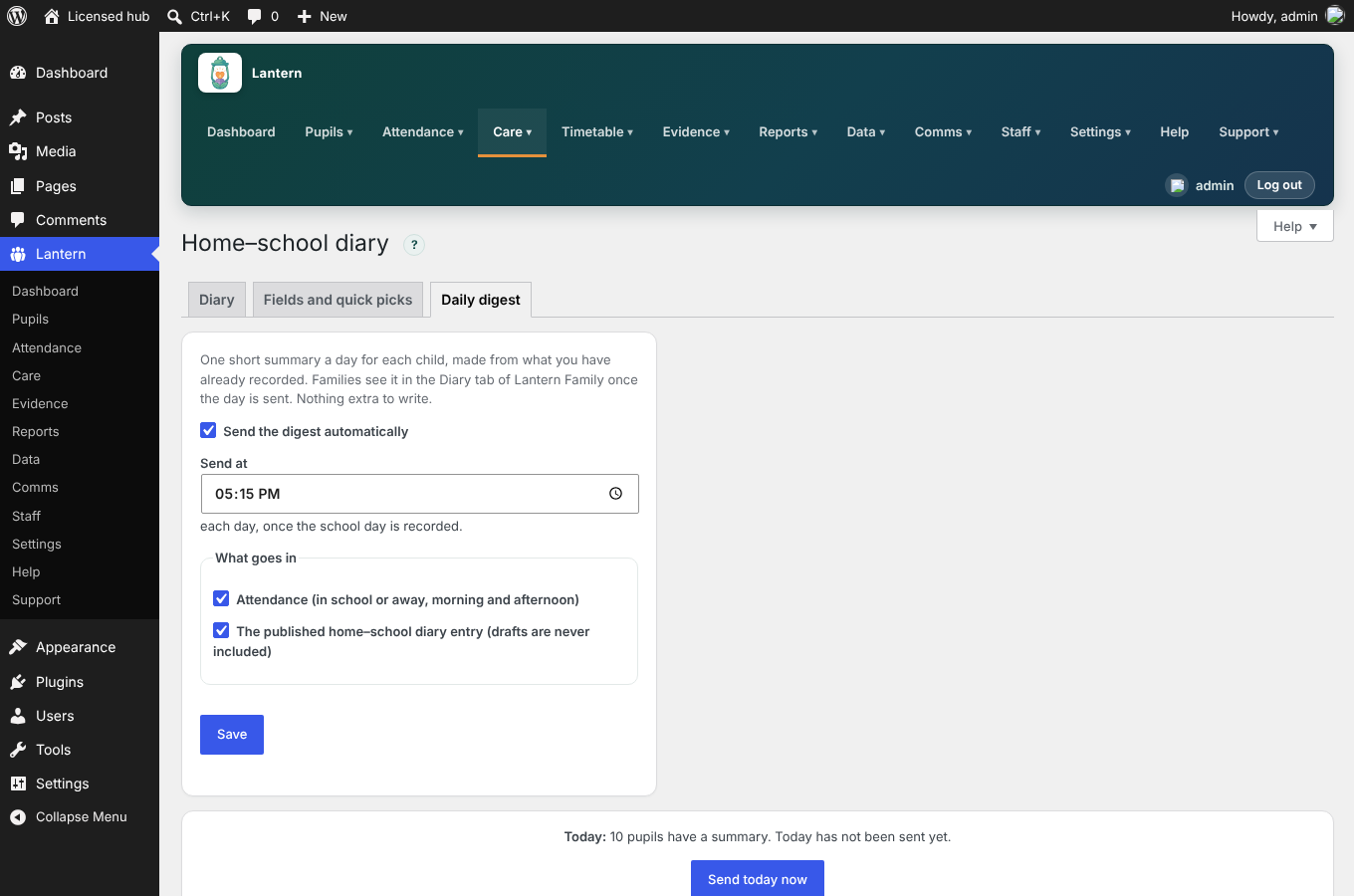
The Daily digest settings For families
- Once a day is sent, a How the day went card appears at the top of the Diary tab in Lantern Family, for each child.
- Families with notifications switched on get the usual News from school message, never a name or any words from the diary.
- Families see the last week's summaries, and only their own children.
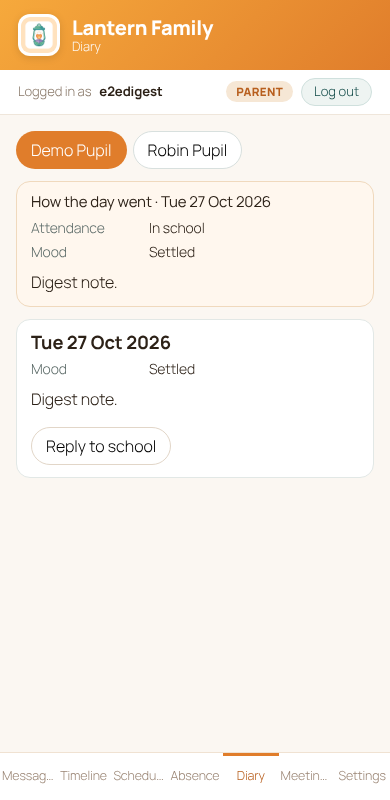
The card in Lantern Family Good to know: drafts are never included, and an entry you take back from families disappears from the summary. The digest is sent by your site's background checks, which run when someone visits the site, so on a very quiet site press Send today now. This release does not email the digest, and it does not include medication.
Standard plan, with Lantern Pro. Open the ? next to the screen title for help.
0.99.11October 24, 2026
Bring pupils in from your MIS
You can now fill Lantern from the spreadsheet your school's management system already produces, instead of typing pupils in one by one.
What you can do
- Open Data → Import and export, choose Pupils or Attendance marks, and upload a CSV or Excel file exported from SIMS, Arbor, Bromcom, ScholarPack or anything similar.
- Lantern matches the columns for you (UPN, admission number, names, date of birth, sex, year group, SEN status, dates, session and code). If one is wrong, change it or ignore it and update the preview.
- A preview shows how many pupils will be added or updated, which are already the same, and every line that will be skipped, with the reason. Nothing is saved until you press Import.
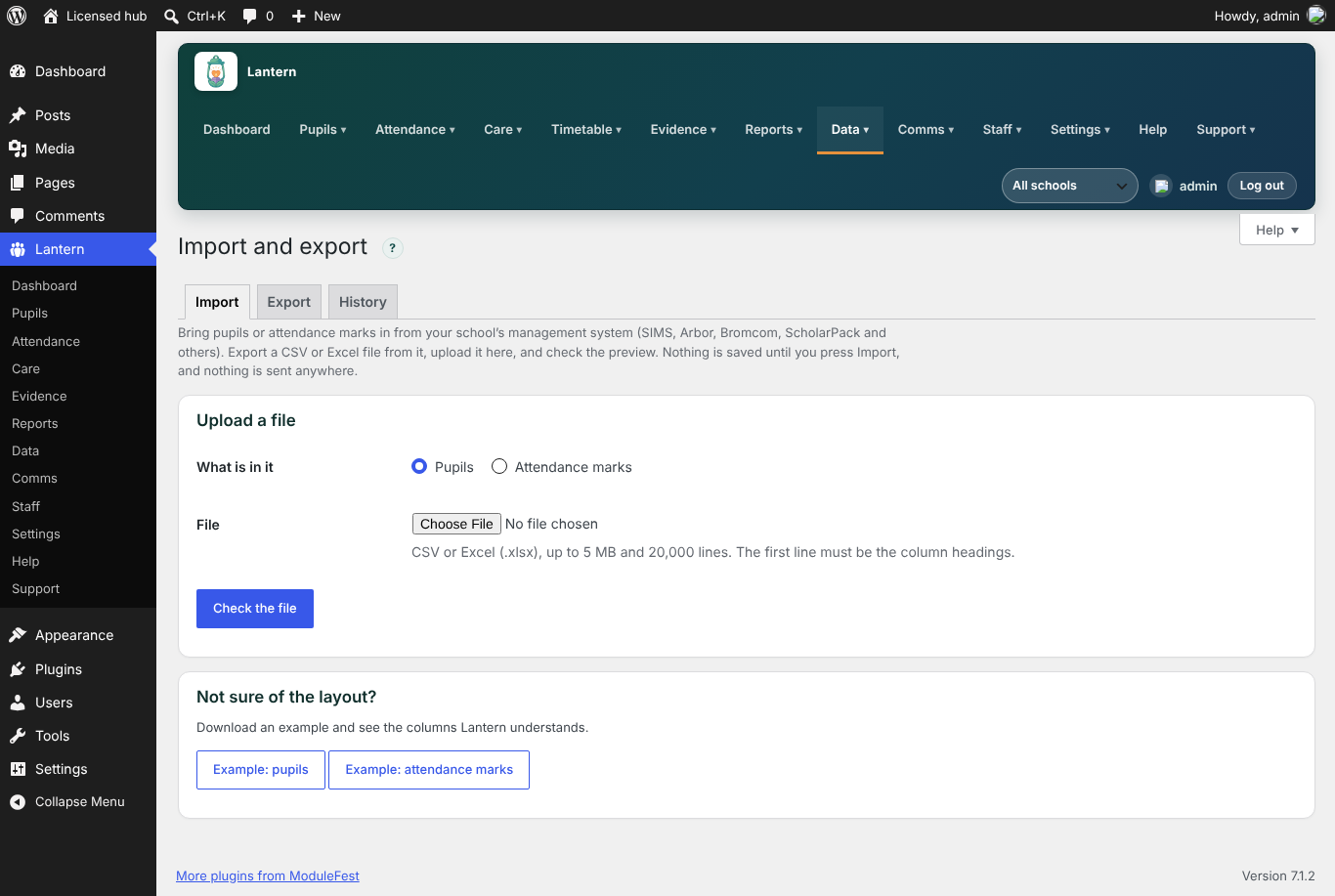
Choosing a file to import Safe by design
- A pupil is matched by UPN, then admission number, then name and date of birth, so nobody is added twice.
- Pupils already in Lantern are left alone unless you choose Add new and update existing. Even then an empty cell never wipes what Lantern holds, and a UPN is never changed.
- Attendance lines need a date and one of Lantern's own codes. A line with no session counts for both AM and PM. A mark already in the register is left alone unless you tick Replace marks already there, and a replaced mark is marked as amended like any other correction.
- In a trust, you only see and match the pupils from schools you can see, and new pupils go into the school you are working in.
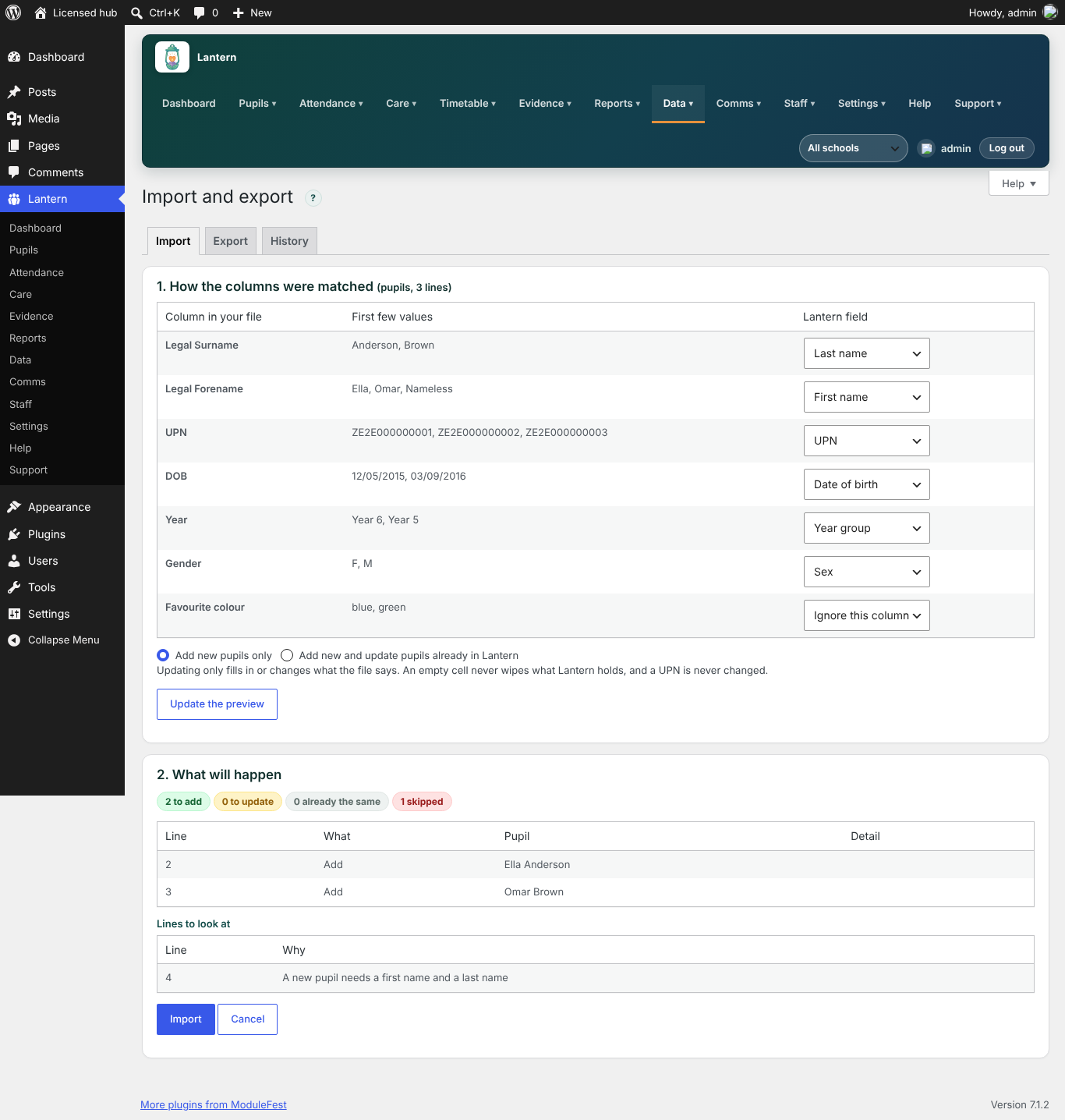
The preview before anything is saved Take them back out
- The Export tab downloads the pupil list, or attendance marks for up to a year, as a CSV. Each download is recorded in the access log.
- History lists each import with who did it, when, and the counts. It never lists names.
Good to know: Lantern does not connect to your MIS. It reads a file you upload on your own site and sends nothing anywhere. A live connection to each system is not part of this release. Use Download an example file to see the layout, and check column names against your MIS's own export.
Premium plan, with Lantern Pro. Open the ? next to the screen title for a step-by-step guide.
0.99.10October 24, 2026
Who looked at which pupil record
You can now see who has opened or exported each pupil's records, and answer a subject access request without a scramble.
What you can do
- Open Data → Access log to see every time a member of staff opened a pupil record, an evidence record or a safeguarding case, and every time a report, transfer pack or subject access pack was exported. Each line shows who, which pupil, what kind of record and when.
- Filter by pupil, person, kind of record, action and dates, and download what you see as a spreadsheet.
- The log never keeps a copy of what a record said. Opening the same record again within ten minutes counts once, and entries can't be edited or deleted one by one. They clear automatically after the keeping period you choose (three years to start with).
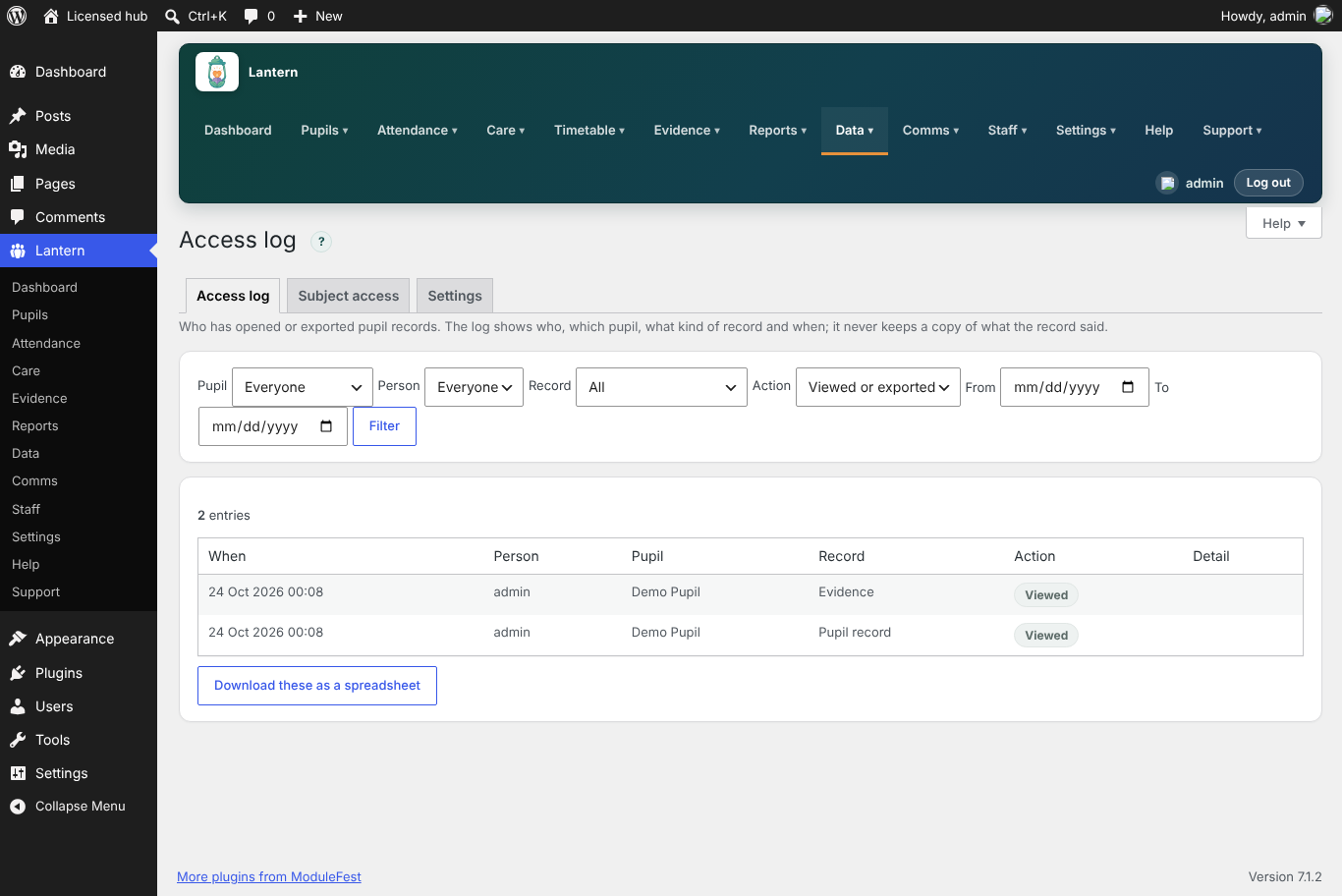
The access log Subject access requests
- Log each request under Subject access with the pupil, who asked and the date it arrived. Lantern works out the reply date (one calendar month later) and shows the days left, or how many days overdue.
- Press Make the pack to get the pupil's record, attendance and evidence together with a redaction checklist, in a zip protected with AES-256. The passphrase is shown once. A DSL can choose to include safeguarding records.
- It is ready to redact, not to send: read it, take out what shouldn't be disclosed, then reply. Mark the request Sent and Closed as you go.
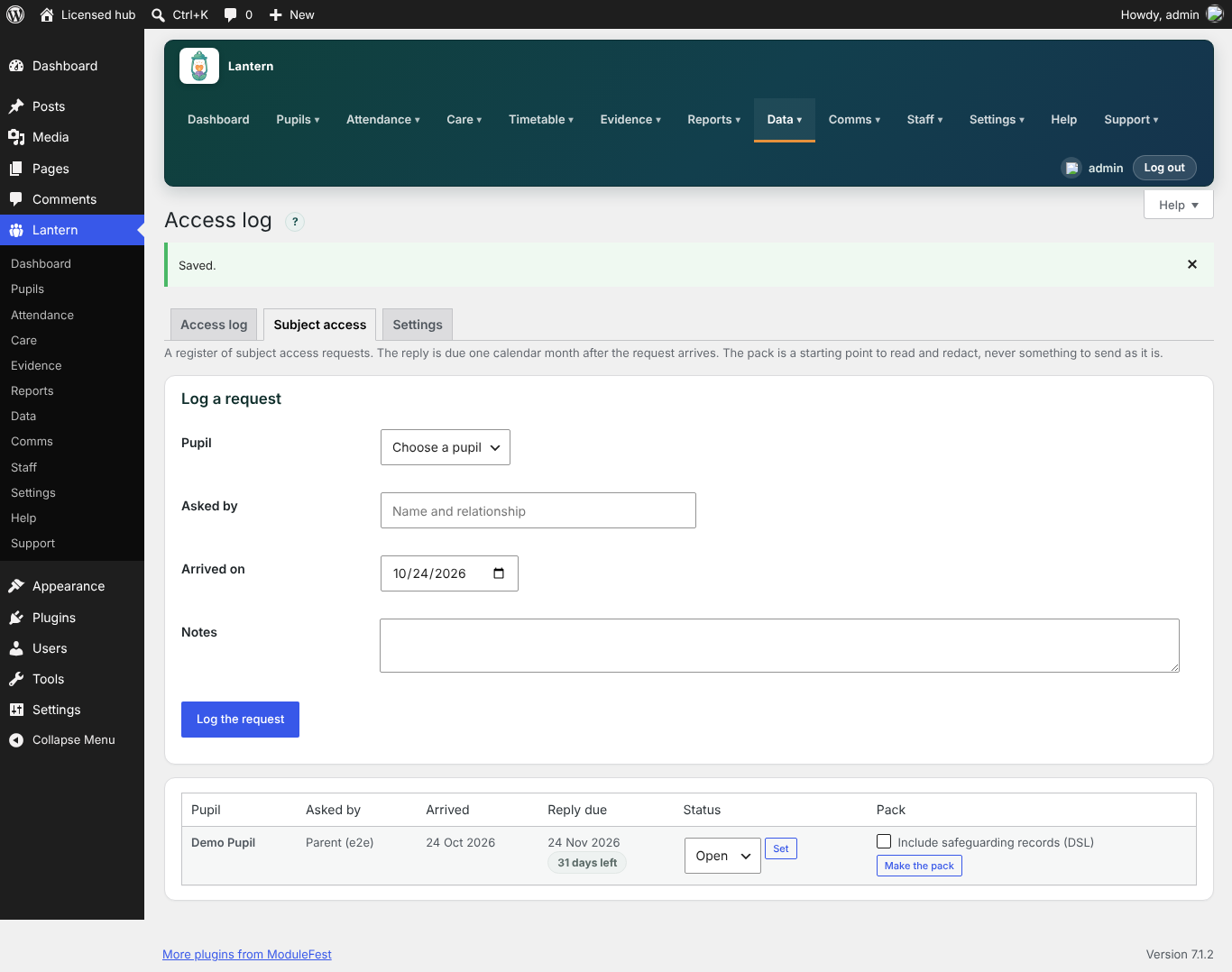
Subject access requests Good to know: families in Lantern Family are not recorded in this log, and making a subject access pack is itself logged.
Premium plan, with Lantern Pro. Open the ? next to the screen title for a step-by-step guide.
0.99.9October 23, 2026
Sign in with your school account
Staff can now sign in to Lantern with their Microsoft 365 or Google school account, instead of remembering another password.
What you can do
- Open Settings → Single sign-on, switch on Microsoft 365 and/or Google, and paste in the client ID and secret from your Microsoft Entra or Google Cloud app. The screen shows the exact address to register.
- Staff then see a Sign in with Microsoft 365 or Sign in with Google button on the Lantern sign-in page.
- Choose which email domains are accepted, and, if you like, require school-account sign-in so password sign-in is switched off for those domains. Administrators always keep their password.
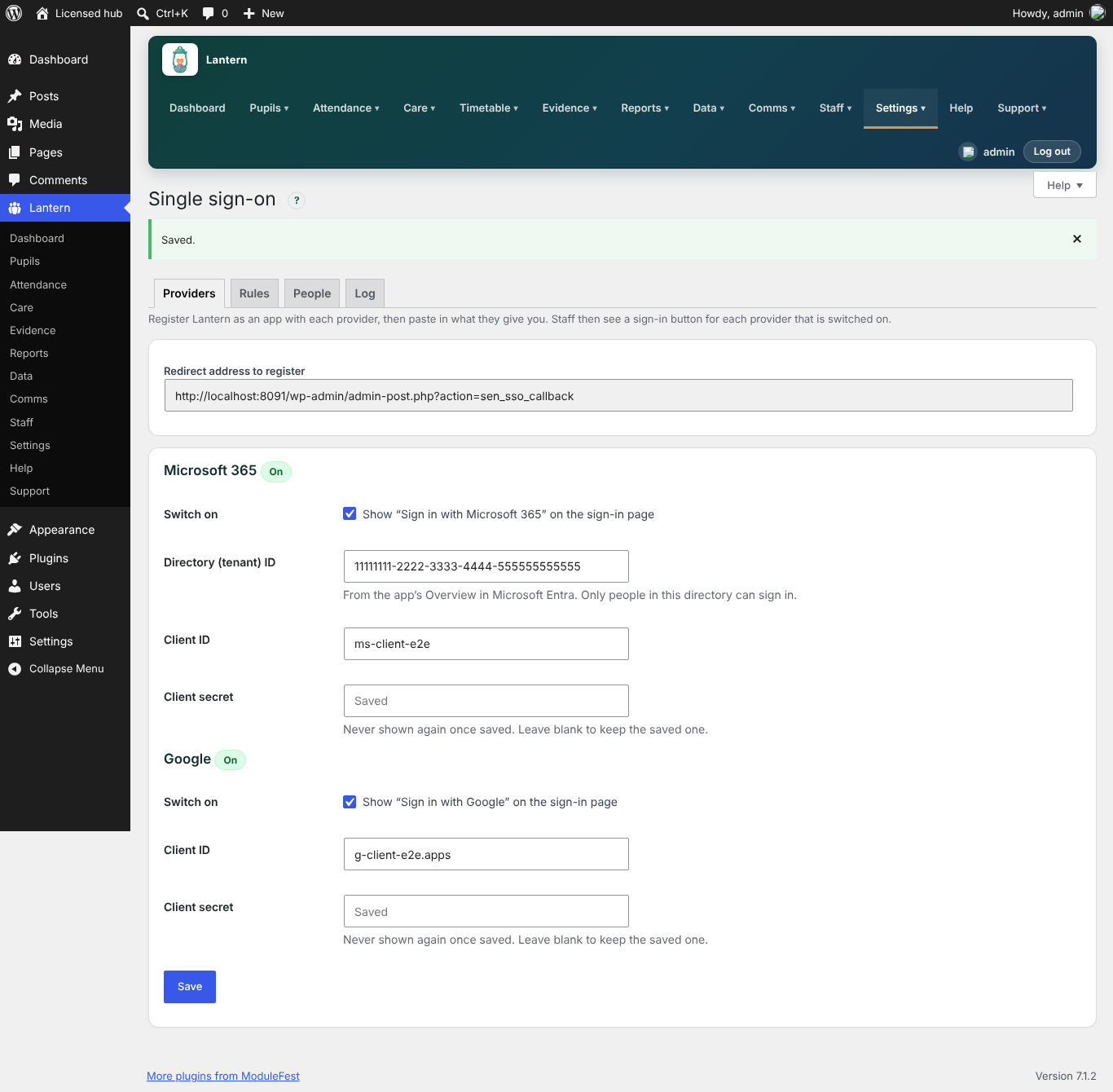
Settings, Single sign-on Safe by design
- People are matched to their existing Lantern account by email address. Signing in never creates an account, and families keep their own sign-in.
- The first sign-in links the account to the provider's own id. If someone else later uses the same address, they are refused until an administrator presses Reset link on the People tab.
- Client secrets are stored sealed and never shown again. The Log tab lists every sign-in and refusal by person number only, with no email addresses.
- Nothing is sent to Microsoft or Google until someone presses a sign-in button, and no pupil, staff or family information is ever sent.
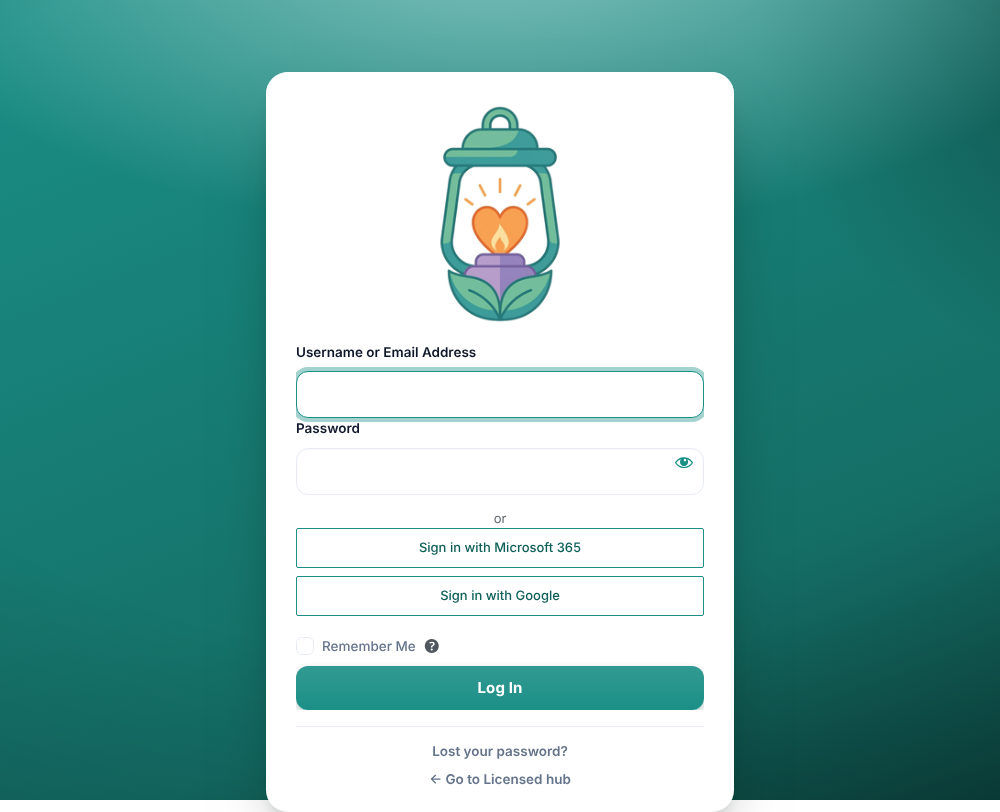
The sign-in page One sign-in across a trust
A member of staff with access to several schools has exactly the same access whichever way they sign in, so one sign-in carries across all of your schools and the school switcher works as before.
Tip: if you lock yourselves out, add
define( 'SEN_SSO_ALLOW_PASSWORD', true );to wp-config.php to switch the password rule off at once.Premium plan, with Lantern Pro. Open the ? next to the screen title for a step-by-step setup guide.
0.99.7October 23, 2026
Parents' evenings and meetings, booked by families
You can now run a parents' evening from start to finish in Lantern. Set it up once, and families pick their own times from their phone.
What you can do
- Create an evening under Comms → Meetings & parents' evenings: give it a name, date, start and finish time and a slot length (5 to 120 minutes), and choose which teachers are taking part.
- Lantern builds the time slots for each teacher. Slots when a teacher is away or already in a session show as blocked, so nobody is double-booked.
- Open the evening to families when you are ready, close it when booking should stop, and print the schedule for each teacher.
- Book or cancel a slot on a family's behalf from the schedule.
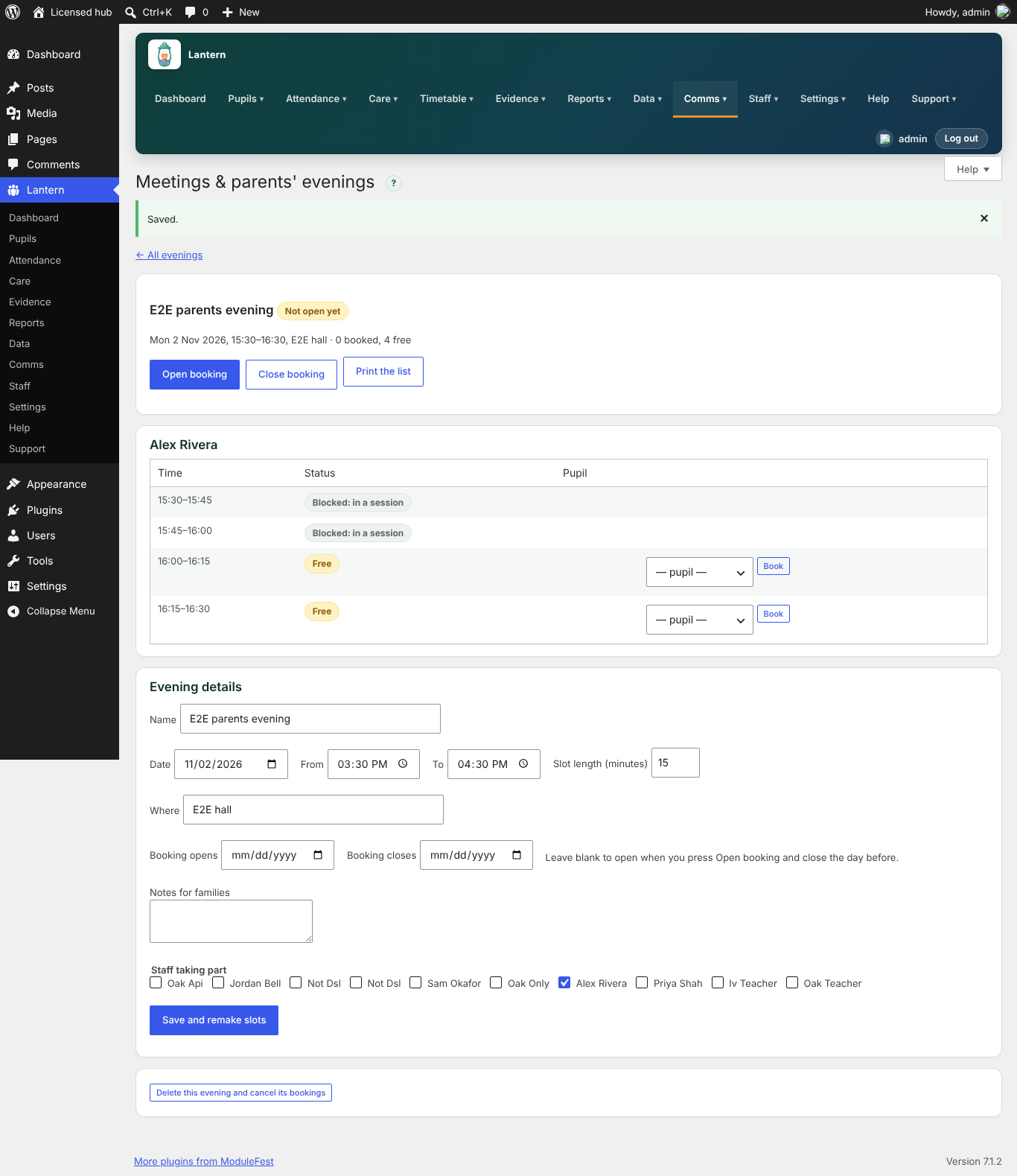
Parents' evening schedule What families see
A new Meetings tab in Lantern Family lists the open evenings, with the teachers for each child. Parents tap a free slot to book, and can cancel while booking is open.
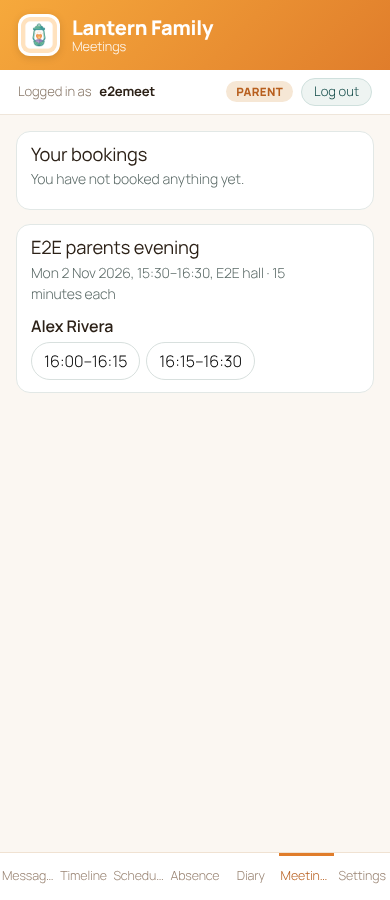
Meetings tab in Lantern Family - One slot per child per teacher, and a family can't book two meetings at the same time.
- Slots taken by other families are never shown.
- A booking goes straight into the teacher's timetable, so cover and schedules stay accurate.
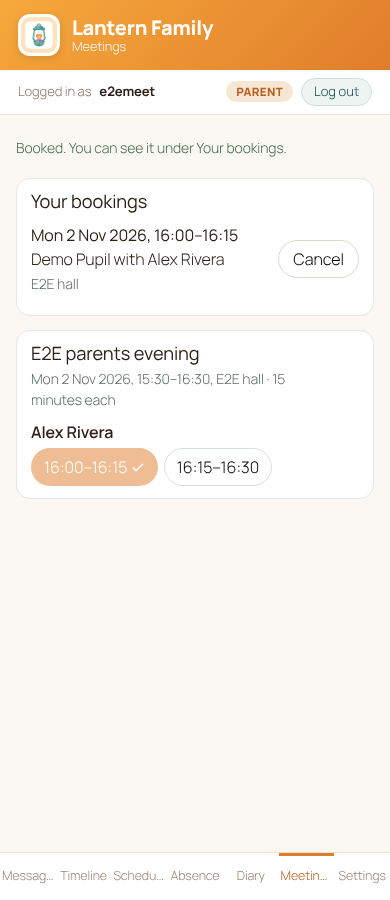
A booked meeting Tip: the ? help on the Meetings screen has a step-by-step guide to running your first evening.
Available on Premium.
0.99.6October 23, 2026
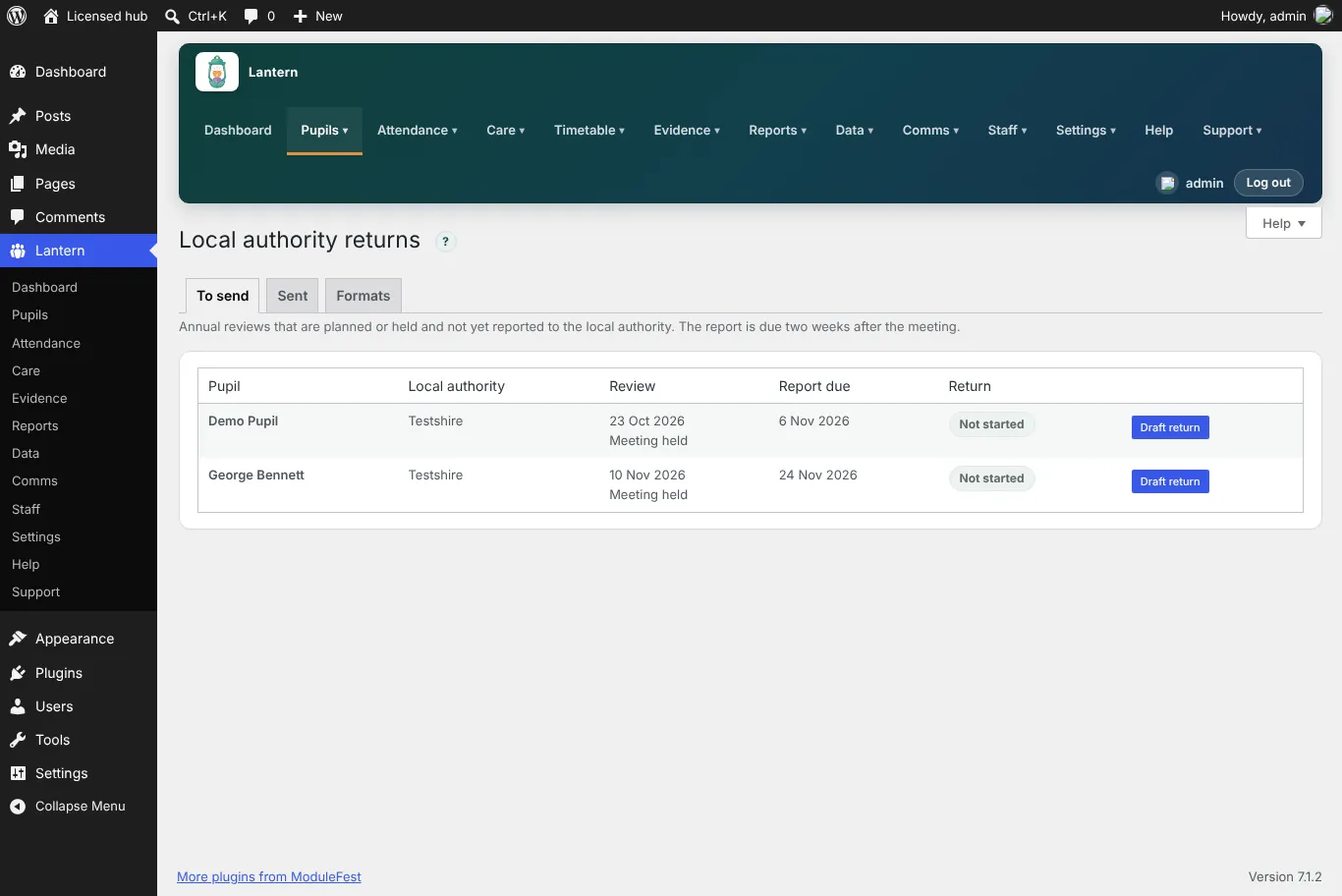
Local authority returns
You can now draft each pupil's annual review report for the local authority in a few clicks, and keep a clear record of what was sent and when. It is on the Premium plan, under Pupils → Local authority returns.
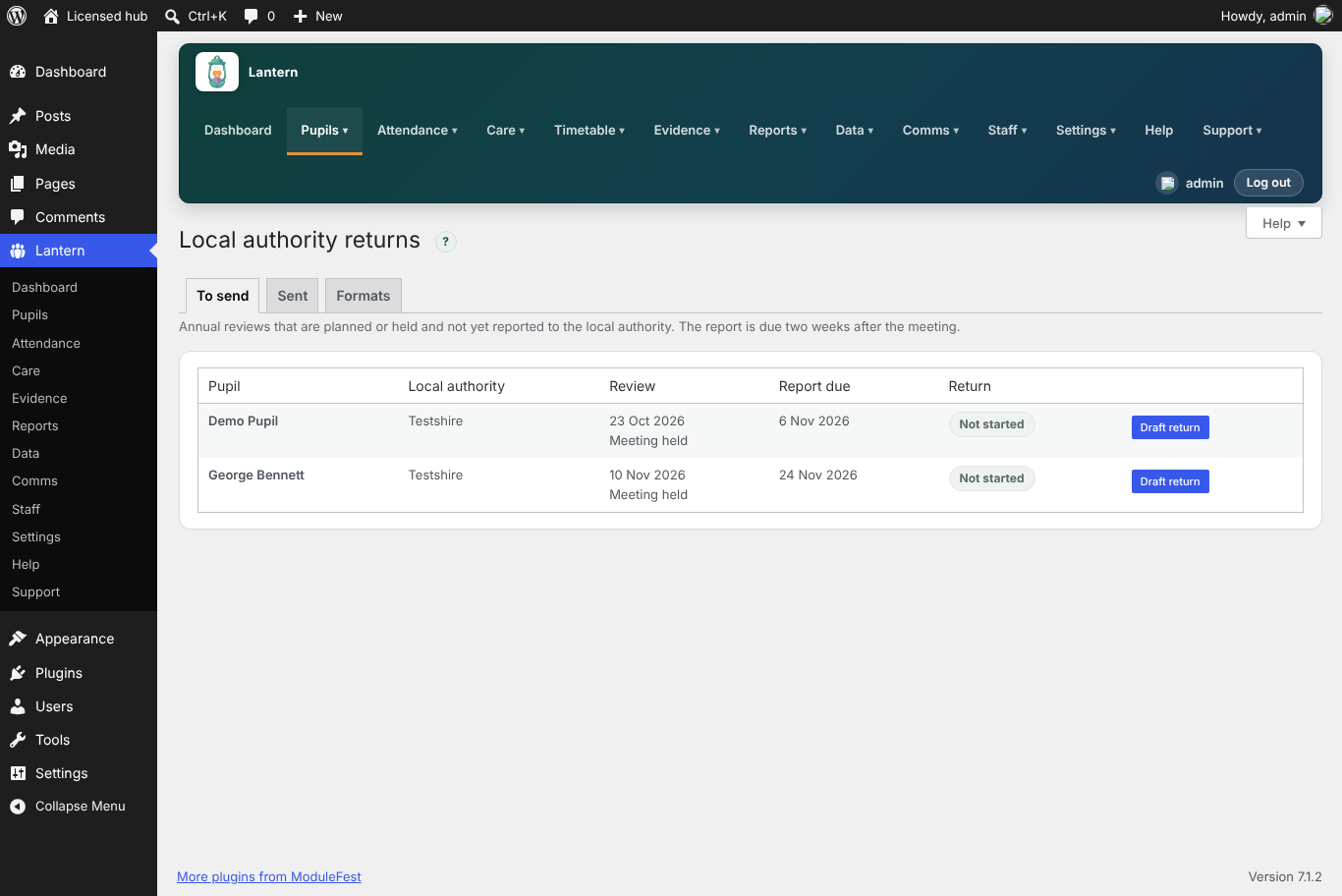
The reviews still to report on, with their due dates - See what is still to send. Every review that is planned or held and not yet reported is listed with its local authority and the date the report is due (two weeks after the meeting). Overdue reports are marked in red.
- Draft in one click. Press Draft return and Lantern fills in the report from the pupil's plan, their EHCP outcomes with progress and evidence, attendance this year, and the review meeting: who was invited, the notes and the recommendation.
- Add what only you know. The views of the child and their parents, and any advice received, are left for you to write. Every section can be edited, saved and finalised.
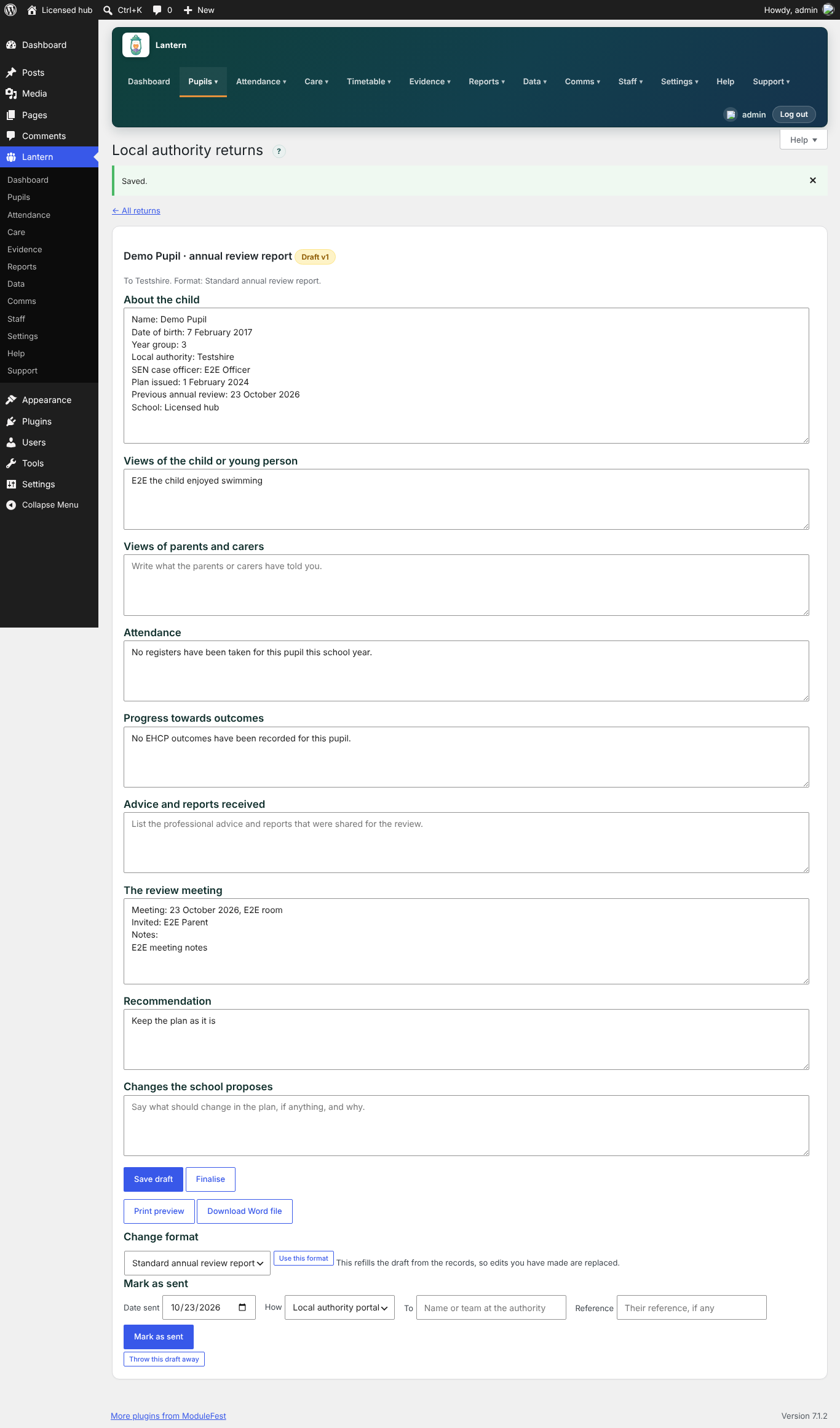
A drafted annual review report, ready to edit The format each authority asks for
Different authorities want different layouts. Add a format for each one: choose the sections, their order and their headings, and name the authorities that use it. Lantern picks the right format automatically for each pupil, and you can switch it on any draft.
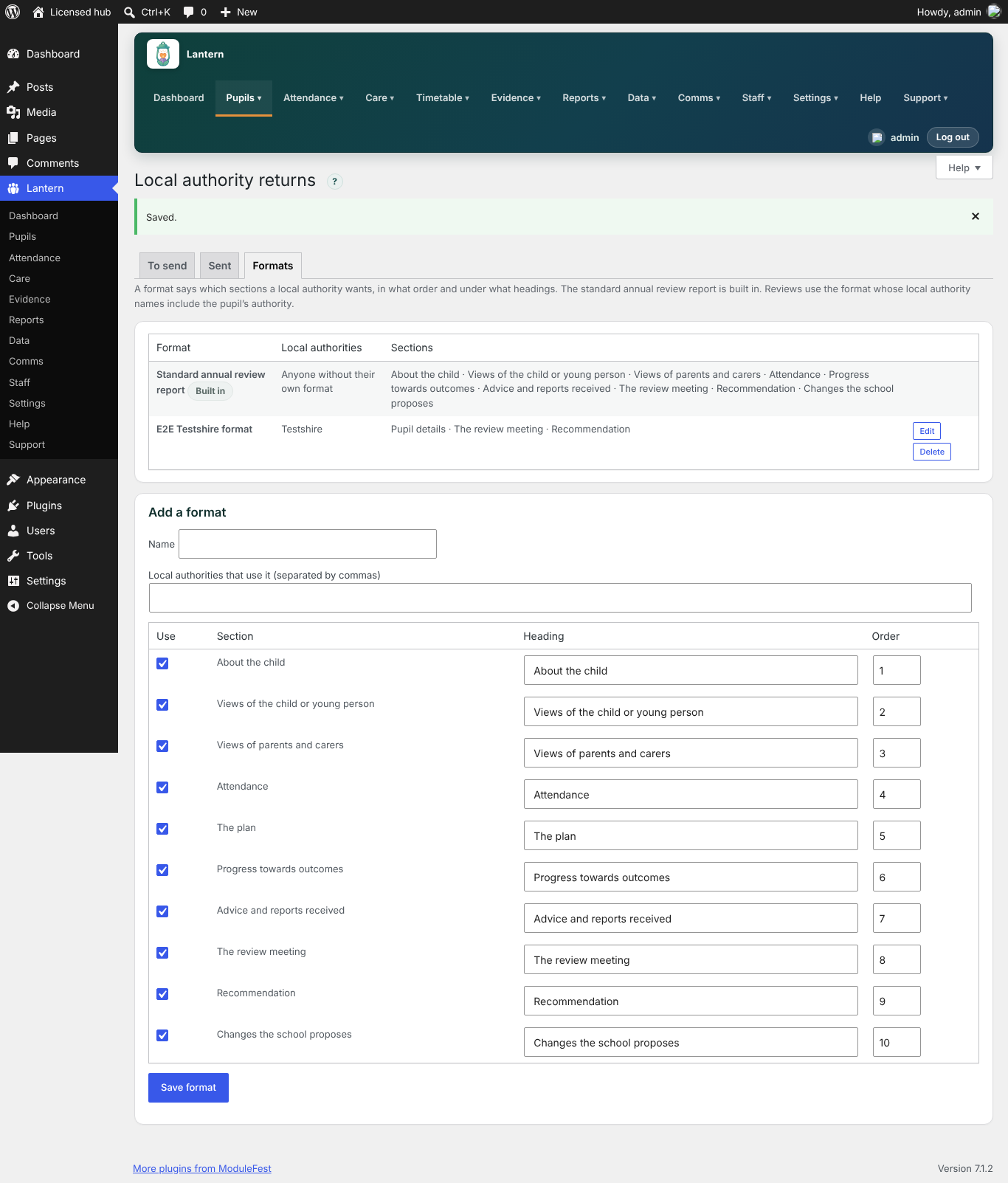
A format for each local authority Print, download and record
- Print a clean page, or download a Word file to send.
- Press Mark as sent and record the date, how it was sent, who it went to and their reference. The review is updated to Report sent to the LA.
- A sent return is never changed. If something needs correcting, make a new version: the first one stays in the history.
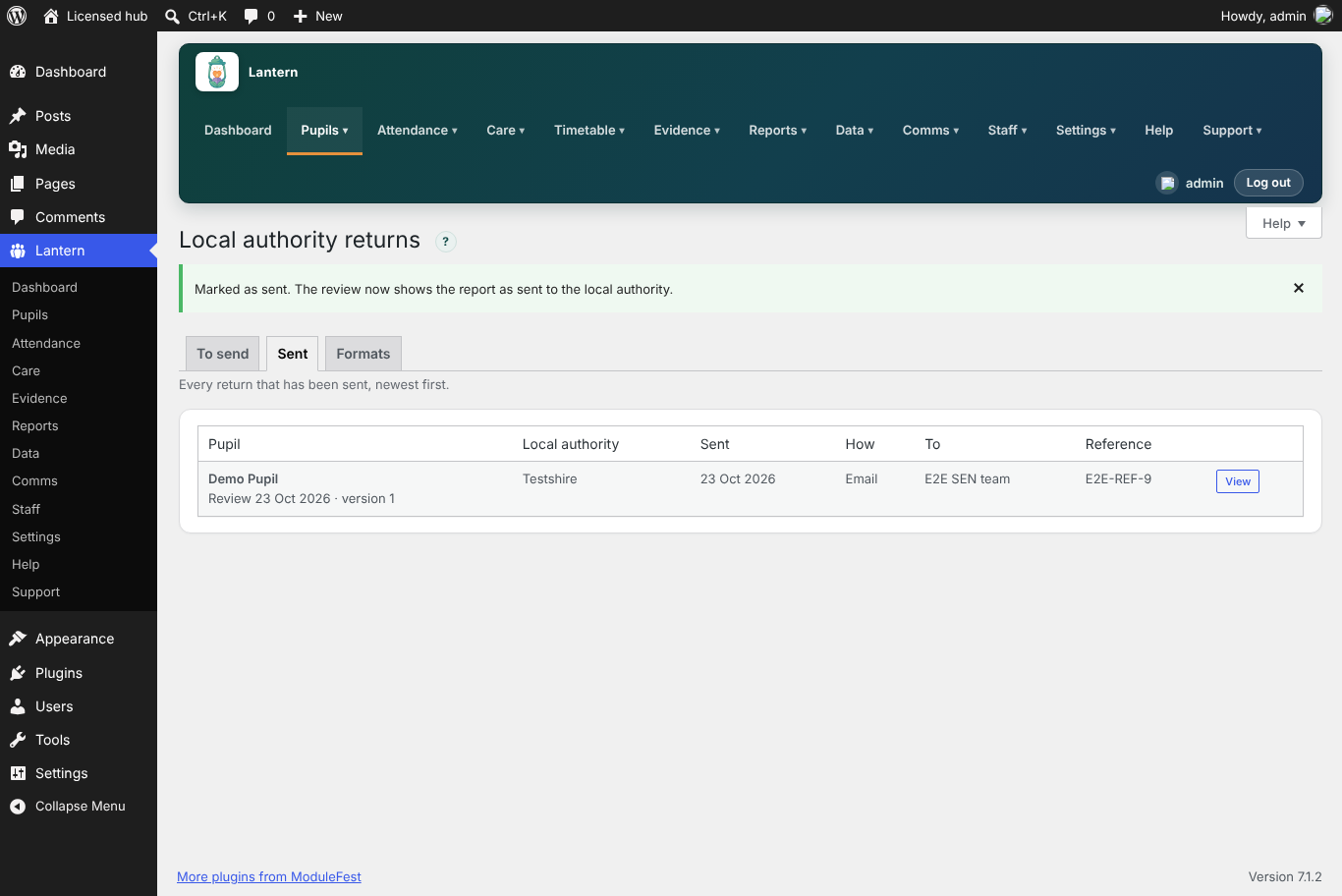
Returns that have been sent, with how, to whom and the reference Good to know: Lantern drafts the report and keeps the record; you send it your usual way. Safeguarding records are never included in a return, and each school only sees its own pupils.
Click the ? beside the heading for a step-by-step guide, from the review meeting to the sent report.
0.99.5October 23, 2026
You can now produce a termly report for governors and Ofsted in one press, built from what Lantern already records. It is part of the Premium plan with Lantern Pro 0.99.5.
Where to find it
Go to Reports › Governor & Ofsted report.
How to use it
- Choose the Term. Lantern uses the terms set up under Timetable › Terms; if there are none, it uses autumn (September to December), spring (January to March) and summer (April to August).
- Read the Headlines at the top: the main points in plain English.
- Check each section. Every figure shows this term, last term and the change, in green when it is better and red when it is worse.
- Press Print for the governors' pack, or Download CSV to add your own commentary in a spreadsheet.
What the report covers
- Attendance: attendance, authorised and unauthorised absence, and the number of pupils below 90%.
- Behaviour and restrictive interventions: incidents logged, incidents per pupil, restrictive interventions, and how many had a debrief and a call home.
- EHCP annual reviews: reviews held, how many were within 12 months of the last one, and any overdue when the term ended.
- Medication: doses recorded, doses not given or refused, and doses given more than 30 minutes late.
- Safeguarding: concerns logged, cases opened and referrals made. These figures are shown to Designated Safeguarding Leads and their deputies only.
No pupil is ever named in the report. If you run several schools in one Lantern, the report follows the school you choose with the switcher at the top of Lantern.
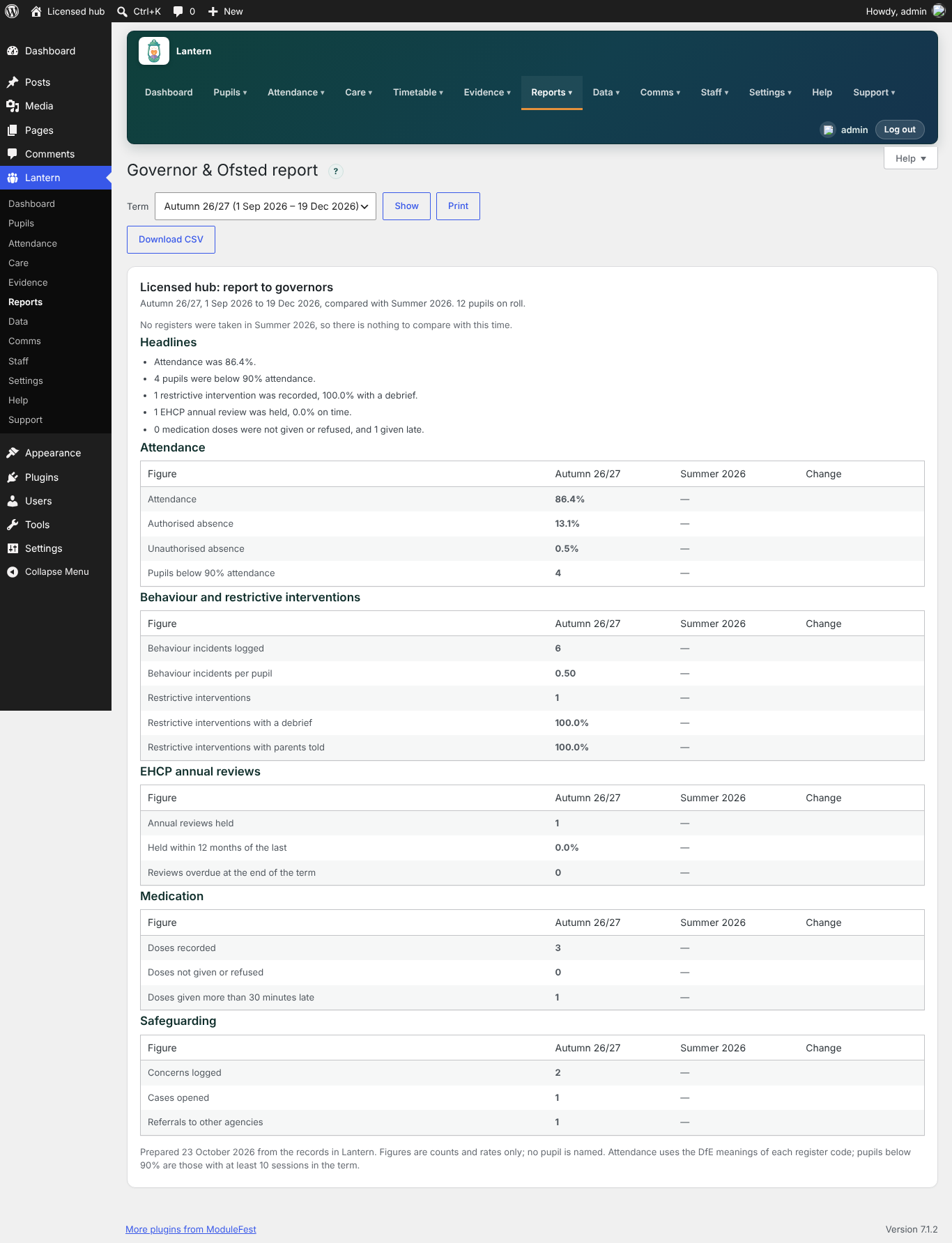
The Governor & Ofsted report
0.99.4October 21, 2026
Safeguarding case files are here, on the Premium plan with Lantern Pro 0.99.4. Find them under Evidence → Safeguarding cases.
A full case file for each child you are worried about, with nothing missed and every action on record.
Who can see cases
- Only Designated Safeguarding Leads, their deputies and people who manage safeguarding, and only for pupils in their school. Anyone else is turned away, even with a direct link.
Opening a case
- Open a safeguarding concern in the Evidence vault and press Open a case, or use the New case tab.
- Give the case a title, a case owner, a level (Concern, Early help, Child in need, Child protection or Allegation against staff (LADO)) and the next action with the date and time it is due.
- Tick the pupil's concerns to link; more can be linked later.
The chronology
- Every linked concern and everything done since, in date order: notes, decisions, meetings, contact with the family, referrals and people told.
- A referral records the agency, their reference and when you expect a response. Record its outcome when it comes.
- Changes of status, level or owner are added to the chronology automatically. Entries cannot be edited: add a new one to correct or update.
Escalation timers
- A case past its next action, or a referral past its response time with no outcome, shows Overdue in red; within 24 hours it shows Due soon.
- Open cases lists overdue cases first, and DSLs see a Safeguarding cases overdue card on the Lantern dashboard.
Who has opened the case
- Every view and export is logged with the person and time. Press Export the view log or Export chronology for a spreadsheet.
Help is on the ? next to the heading, with an Opening and running a case guide. On the Standard plan the screen appears in the menu and explains what it does.
0.99.3October 21, 2026
Records retention and leavers is here, on the Premium plan with Lantern Pro 0.99.3. Find it under Data → Records & leavers.
Keep records for the right length of time, archive leavers safely, and send their record on to the next school securely.
Leavers
- Every pupil marked Left on their record, with the leaving date and whether their archive is stored.
- With S3 storage set up (Comms → Message settings), each leaver's archive is copied there automatically once a day. Press Archive now if you need it sooner.
Transfer pack for the next school
- Press Transfer pack next to a leaver. You get a zip encrypted with AES-256 and a passphrase that is shown once: send the two by different routes (for example, the pack by email and the passphrase by phone).
- The pack holds record.html (details, family contacts, EHCP, outcomes, profiles and passports, medicines, interventions, attendance by school year), attendance.csv and evidence.csv.
- Safeguarding records are left out unless a DSL ticks Include safeguarding records.
- With S3 set up you can make a 7-day link instead of a download.
Retention
- How long each type of record is kept: attendance; messages and diary; behaviour and incidents; health and medication; safeguarding; and the SEN file and pupil record. Each is counted either in years after the pupil leaves or until the pupil reaches an age. Suggested periods are filled in for you to check against your own schedule.
Due for disposal
- Nothing is deleted automatically. Leavers' records past their period are listed, and you press Dispose and confirm for each type. Attached photos and files go too.
- The pupil record itself goes last, once everything else has gone, and is anonymised.
Log
- Every disposal, archive and transfer pack, with who did it and when. Pupils are shown by their Lantern number only.
Help is on the ? next to the heading, with a When a pupil leaves guide. On the Standard plan the screen appears in the menu and explains what it does.
0.99.2October 21, 2026
Staff training and matching is here, on the Premium plan with Lantern Pro 0.99.2. Find it under Staff → Training & DBS.
Know who is trained in what, and only send cover to people trained for the pupils involved.
Matrix
- Every member of staff against every course, marked Current, Expires soon (within 30 days) or Expired, with the date, plus their DBS status.
- Counts at the top (expired, expiring, DBS checks due) and a Print button. Click a name to see or add their training.
Record training
- Choose the person, the course and the date they completed it. The expiry is worked out for you from the course (for example, a yearly course completed on 1 November 2025 runs to 1 November 2026), or type your own.
DBS checks
- Level, the date on the certificate, whether they are on the Update Service, and the next check (left blank, it is a year on for the Update Service and three years otherwise). Overdue checks are flagged. Lantern never stores certificate numbers.
Courses
- Name, how often it must be renewed and, optionally, the Lantern skill it proves (for example Team Teach). When the training runs out, cover stops counting that skill.
Pupil needs
- Tick the courses anyone looking after a pupil must hold, such as Epilepsy rescue medication.
Cover
- On Cover & resourcing → Arrange cover, only staff with current training in every course the session's pupils need are suggested. Open N people left out under a session to see who was left out and why (for example, expired 21 Sep 2026 for Yusuf Hassan).
Staff in one school only see that school's staff and pupils. On the Standard plan the screen appears in the menu and explains what it does. Help is on the ? next to the heading.
0.99.1October 21, 2026
Therapy and interventions planner is here, on the Premium plan with Lantern Pro 0.99.1. Find it under Care → Therapy & interventions.
Plan, record and cost every pupil's therapy in one place, and show what it achieves.
Piani
- Choose a pupil and press Next, then set the type (speech and language, occupational therapy, physiotherapy, music or art therapy, counselling or other), the days, time and minutes, the cost a session, who delivers it, the therapist or service, the EHCP section it meets and the outcome it works towards.
- Pause or end an intervention at any time; nothing is deleted.
This week
- Every session due, day by day, with Previous week / Next week and a print button.
- Record each session as Delivered (with a 1–5 progress rating and a note), Missed (a reason is required) or Cancelled. Recording a day again corrects it.
Provision map
- One row per pupil: each intervention, minutes a week and the cost over a 39-week school year. For example, two £45 sessions a week = £3,510.00.
- Enter the pupil's EHCP funding and the difference shows as over, under or matches, with totals. Print it for annual reviews or the local authority.
Impact
- For each intervention over the last 12 weeks: sessions delivered against planned, missed and cancelled, the linked outcome's progress, and a chart of the progress ratings.
Lantern Staff
- Care → Interventions lists today's sessions, yours first. Tap a rating, add a note and press Delivered, Missed or Cancelled.
Staff in one school only see that school's pupils, as everywhere else in Lantern. On the Standard plan the screen appears in the menu and explains what it does. Help is on the ? next to the heading, with a step-by-step guide.
0.99.0October 21, 2026
Run several schools in one Lantern. Each school keeps its own pupils, classes and staff together, and staff only see the schools they work in, on every screen, report and in Lantern Staff.
Setting up your schools
- Open Settings → Schools. The first time the Premium plan is in force, everything you already have is put into one school named after your site.
- Press Add a school and give its name, a short name for the switcher, its URN and a colour.
- Use Move to a school to tick pupils, classes or staff and move them in one go, or open a pupil, class or member of staff and tick their school in the new School row.
- A pupil, class or member of staff can belong to more than one school.
Working across schools
- If you manage Lantern, a school switcher sits at the top of every screen: choose All schools or one school, and every list, count, report and dashboard card follows it.
- Staff who work in more than one school can switch between their own schools; staff in one school simply see its name.
- Pupils, Groups and Staff show each record's school as a coloured label.
Buono a sapersi
- Families are not affected: Lantern Family always shows a family their own children.
- Archiving a school hides it from the switcher; its pupils, classes and staff keep their school, and bringing it back restores everything.
- Nothing is ever deleted if the Premium plan ends: Lantern simply works as one school again.
- Anything added or imported before the plan was in force shows under Not in a school yet, with a button to put it all in one school.
Premium plan, with Lantern Pro. Added in version 0.99.0. Help: the ? on Settings → Schools, with a step-by-step guide "Setting up a second school".
ModuleFest Lantern
Presenze, comunicazioni con i genitori e tutela dei minori per le scuole per bisogni educativi speciali
Altre notizie
 Nuova funzionePet Groomer 2.77: Account credit and monthly billingManage advance payments and bill chosen clients just once a month.Guarda le novità →
 Nuova versioneModuleFest Pet Walker 2.771.222I clienti possono ora pagare in anticipo e saldare le proprie fatture utilizzando il saldo. Anche in questa versione: pagamento mensile posticipato: una sola fattura a…Guarda le novità →
 Nuova versioneModuleFest Trades Business Manager 0.14.42Jobs, quotes, invoices and stock for tradesGuarda le novità →