









 Version
ModuleFest Cron Monitor 1.20.0
A new Timeline shows when every scheduled task will run over the next 24 hours. Außerdem in dieser Version: set quiet hours for heavy tasks; share a read-only status page with a client.
Neu in 1.20.0
See a 24-hour timeline of when tasks will run
A new Timeline shows when every scheduled task will run over the next 24 hours. Heavy tasks and busy moments stand out, so you can spread the load.
- Go to Tasks › Timeline.
- Look for shaded busy moments, where several tasks or heavy ones start together.
- Point at a dot to see the time and how long that task usually takes.
- Click a heavy task, then use Edit schedule to move it to a quieter time.
Set quiet hours for heavy tasks
You can now keep heavy tasks, such as backups and imports, to a quiet time of night. Your site stays quick while people are using it.
- Go to Settings › Quiet hours and tick On.
- Set the window, for example 01:00 to 05:00.
- Tick the tasks to keep in the window. Heavy tasks are marked for you.
- Save. Their next runs move into the window straight away.
Share a read-only status page with a client
You can now send a client a read-only page showing how their site's scheduled tasks are doing. They don't need a login.
- Go to Settings › Agency status link and tick Client status page, then save.
- Press Open the page to check it, then copy the link under Link to send.
- Send the link to your client.
To stop an old link working, tick Make a new link when I save.
Mehr von ModuleFest Cron Monitor
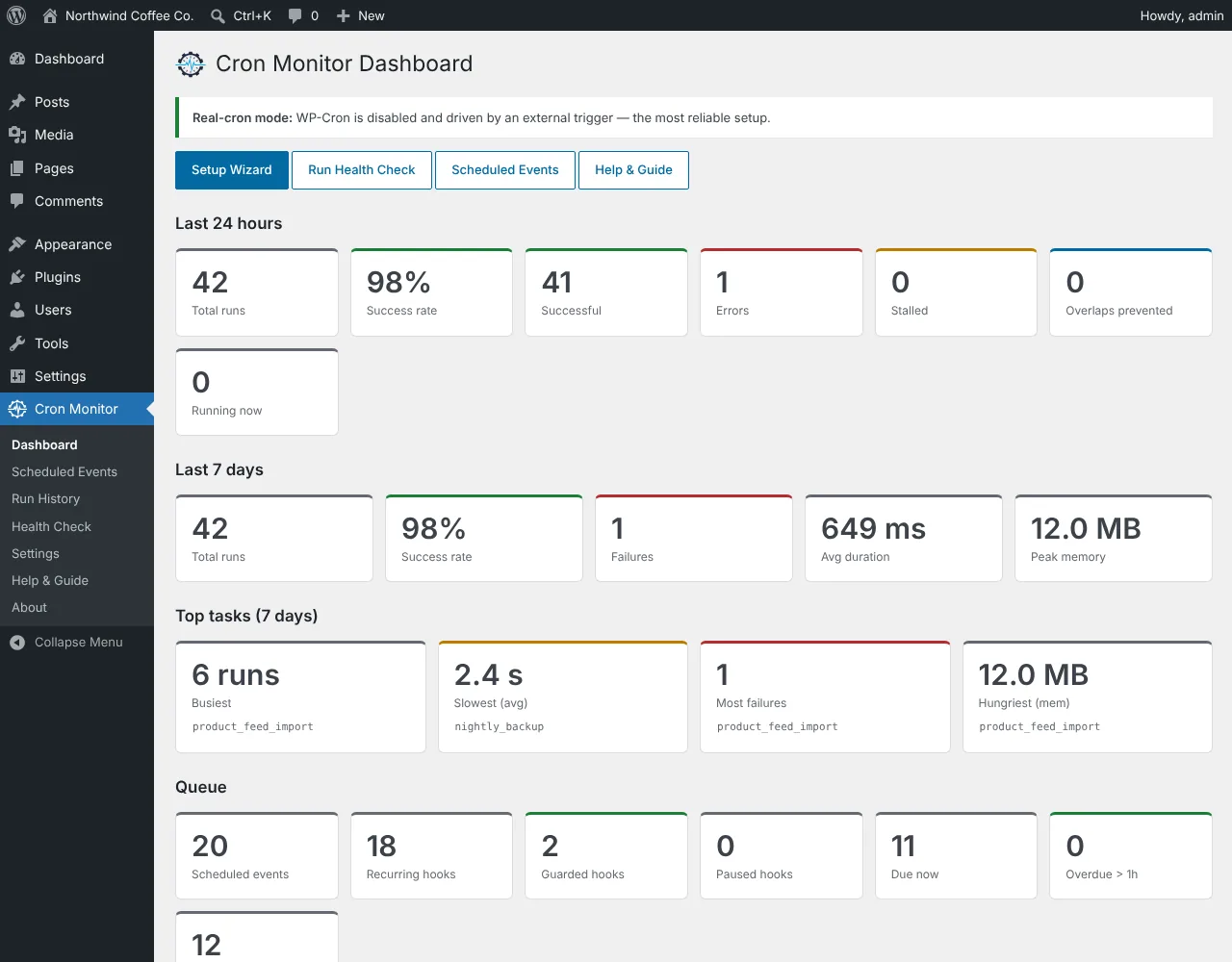
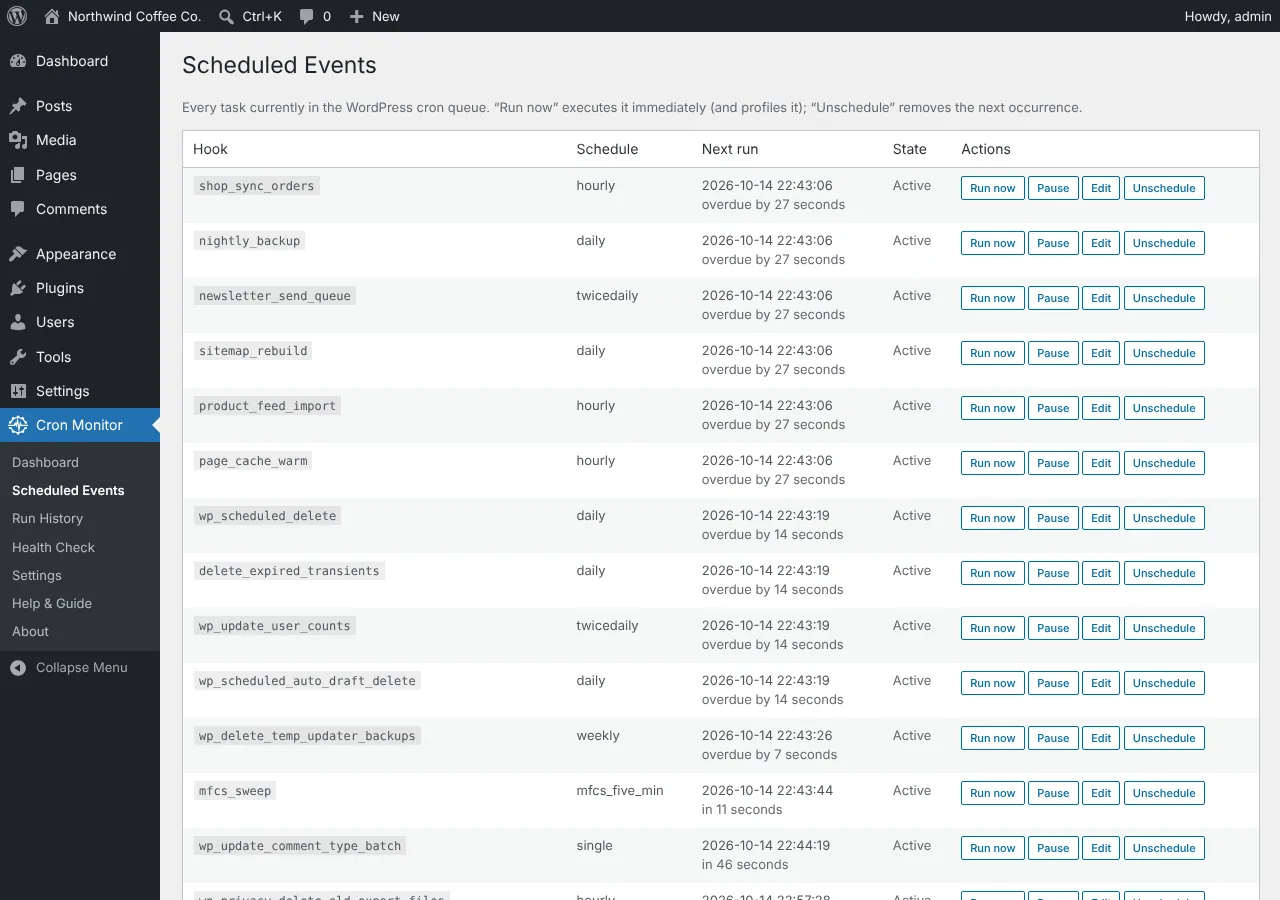
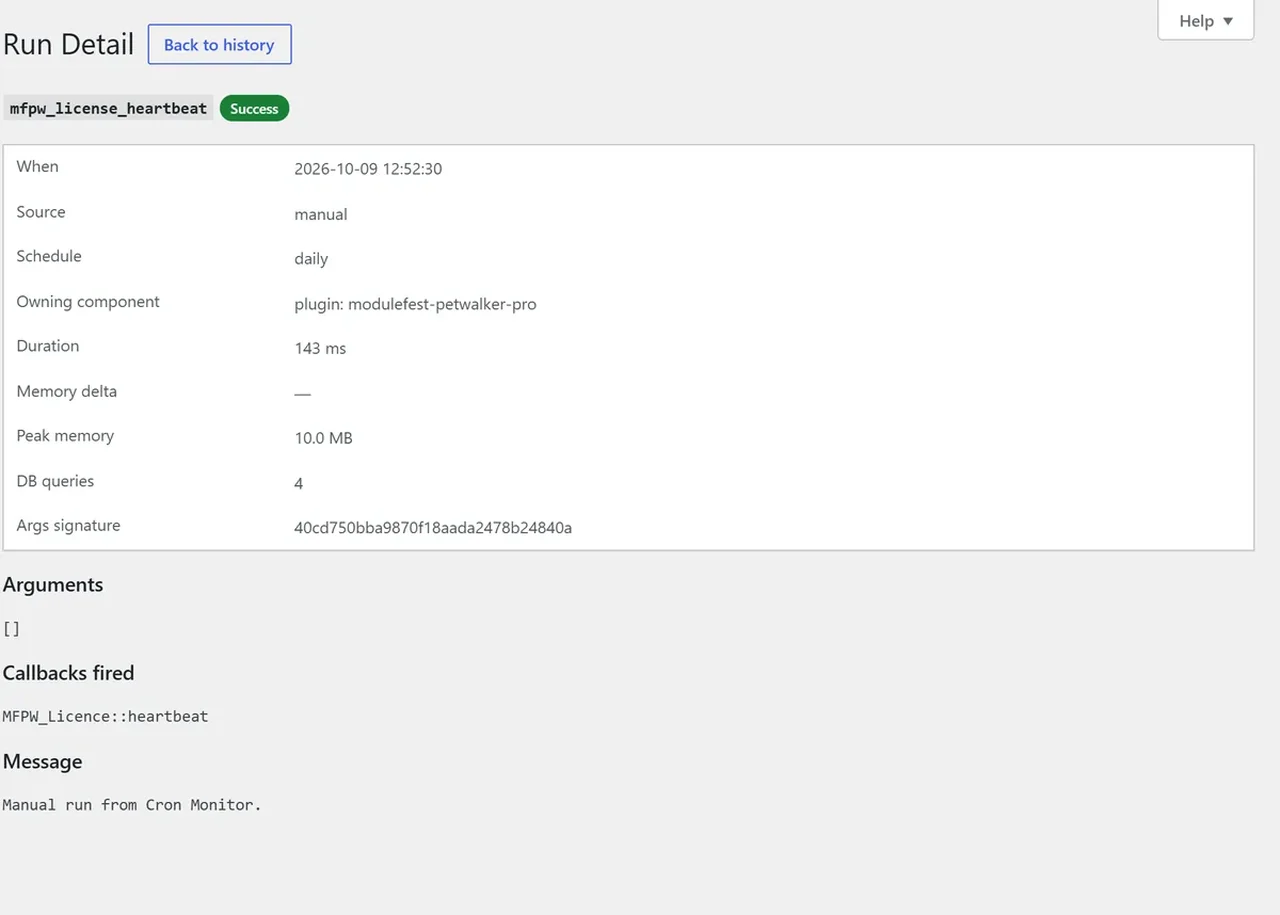
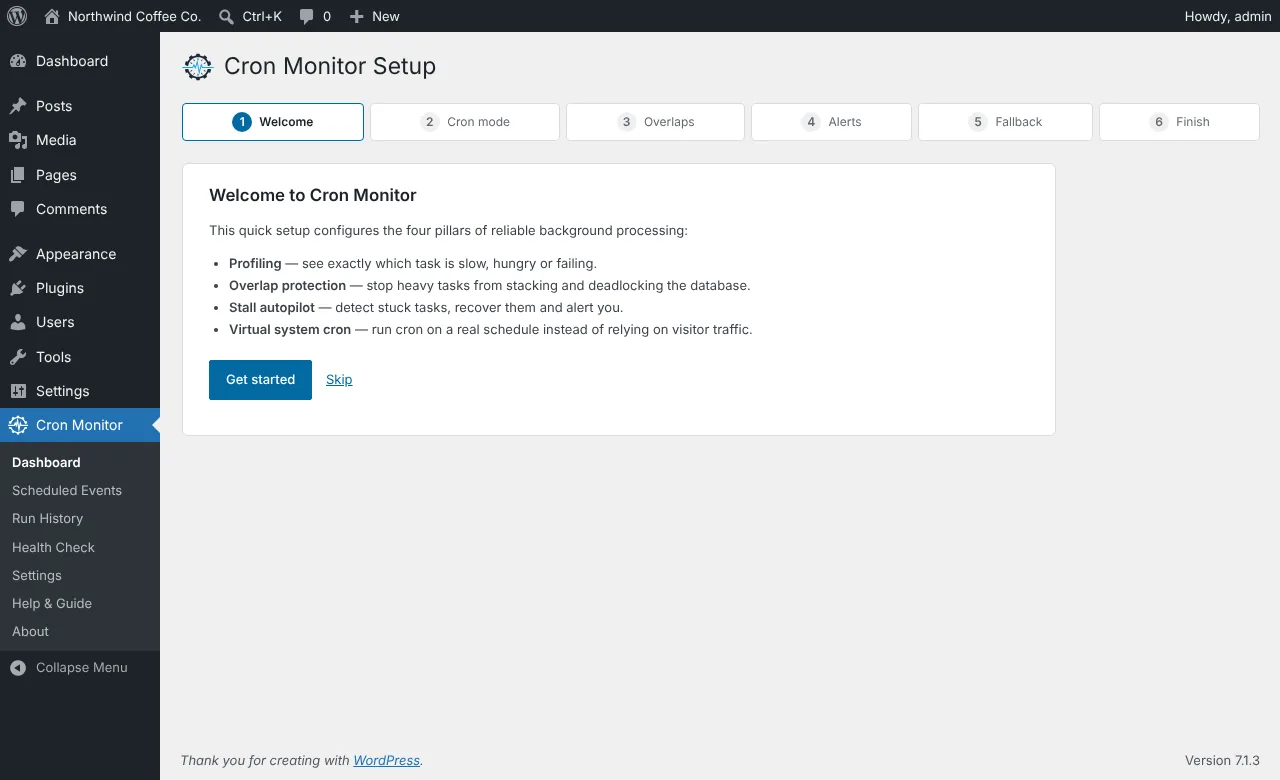
ModuleFest Cron Monitor
The control tower for your site's scheduled tasks.
Weitere Neuigkeiten
 Neue FunktionPet Groomer 2.77: Account credit and monthly billingManage advance payments and bill chosen clients just once a month.Was ist neu →
 Neue VersionModuleFest Pet Walker 2.771.222Kunden können jetzt im Voraus bezahlen und ihre Rechnungen über das Guthaben begleichen lassen. Außerdem in dieser Version: pay monthly in arrears: one invoice at the…Was ist neu →
 Neue VersionModuleFest Trades Business Manager 0.14.42Jobs, quotes, invoices and stock for tradesWas ist neu →